How to Purchase
Note
You’ll need to install Kubaru in your Salesforce org before purchasing.
Ready to purchase? You can use the contact form and we’ll take care of the rest! Alternatively, you can follow these steps to purchase directly from the Salesforce AppExchange:
Sign into the Salesforce AppExchange.
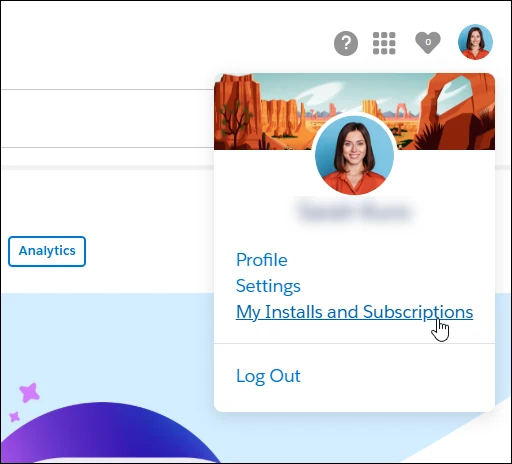
Click your avatar in the upper right corner and click My Installs & Subscriptions.
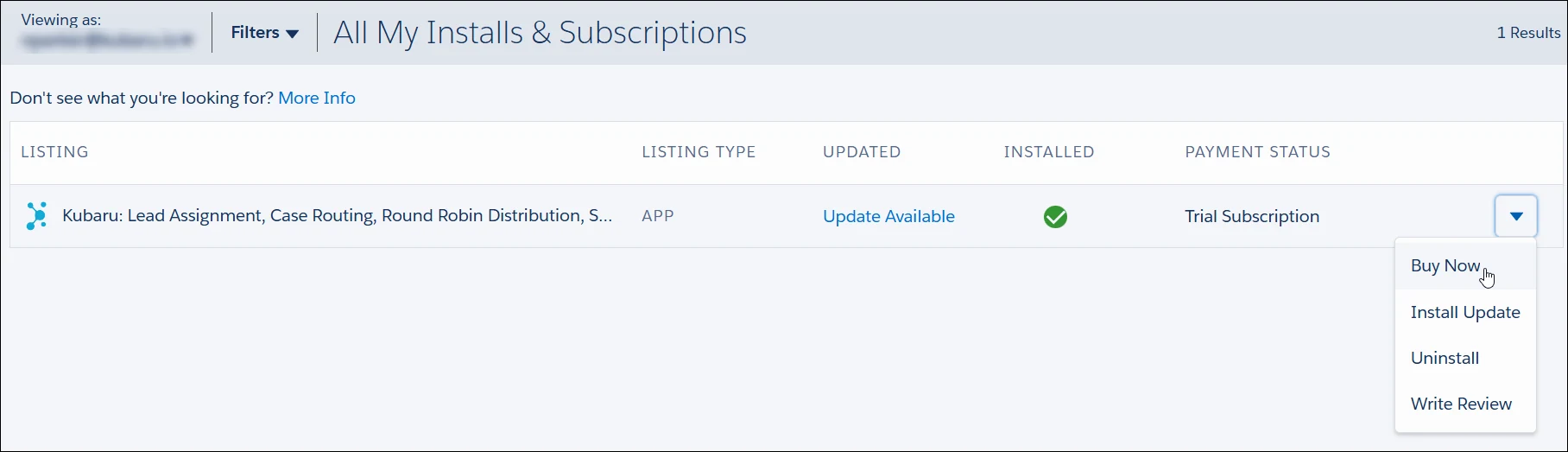
Select Buy Now from the dropdown next to Kubaru. You’ll be redirected to the AppExchange Checkout.
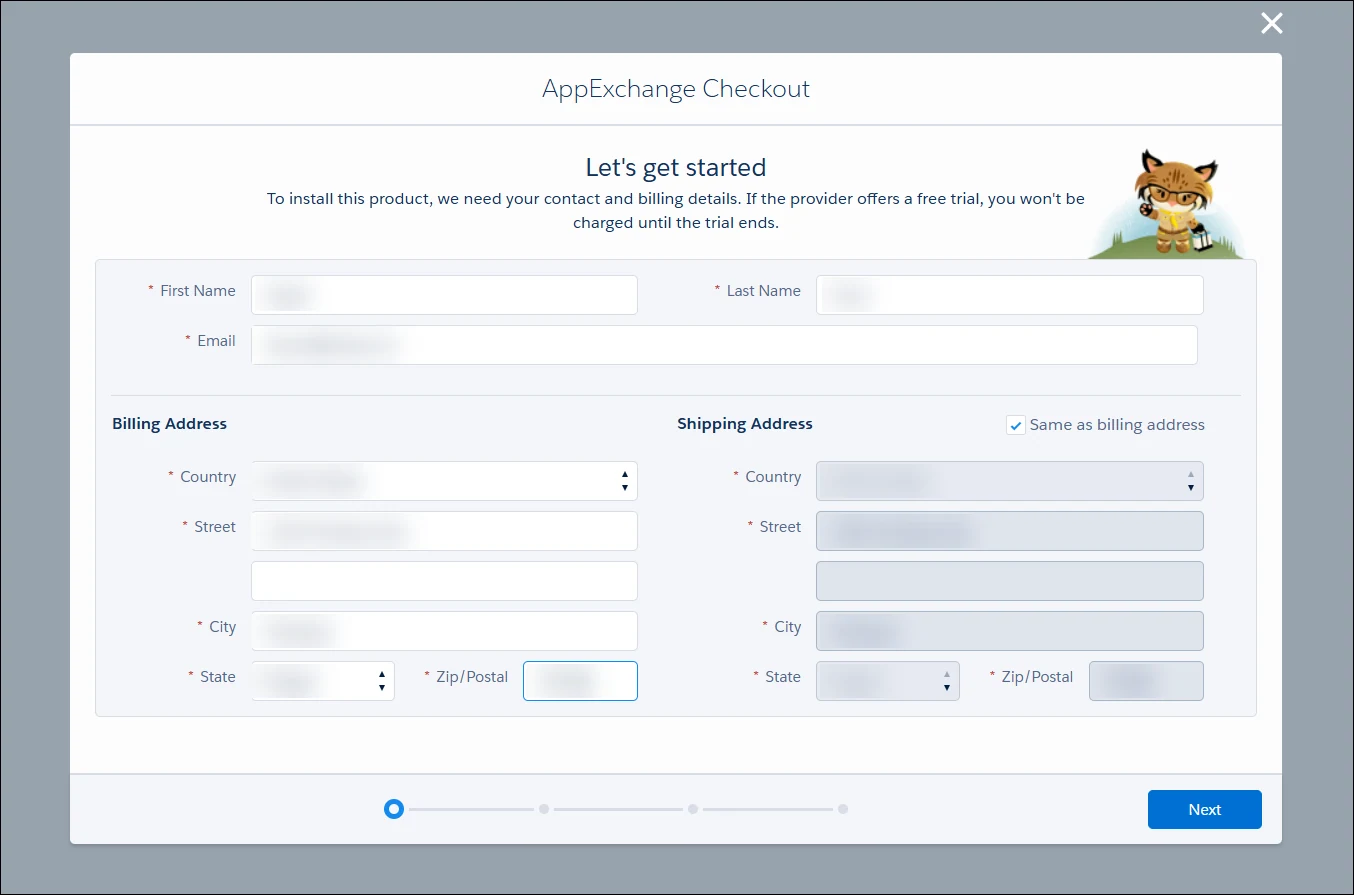
Enter your account information and click Next.
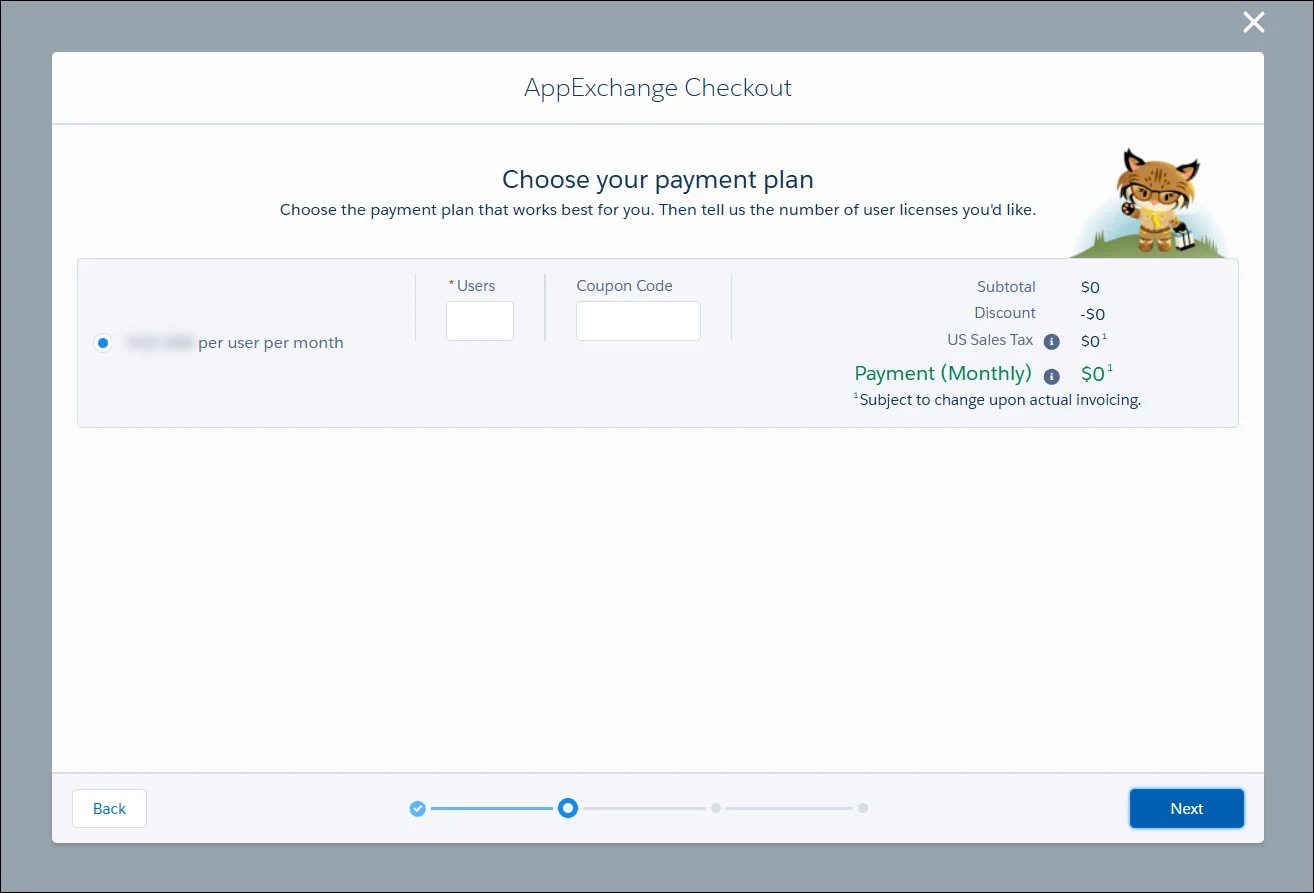
Enter the number of licenses you’d like to purchase and click Next.
Enter your payment information and click Next.
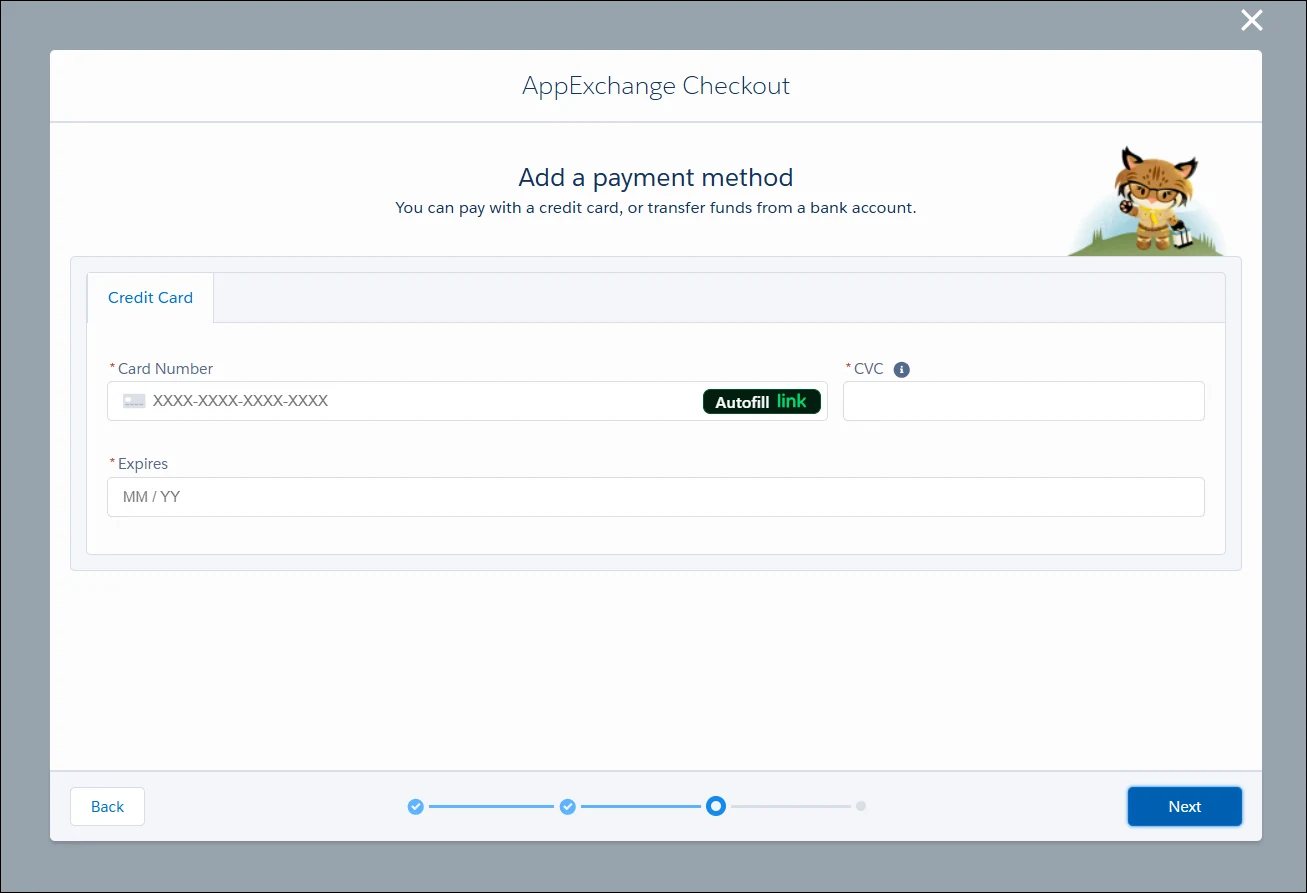
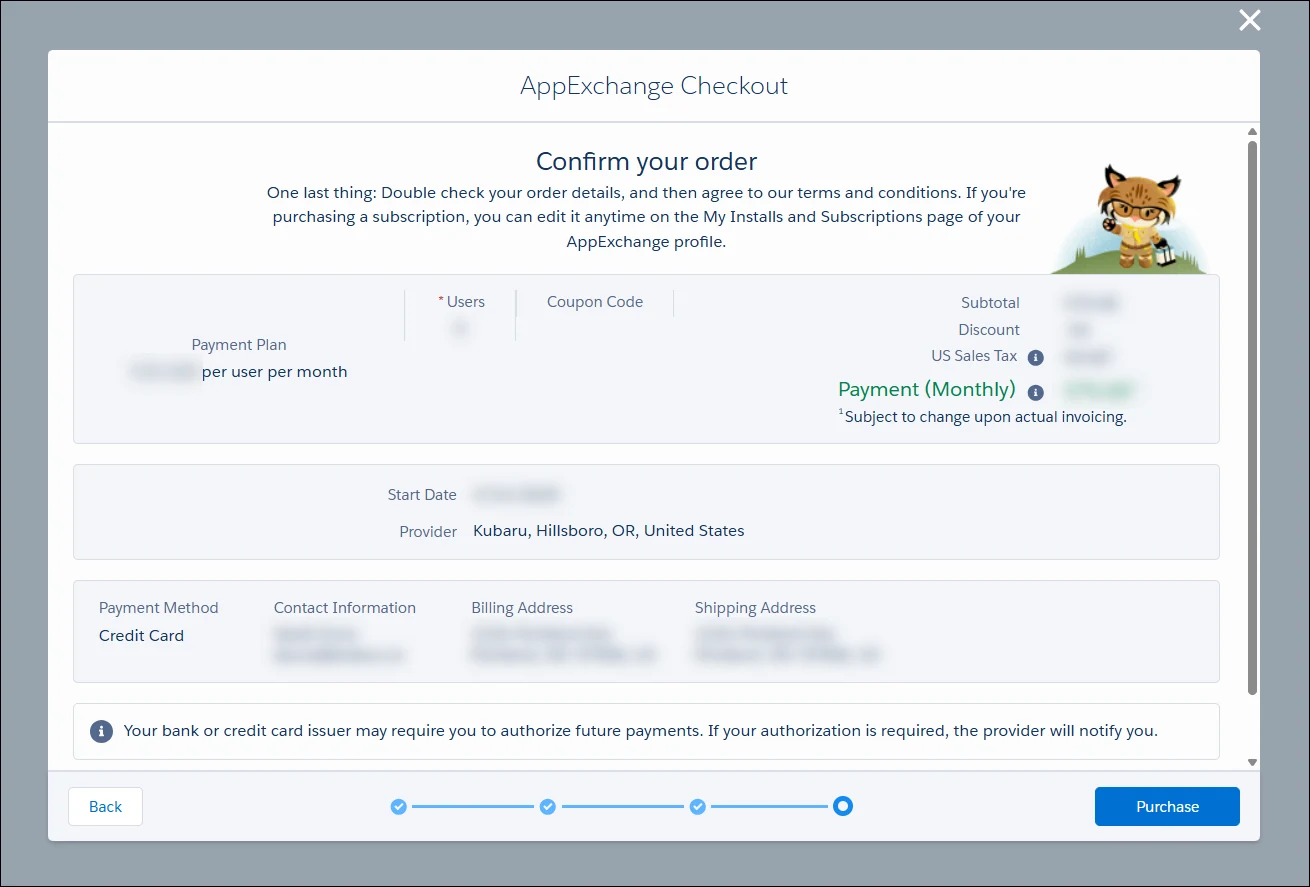
Review your changes and click Purchase after agreeing to the terms and conditions.
Now that you’ve purchased licenses, you’re ready to start using Kubaru! See Managing Users for instructions on how to assign licenses to your users. You can easily add and remove licenses as needed. See Adding and Removing Licenses for instructions. Contact us through the contact form with any questions about purchasing.