How to Install Updates
We recommend keeping Kubaru up to date to ensure you always benefit from the latest features, performance improvements, and bug fixes. The update process only takes a few minutes and won’t disrupt your existing configuration.
Installing Updates in a Sandbox
Follow these steps to update Kubaru to the latest version in your sandbox:
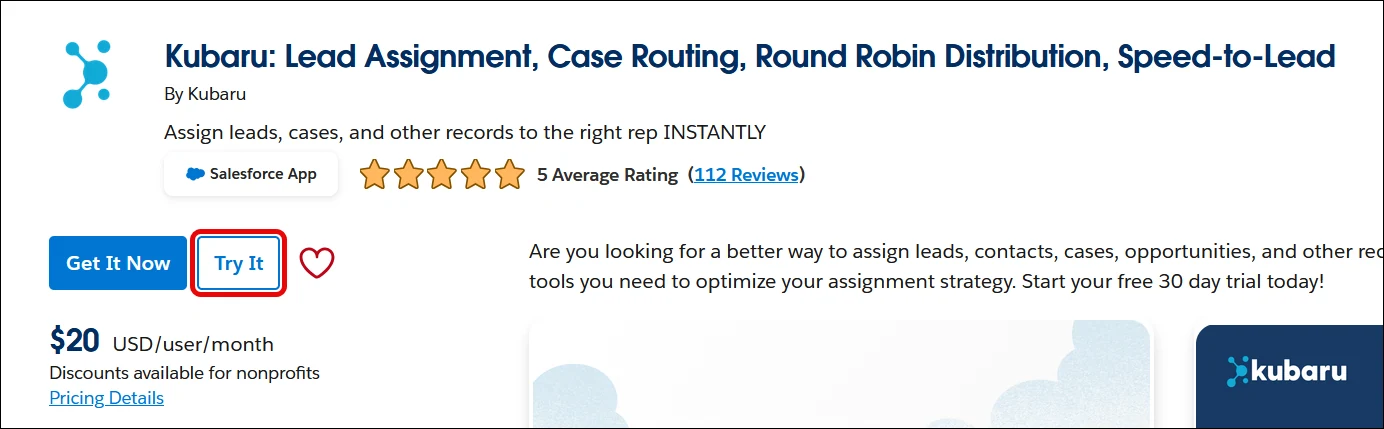
Navigate to our AppExchange listing.
Click the Try It button.
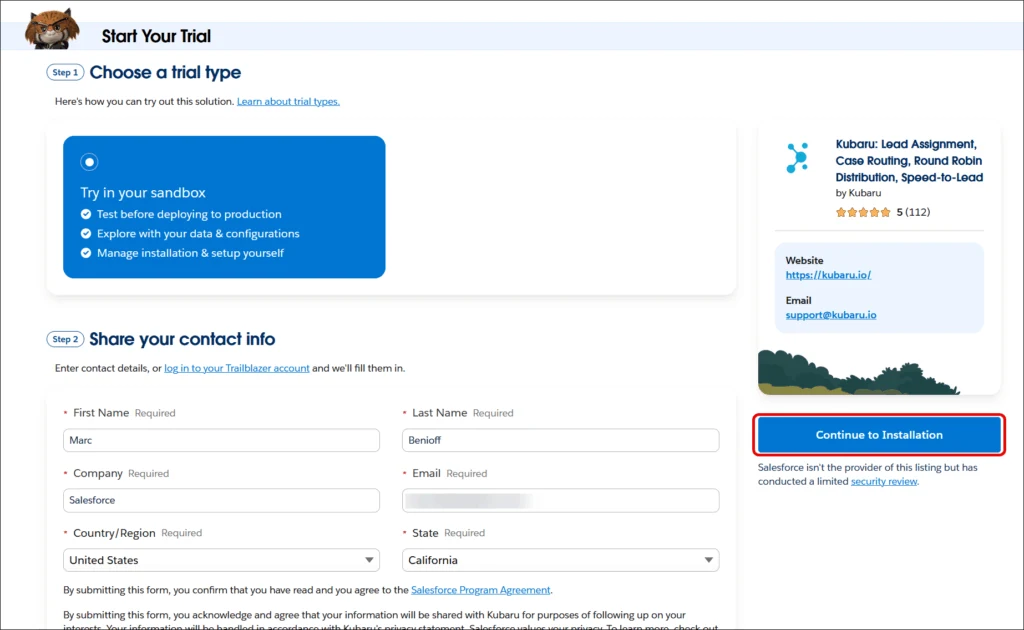
Select Try in your sandbox, enter your contact information, and click Continue to Installation.
Log into the Salesforce sandbox where you’d like to install Kubaru.
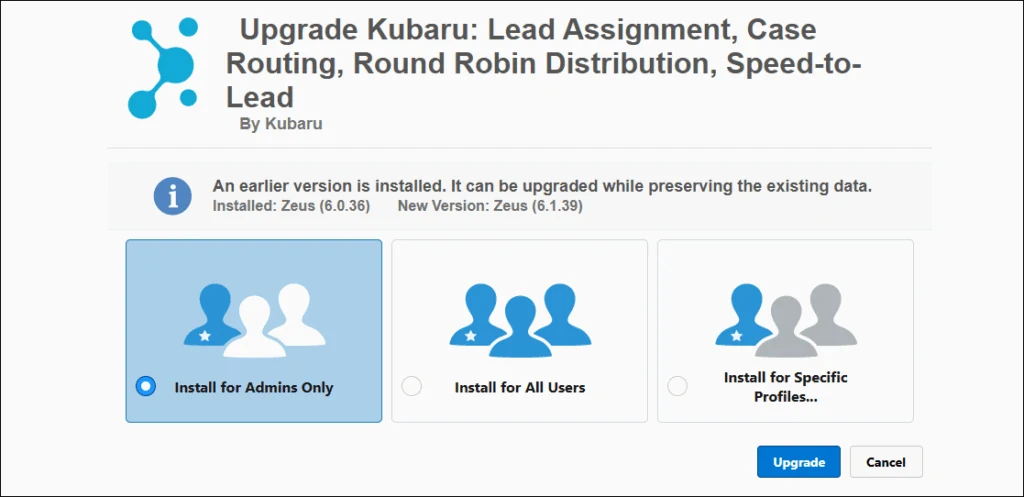
Choose the option to Install for Admins Only and click Upgrade.
You’ll receive an email confirmation once the update is complete.
Installing Updates in Production
Recommended
We recommend testing updates in a sandbox prior to installing in production.
Follow these steps to update Kubaru to the latest version in your production org:
Navigate to our AppExchange listing.
Click the Get It Now button (you may be prompted to log into your Trailblazer account).
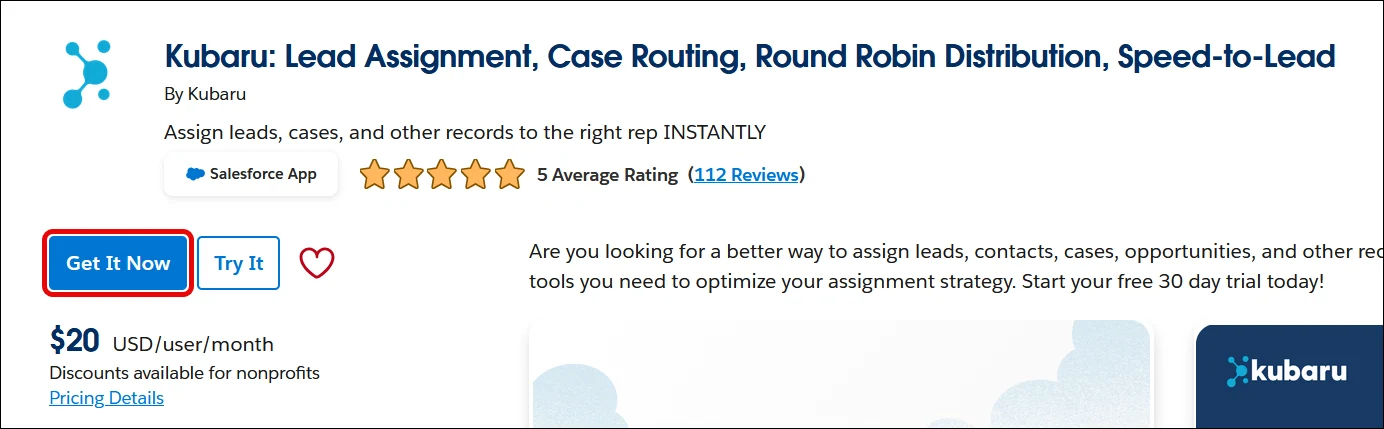
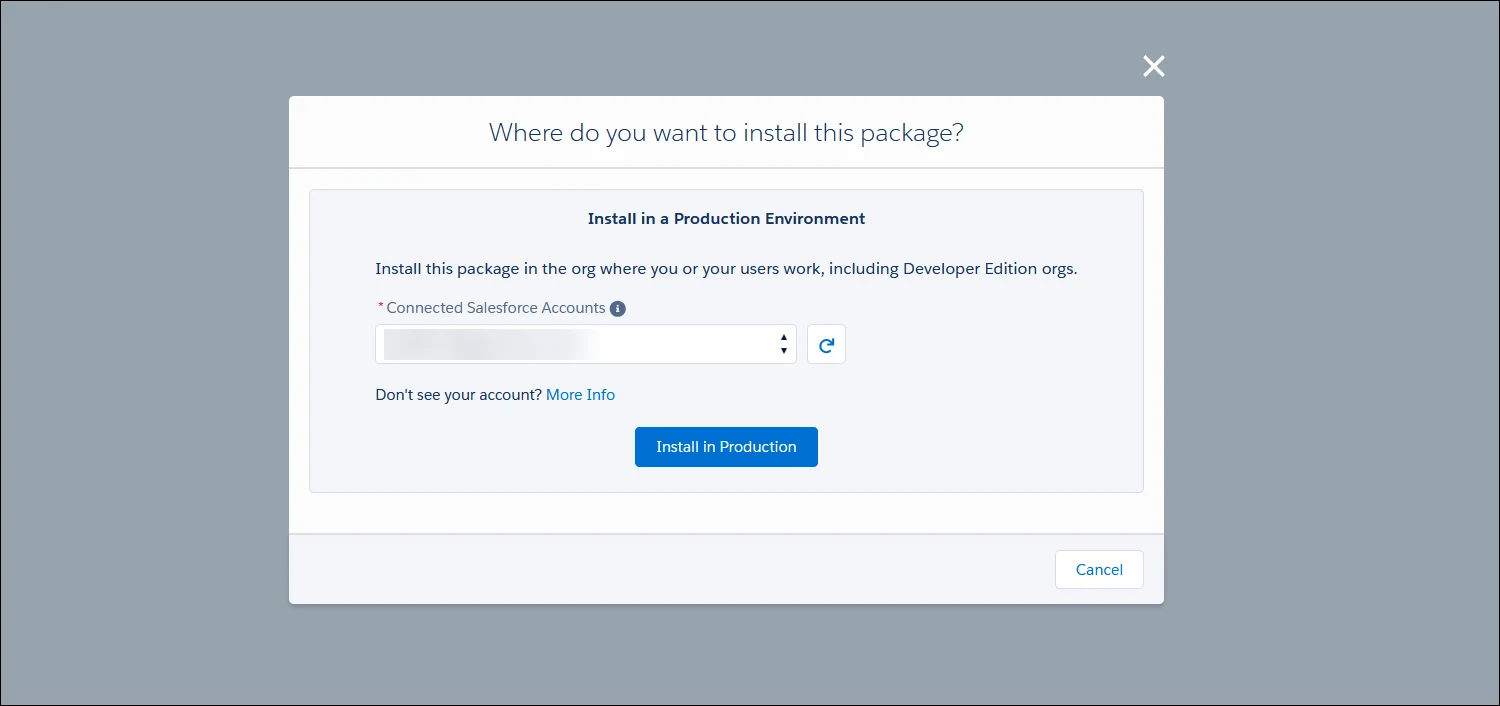
Select the production org where you’d like to install Kubaru.
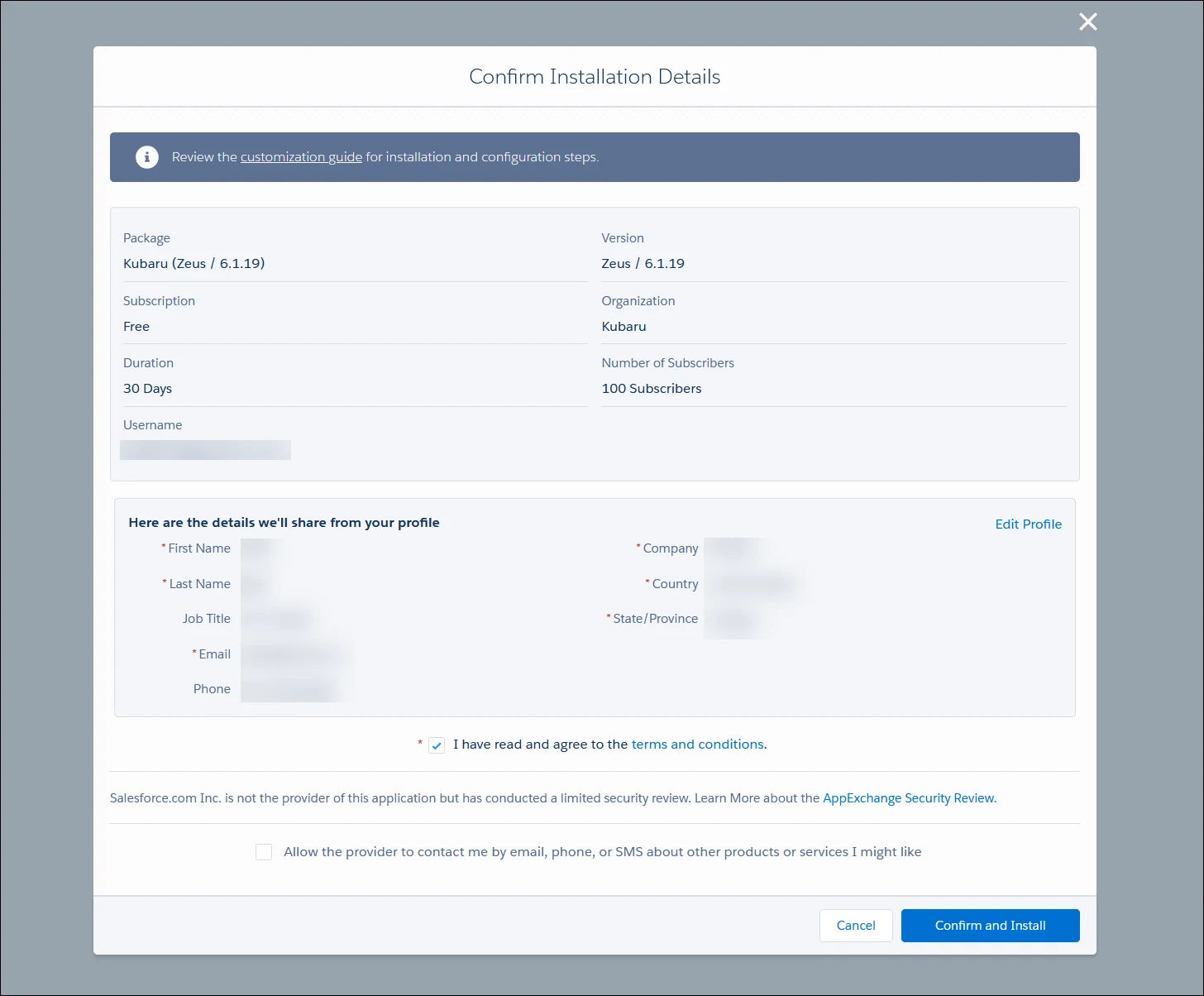
Agree to the terms and conditions and click Confirm and install.
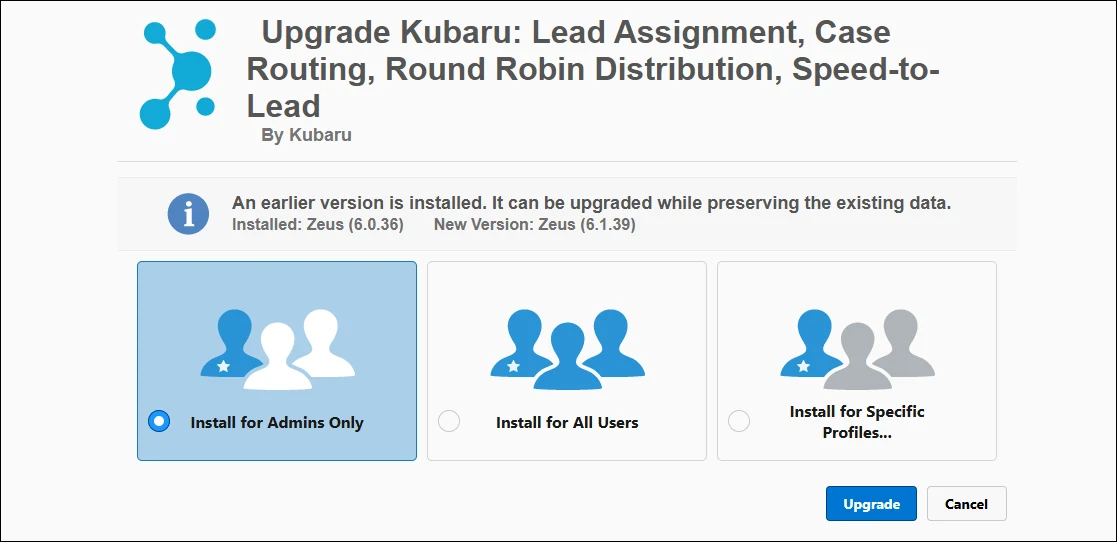
Choose the option to Install for Admins Only and click Upgrade.
You’ll receive an email confirmation once the update is complete.
Enable Automatic Updates
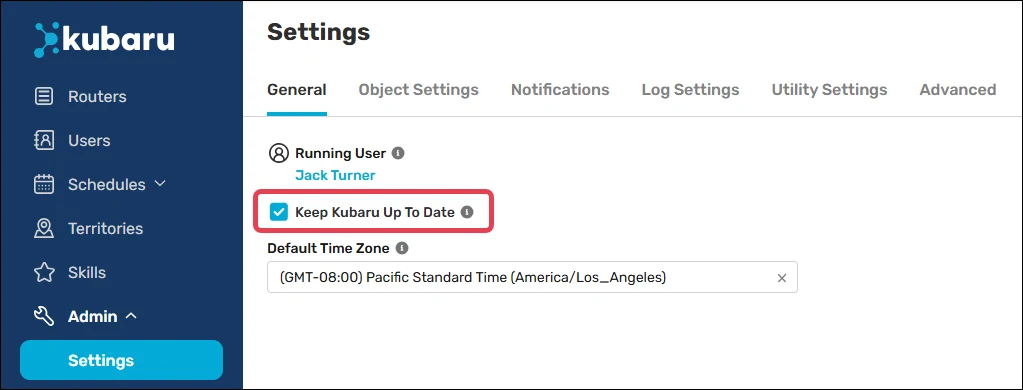
Alternatively, you can allow Kubaru to install updates automatically by following these steps:
Select Kubaru from the App Launcher menu.
Expand the Admin tab in the navigation menu and click Settings.
Check the box for Keep Kubaru Up To Date.