Priority Members
Priority Members allow extra assignments to be allocated to selected users. Here are a few common use cases for when you might add a user as a priority member:
A sales rep is assigned a junk lead (e.g., spam, test record, etc.) and you want to compensate them with an additional lead.
A sales rep is assigned a lead that another sales rep was already working on and requests compensation for an additional lead.
A mistake with weights, scheduling, or other settings resulted in a sales rep missing out on leads for a period of time.
When a router assigns a record, priority members are first considered for assignment. If a priority member has a “Ready” status, they will receive the assignment. Otherwise, they will be skipped.
Adding Priority Members
Follow these steps to add one or more priority members to a router:
Navigate to a router and click the Priority Members tab.
Click the Add Priority Member button.
Select a member and click Save.
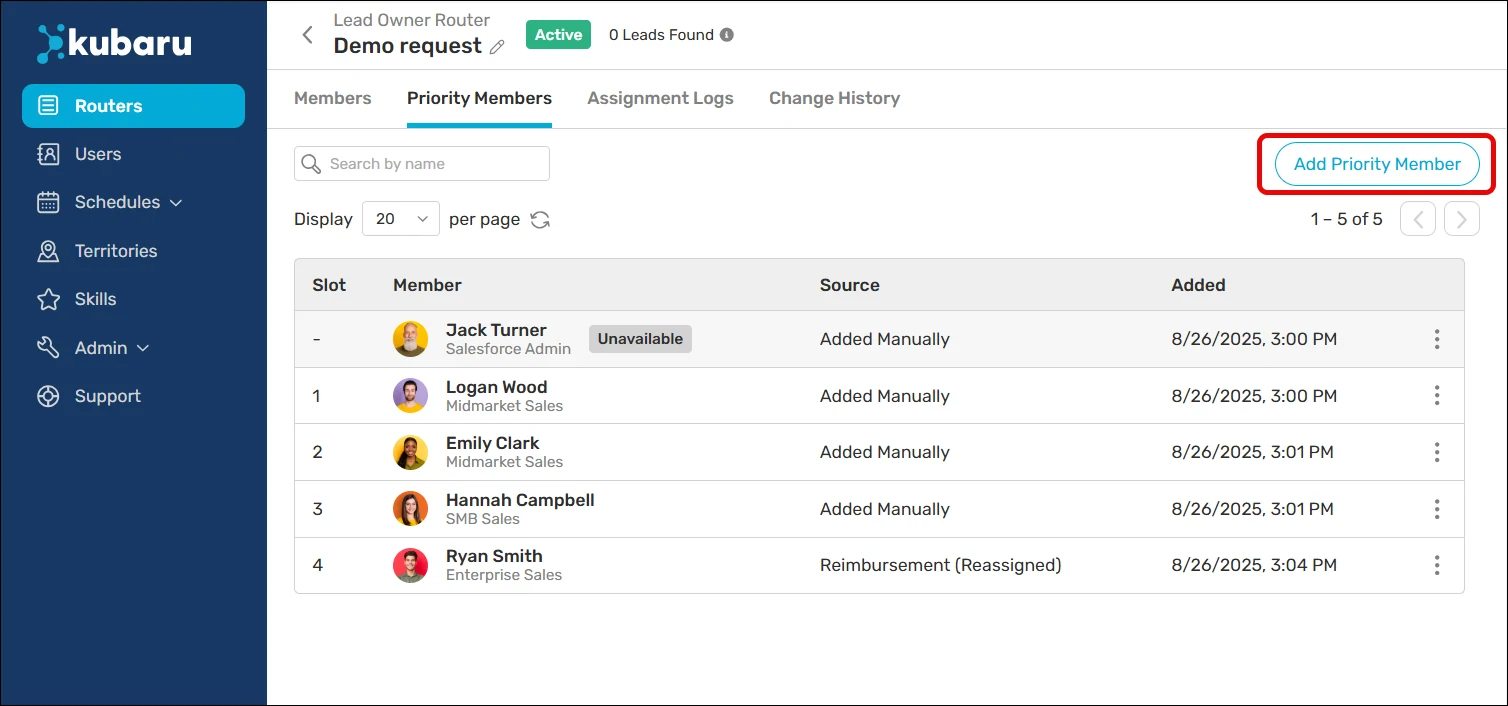
Priority members will appear with Source set to “Added Manually”.
Removing Priority Members
You can remove priority members by following these steps:
Navigate to a router and click the Priority Members tab.
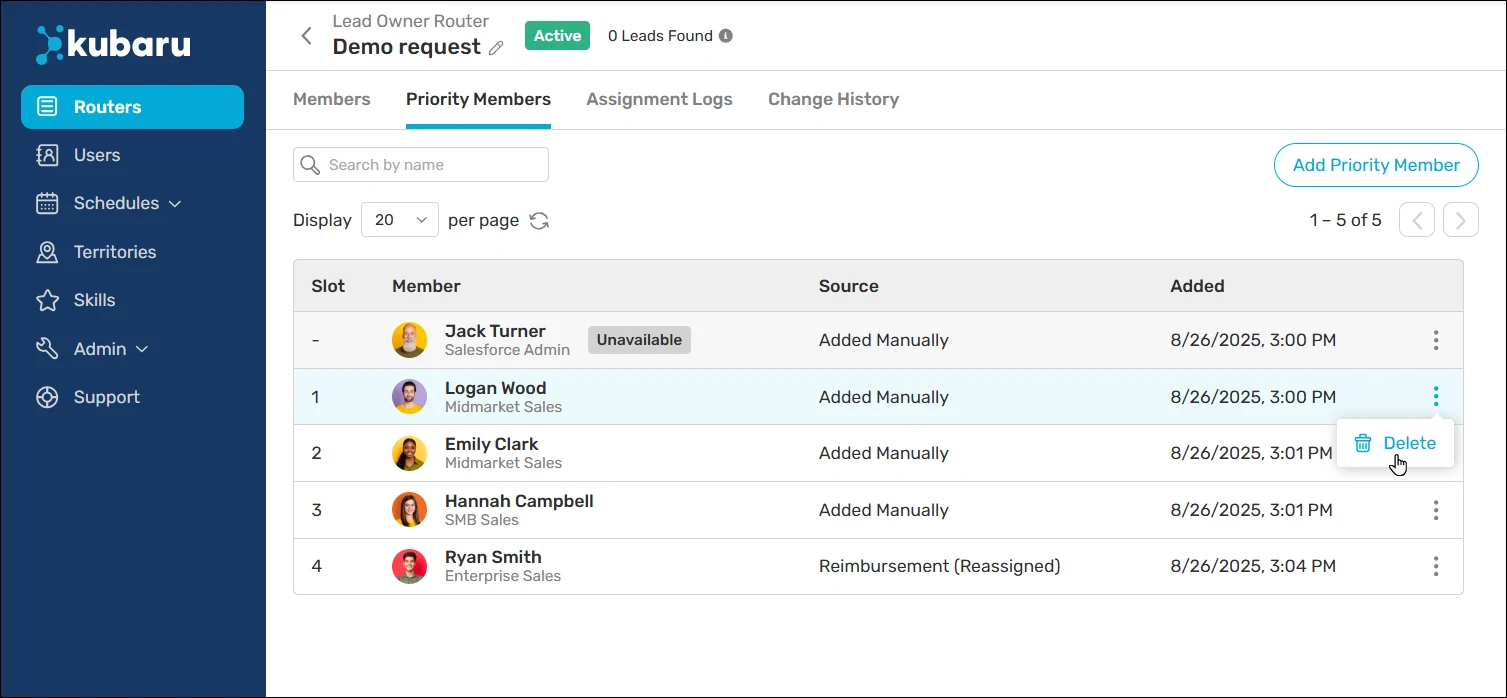
Expand the Action Menu for the priority member you want to remove and click Delete.
Keep in mind
Adding Priority Members is only available for round robin, load balance, territory assignment, rule-based assignment, and skill-based assignment routers.
Rule-based routers include a separate priority member list for each rule.
The Reimbursement feature automatically adds users as priority members based on the conditions you specify.