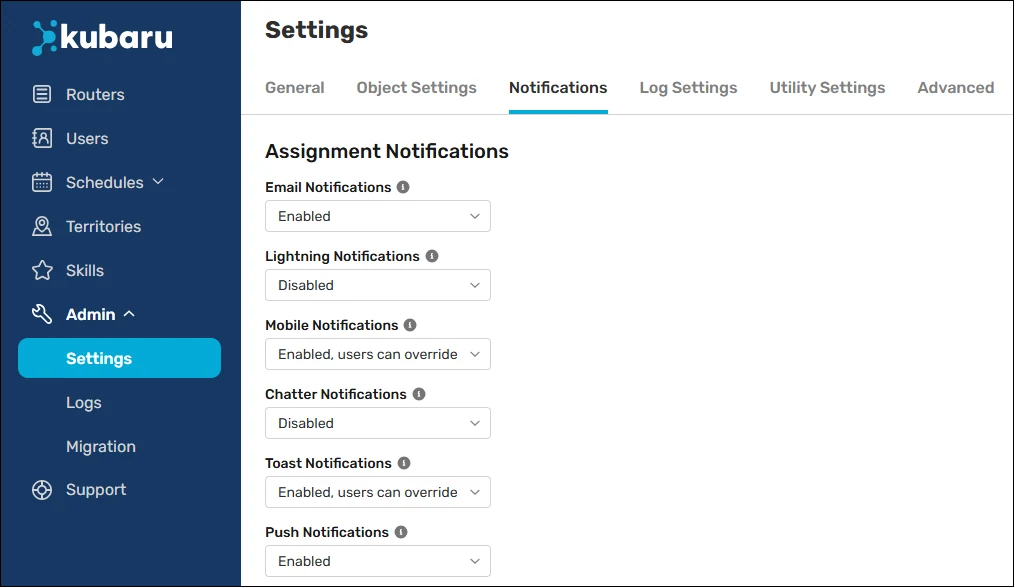
Assignment Notifications
Kubaru offers various ways to notify users of new assignments. When you install Kubaru, all notification types except Chatter and Slack are enabled by default.
Notification Methods
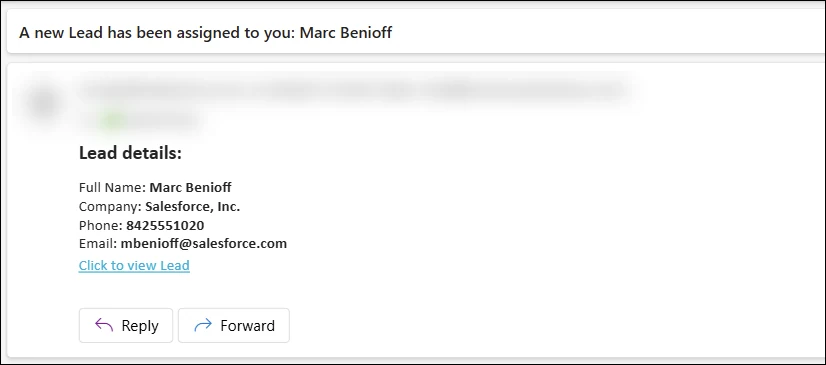
Email Notifications
Users receive an email notification from Salesforce for each new assignment. You can customize the email template or create your own.
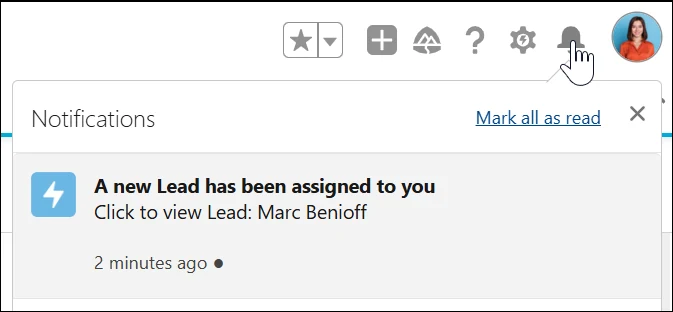
Lightning Notifications
Adds a new message to the notifications section of Lightning Experience for each assignment.
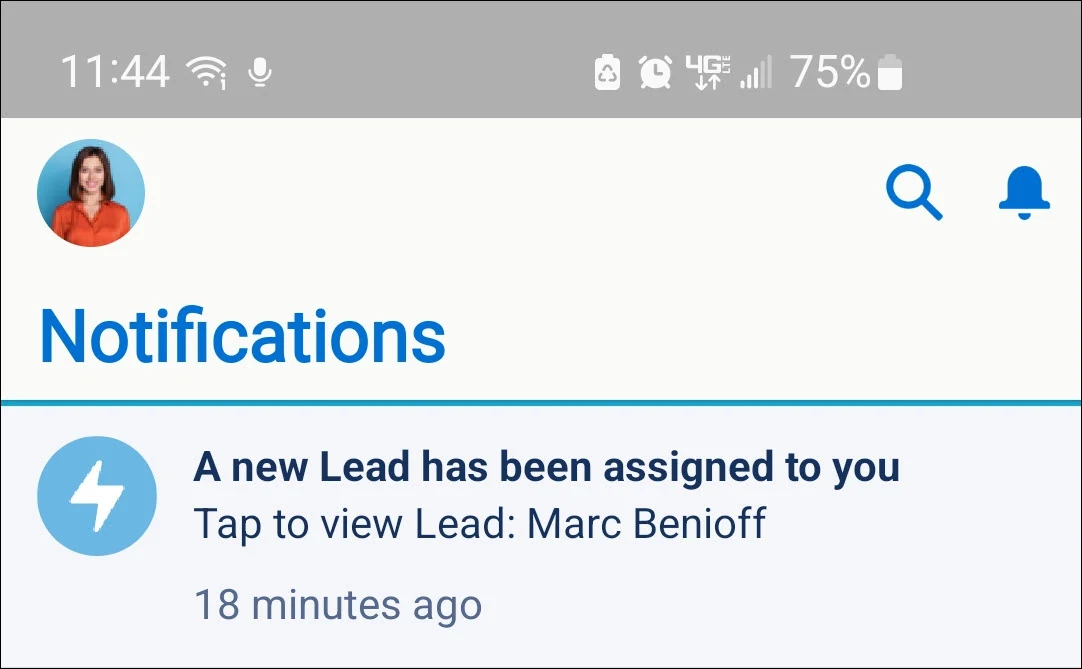
Mobile Notifications
Adds a message to the notifications section of the Salesforce mobile app. See Mobile Notification Setup for more details.
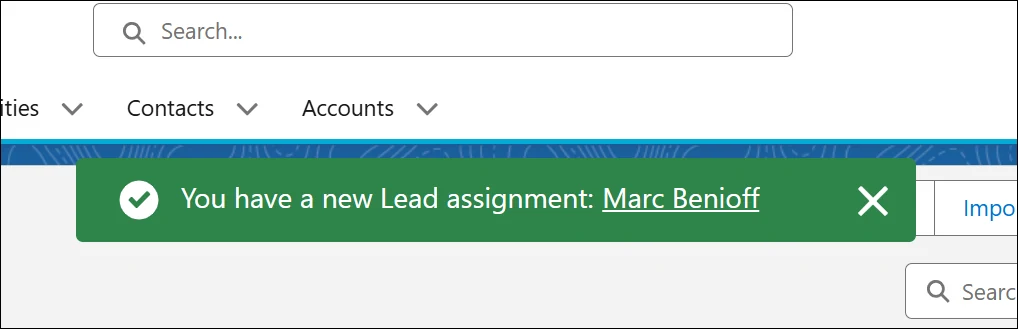
Toast Notifications
Displays a toast message at the top of any Lightning page when an assignment is received. This notification will only be displayed while using the Kubaru Utility.
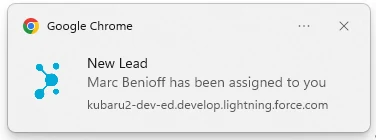
Push Notifications
Displays a popup notification in the corner of the screen. This notification will only be displayed while using the Kubaru Utility. Note: see Push Notifications Not Working if these are not working.
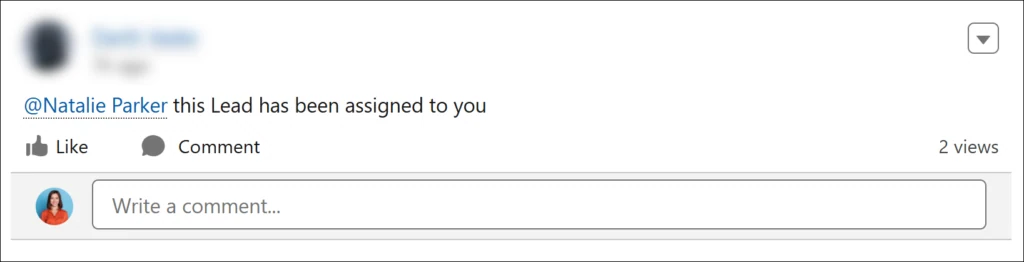
Chatter Notifications
Posts a chatter message to the assigned record with an @ mention of the assigned user so it’s brought to their attention. Chatter notifications are only available for objects with feed tracking enabled. Depending on your settings, chatter messages may also result in email and lightning notifications to users.
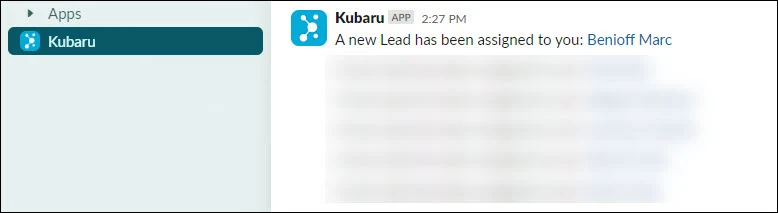
Slack Notifications
Send Slack messages to the assigned user. See Slack Integration Setup for instructions on how to set up this integration.
Microsoft Teams Notifications
Send Microsoft Teams notifications to the assigned user. See Microsoft Teams Integration Setup for instructions on how to set up this integration.
Sound Notifications
Plays a sound to notify the user of a new assignment or available shark tank record. Users can control the volume and type of sound played. This notification can only be received while using the Kubaru Utility. Note: see Sound Notifications Not Playing if these are not working.
Enable or Disable Notifications
Follow these steps to enable or disable each notification method:
Select Kubaru from the App Launcher menu.
Expand the Admin tab in the navigation menu and click Settings.
Click on the Notifications tab.
Select an option from the picklist to enable or disable notifications.
| SETTING | DESCRIPTION |
|---|---|
| Enabled | The notification will be enabled for all users. |
| Disabled | The notification will be disabled for all users. |
| Enabled, users can override | The notification will be enabled by default, but users will be able to disable it from the Kubaru Utility. |