Territory Geolocation
You can enable Territory Geolocation to define territory boundaries using latitude and longitude coordinates.
Enable Territory Geolocation
Follow these steps to enable this feature:
Expand the Admin tab in the navigation menu and click Settings.
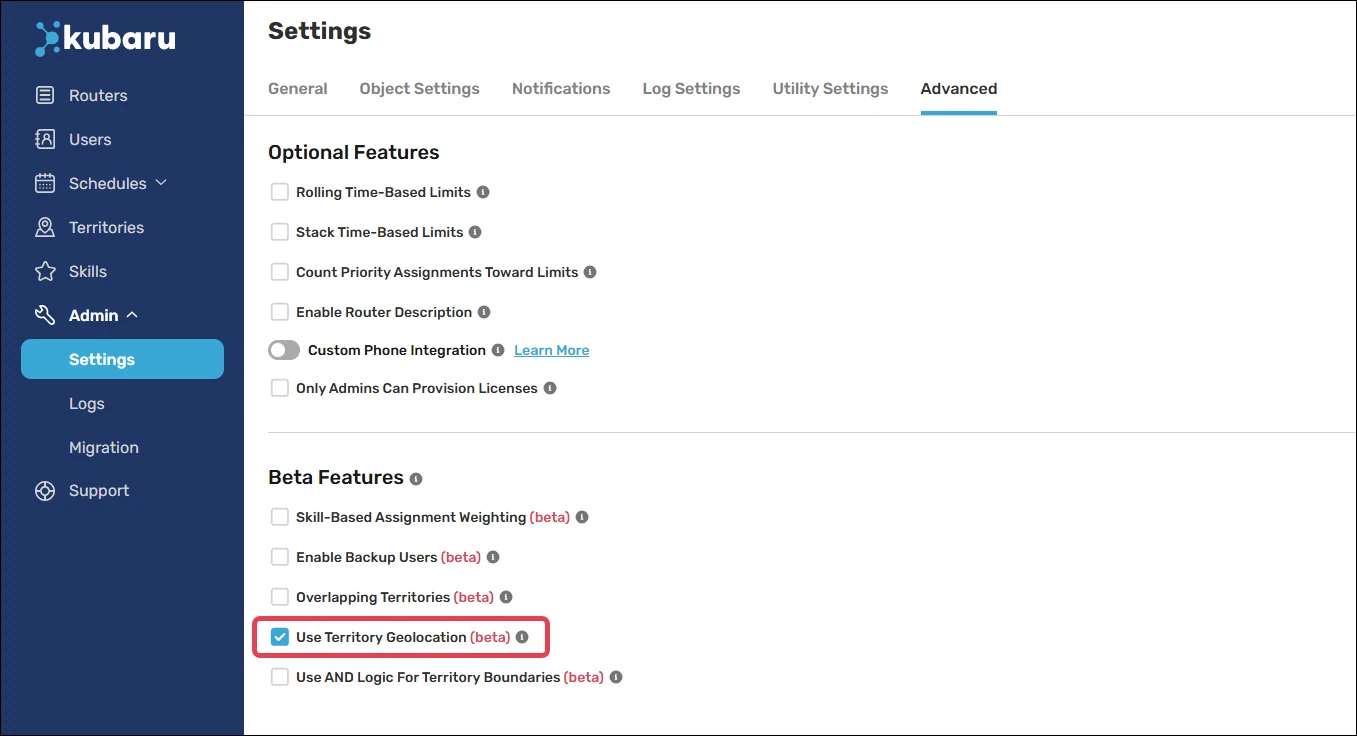
Click Advanced.
Scroll to the Beta Features section.
Check Use Territory Geolocation (beta).
Object Mappings
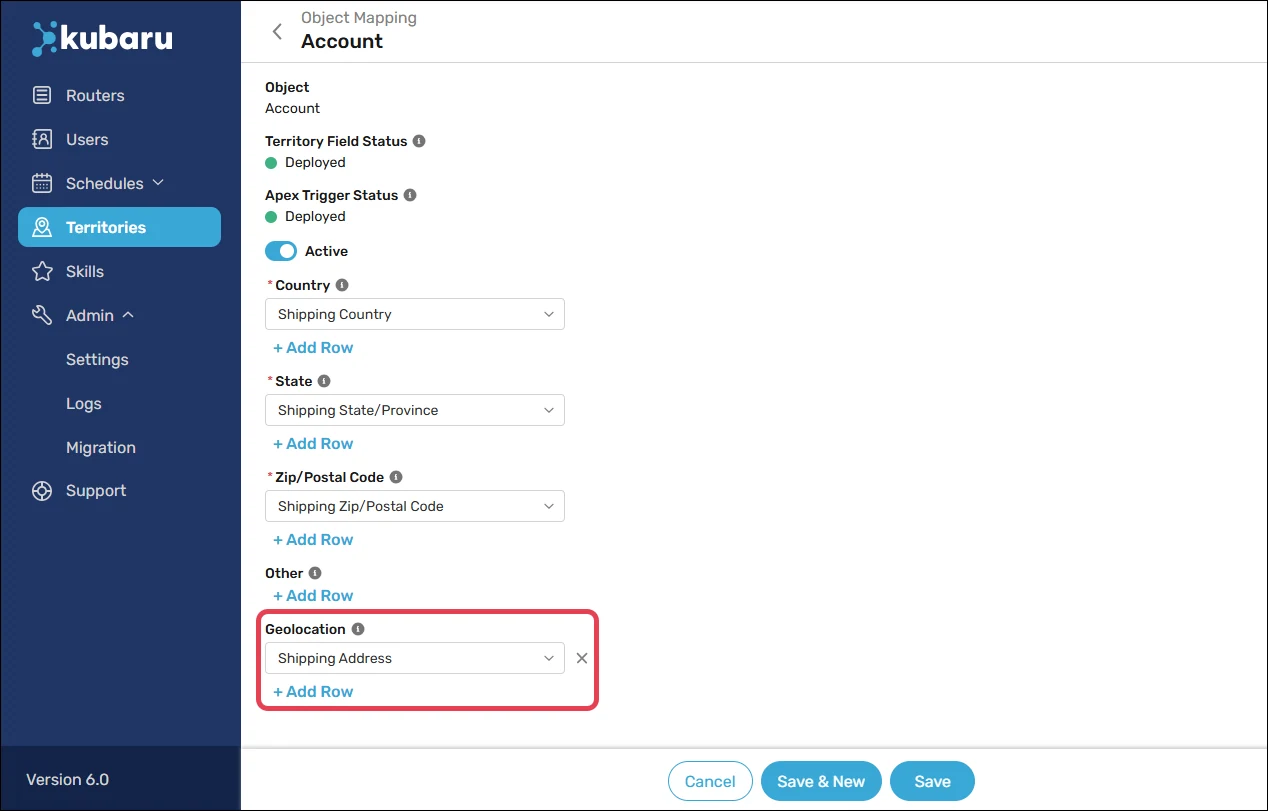
Next you’ll map the field that will be used for determining the geolocation coordinates. Follow these steps to do so:
Click Territories in the side navigation.
Click Object Mappings.
Click on the Object you want to map (e.g., “Account”).
Select the address field that should be used for Geolocation (e.g., “Shipping Address”).
Click Save.
Creating Territories
Follow these steps to create a territory that uses latitude and longitude ranges:
Create a new territory or edit an existing one.
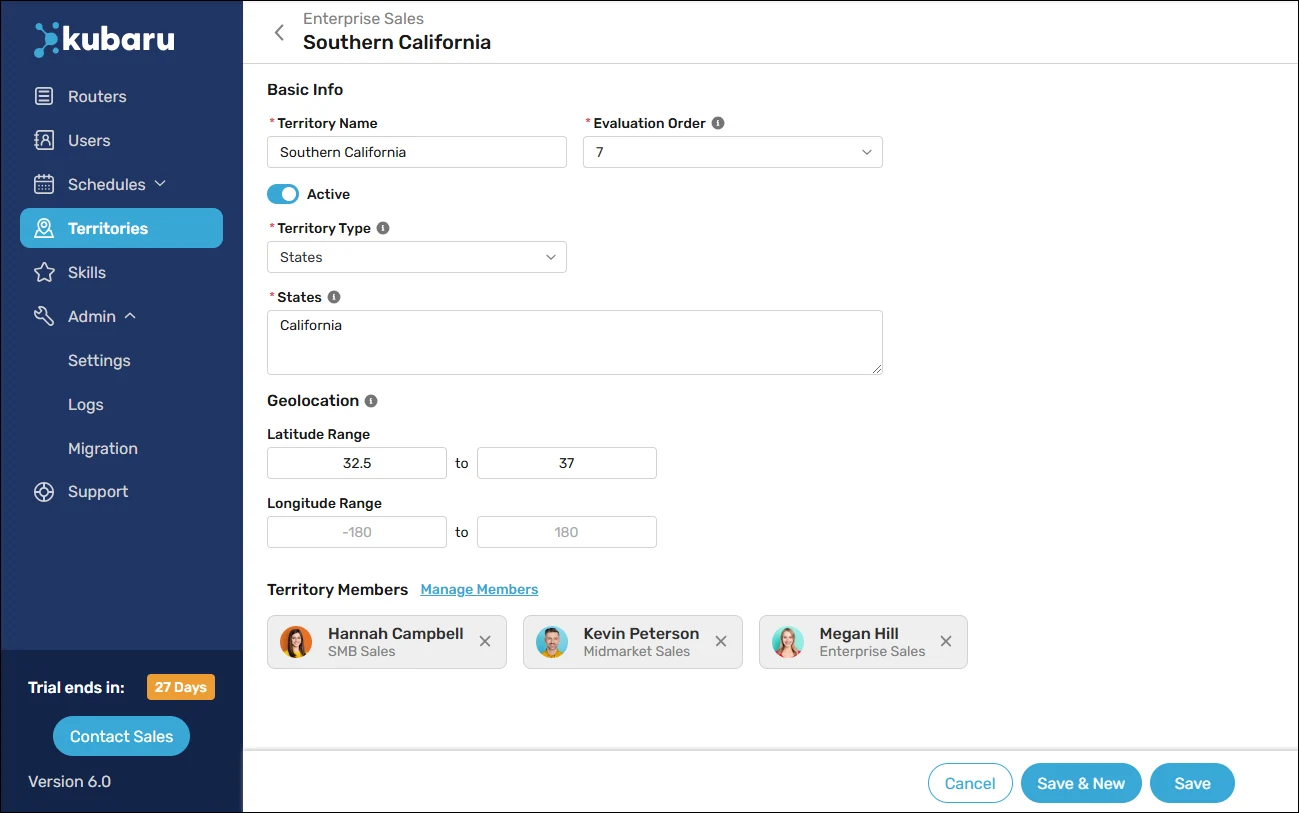
Enter a name in the Territory Name field (e.g., “Southern California”).
Select a Territory Type (e.g., “States”). See Creating Territories for more information.
Enter one or more values in the Countries, States, Zip/Postal Code, and/or Other fields. You can enter multiple values separated by a comma or a line break.
(Optional) Enter a Latitude Range. Only records with geolocation coordinates within this range will be included in this territory.
(Optional) Enter a Longitude Range. Only records with geolocation coordinates within this range will be included in this territory.
In the example below, we’ve created a territory for Southern California that includes anything within the State of California that falls within 32.5° and 37° latitude.