Migration
Heads up
You can only import components from a Salesforce org that has the same version of Kubaru installed. If needed, update Kubaru to the latest version in both Salesforce orgs before migrating.
Migration makes it easy to transfer your Kubaru components (e.g., routers, territories, skills, etc.) from one Salesforce org to another. This is especially useful for deploying changes from a sandbox to production.
Exporting Components
Follow these steps to export components from one of your Salesforce orgs:
Log into your Salesforce org.
Select Kubaru from the App Launcher menu.
Expand the Admin tab in the navigation menu and click Migration.
Click New Export.
Select the components you would like to export.
Click Export.
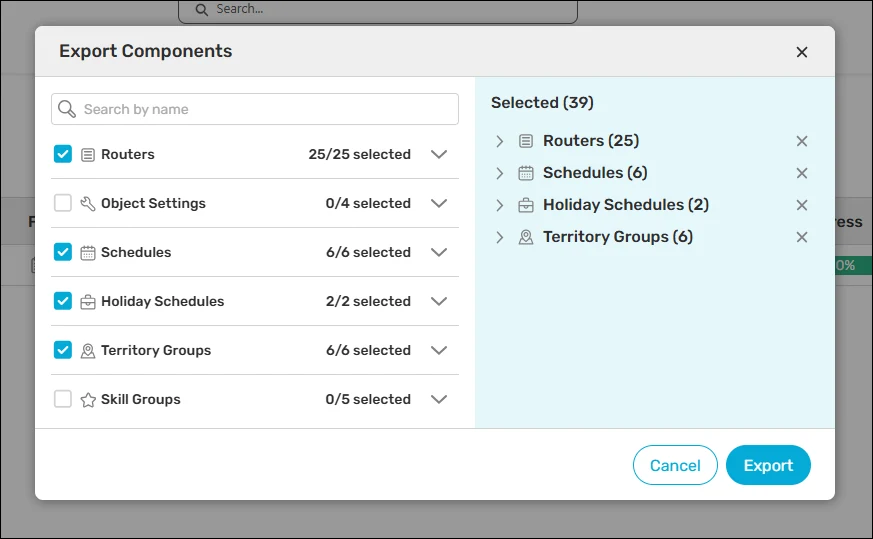
Your components will be exported as a JSON file.
Importing Components
Follow these steps to import the JSON file you exported to a different Salesforce org:
Log into your Salesforce org.
Select Kubaru from the App Launcher menu.
Expand the Admin tab in the navigation menu and click Migration.
Click New Import.
Choose a JSON file to import.
(Optional) Check Allow Partial Success if you’d like to allow components to be imported even if related components fail to import. If left unchecked, components will not be imported if related components fail to import.
Click Import.
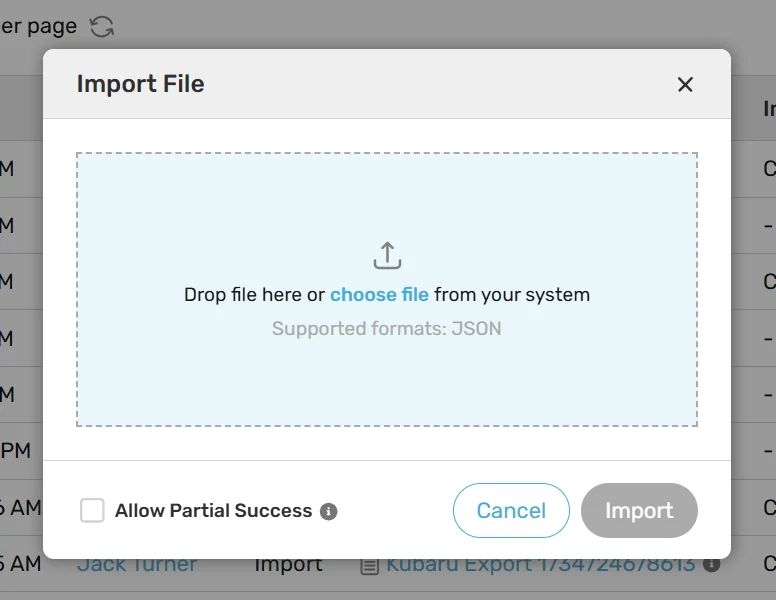
A CSV file containing the import results will download to your computer. If the import takes a long time, the CSV file will be emailed to you.
Keep in mind
Imported routers will always be created as Inactive.
Queues will attempt to be matched first by ID and then by name.
Users will first attempt to match by ID, then name, then username, then email.