Adding and Removing Licenses
You can use the contact form to add or remove licenses. Alternatively, if you initially purchased through the Salesforce AppExchange, you can follow these steps to add or remove licenses yourself:
Sign into the Salesforce AppExchange. You’ll want to sign in using the same credentials as the Salesforce org where Kubaru is installed.
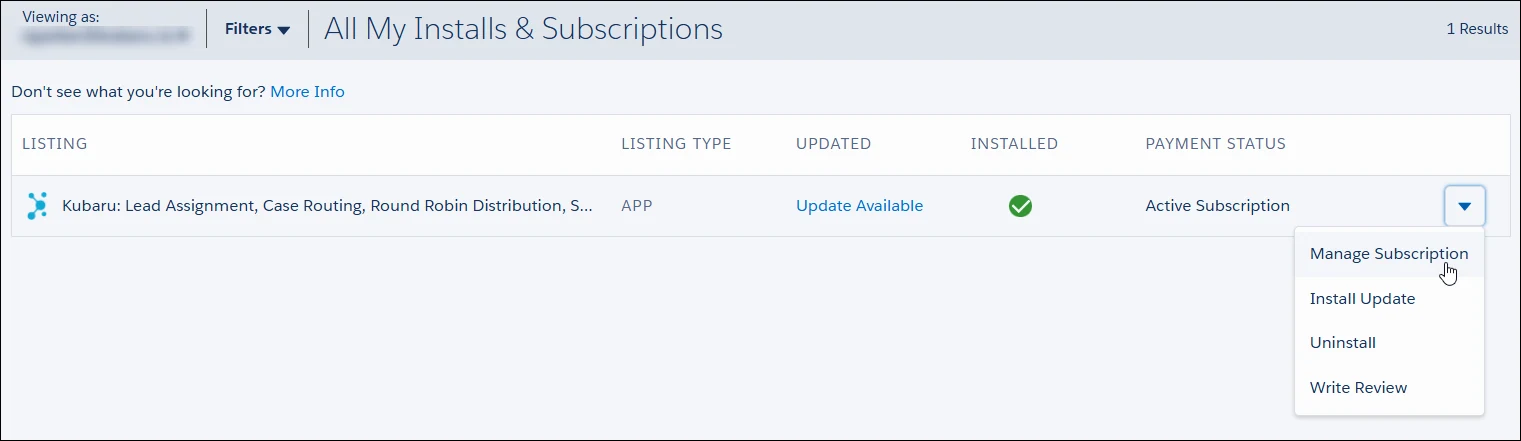
Click on your avatar in the upper right corner and click My Installs & Subscriptions (or open the link to go directly to the page).
Select Manage Subscription from the dropdown next to Kubaru. You’ll be redirected to AppExchange Checkout.
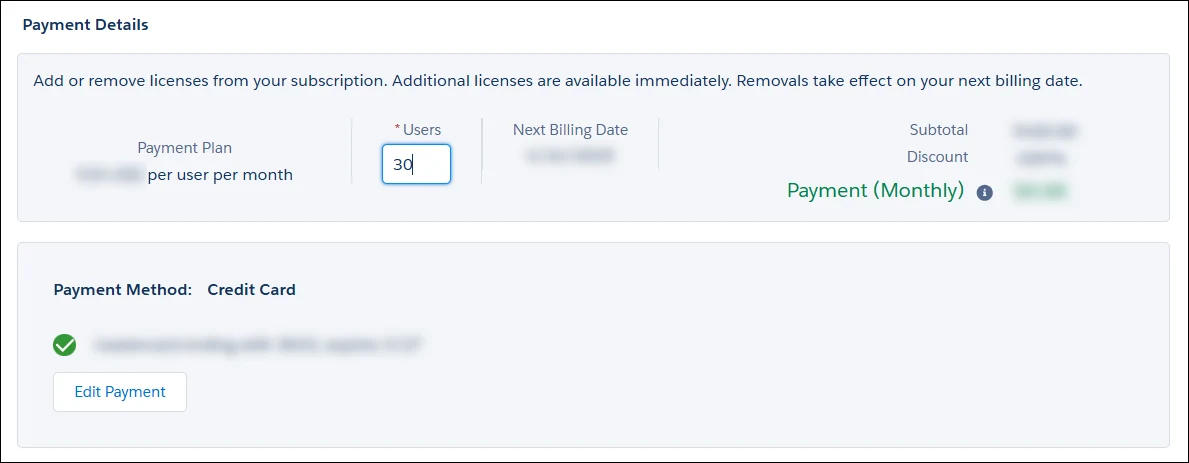
Click Edit.
Modify the number of licenses as needed.
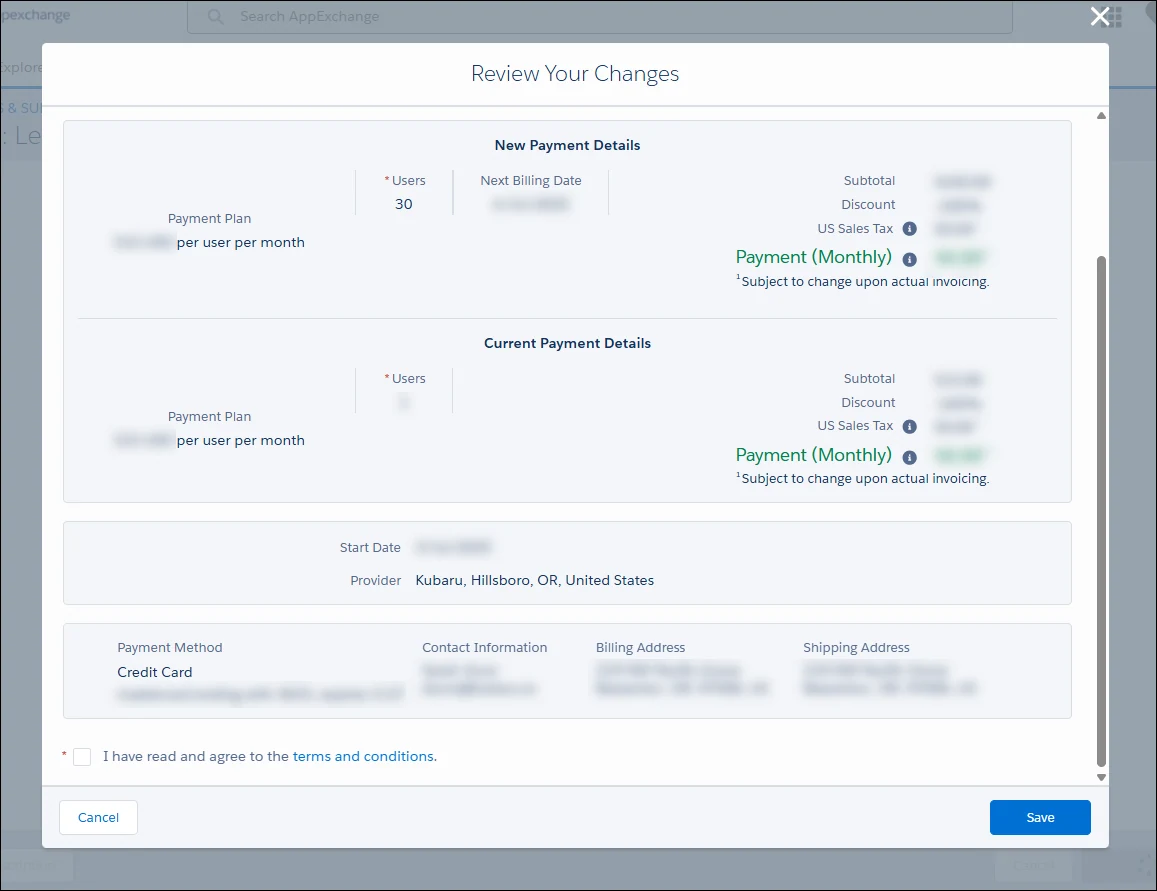
Click Review Changes.
Review your changes and click Save after agreeing to the terms and conditions.
Contact us through the contact form with any questions about adding or removing licenses.