Off Hour Schedules
By default, Distribution Schedules in Kubaru are used to define your team’s active working hours. These are the times when they should receive assignments. However, there are scenarios where it is easier to define when a team or individual is unavailable.
Enable Off Hour Schedules
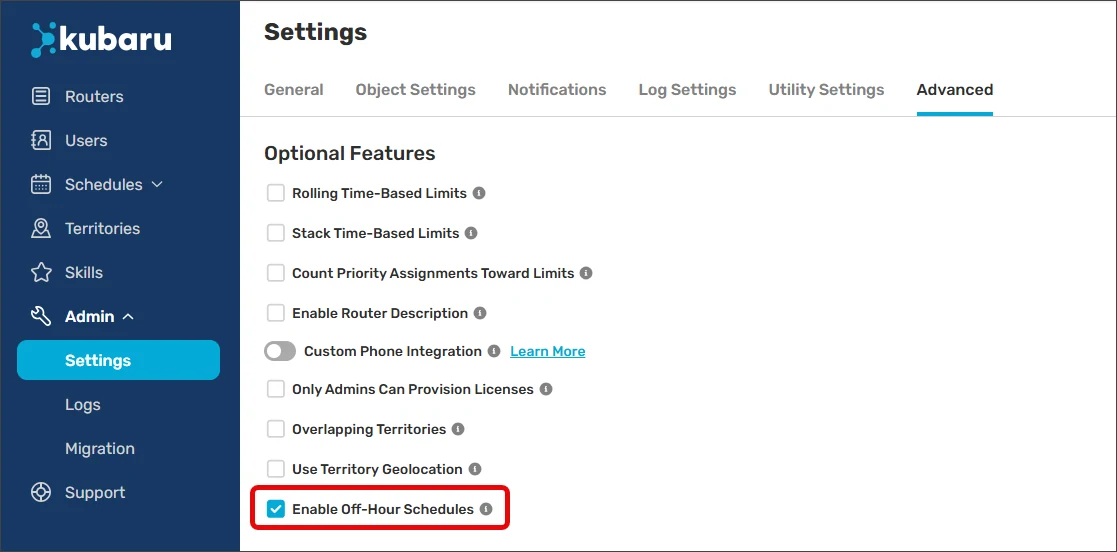
Follow these steps to enable off hour schedules:
Select Kubaru from the App Launcher menu.
Expand the Admin tab in the navigation menu and click Settings.
Click the Advanced tab.
Check the Enable Off-Hour Schedules checkbox in the Optional Features section.
Create a Schedule with Off Hours
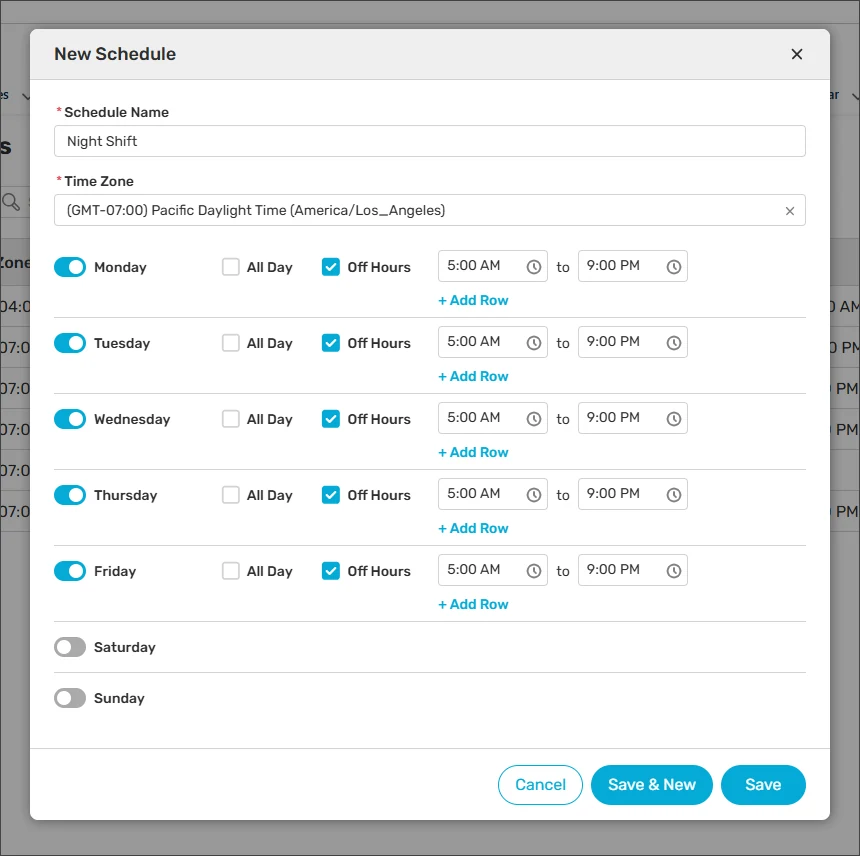
Follow these steps to create an off hour schedule:
Select Kubaru from the App Launcher menu.
Expand Schedules in the navigation menu and click Distribution.
Click the New Schedule button.
Enter a Schedule Name.
Select the appropriate Time Zone.
Check the toggle next to each day of the week you want to configure.
Check the Off Hours checkbox for the days during which you want to define off hours. Assignments will only be made during non-scheduled hours for these days.
Enter the specific hour blocks (e.g., 9:00 AM to 5:00 PM) that represent the off hours.
Click Save.