User Not Receiving Teams Notifications
Follow the steps in this article if users are not receiving Microsoft Teams notifications.
Teams Integration
Start by setting up the Teams integration.
Enable Teams Notifications
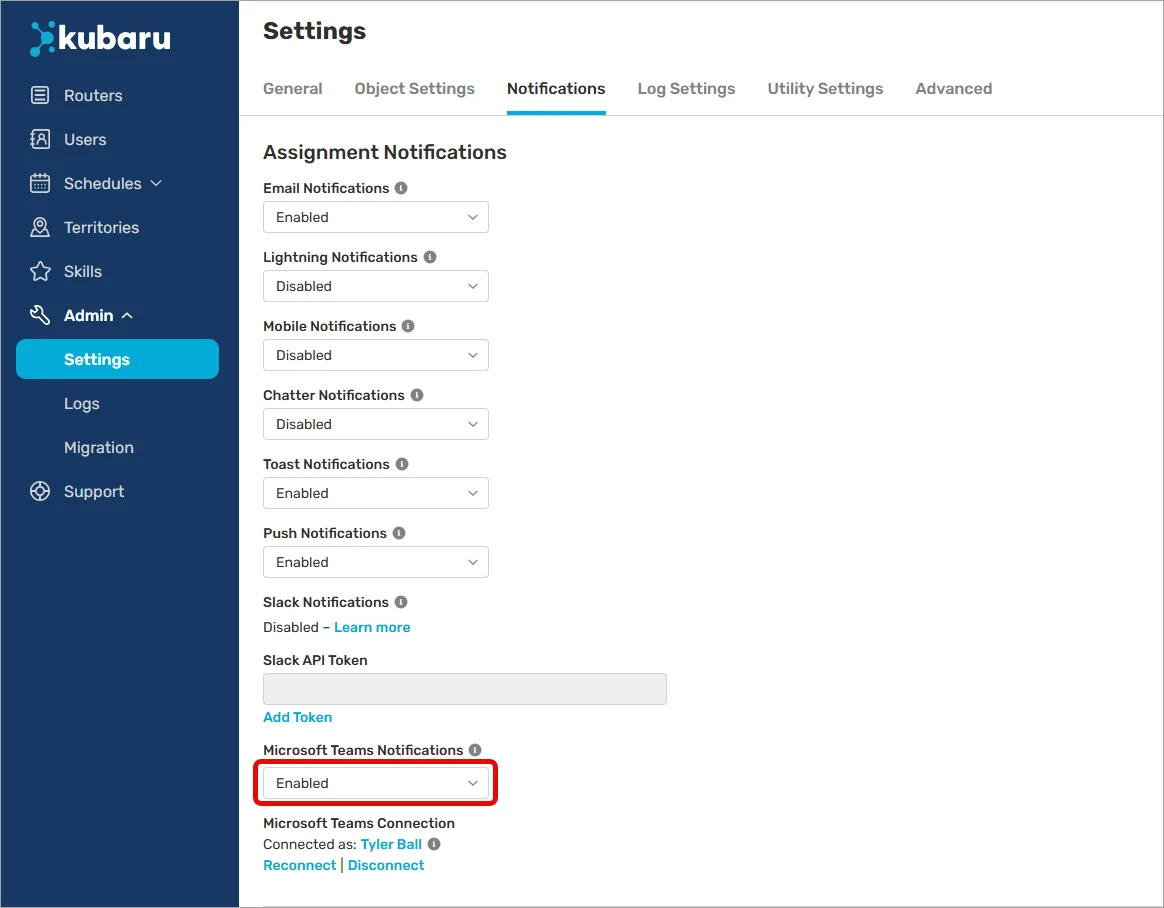
Follow these steps to confirm that Teams notifications are enabled:
Expand Admin in the navigation menu.
Click Settings.
Click Notifications.
Confirm Microsoft Teams Notifications is set to “Enabled” or “Enabled (users can override)”. Note: if you set this to “Enabled (users can override)”, your users will be able to disable these notifications in the Kubaru Utility.
Click Save.
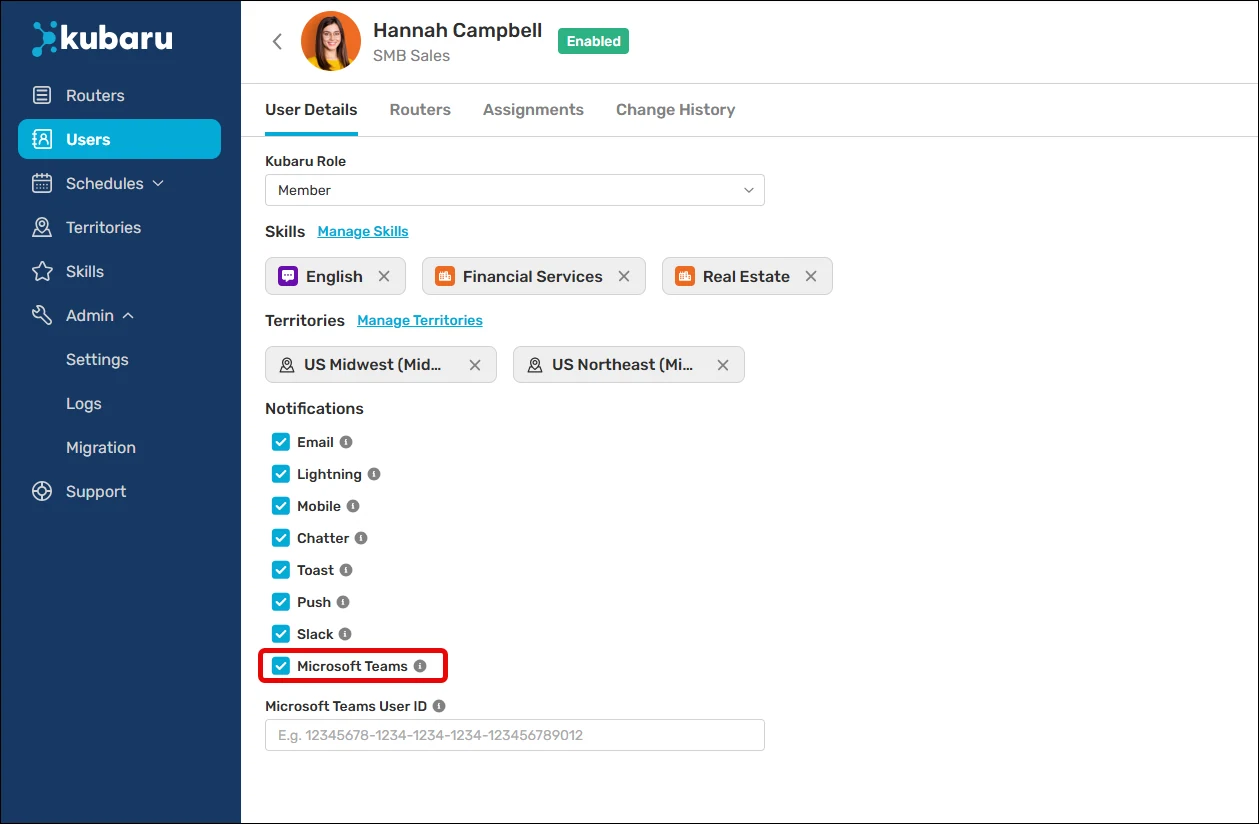
Next, we’ll ensure Teams notifications are not disabled for the user:
Click the Users tab in the navigation menu.
Click on a user’s name to navigate to their profile page.
Ensure the checkbox for Microsoft Teams is checked.
Click Save.
You’ll also want to ensure that Microsoft Teams notifications are set to “Use default settings (enabled)” in your router(s).
Unable to Find Teams User
You will receive the following error if Kubaru is unable to locate a Microsoft Teams user based on their email address.
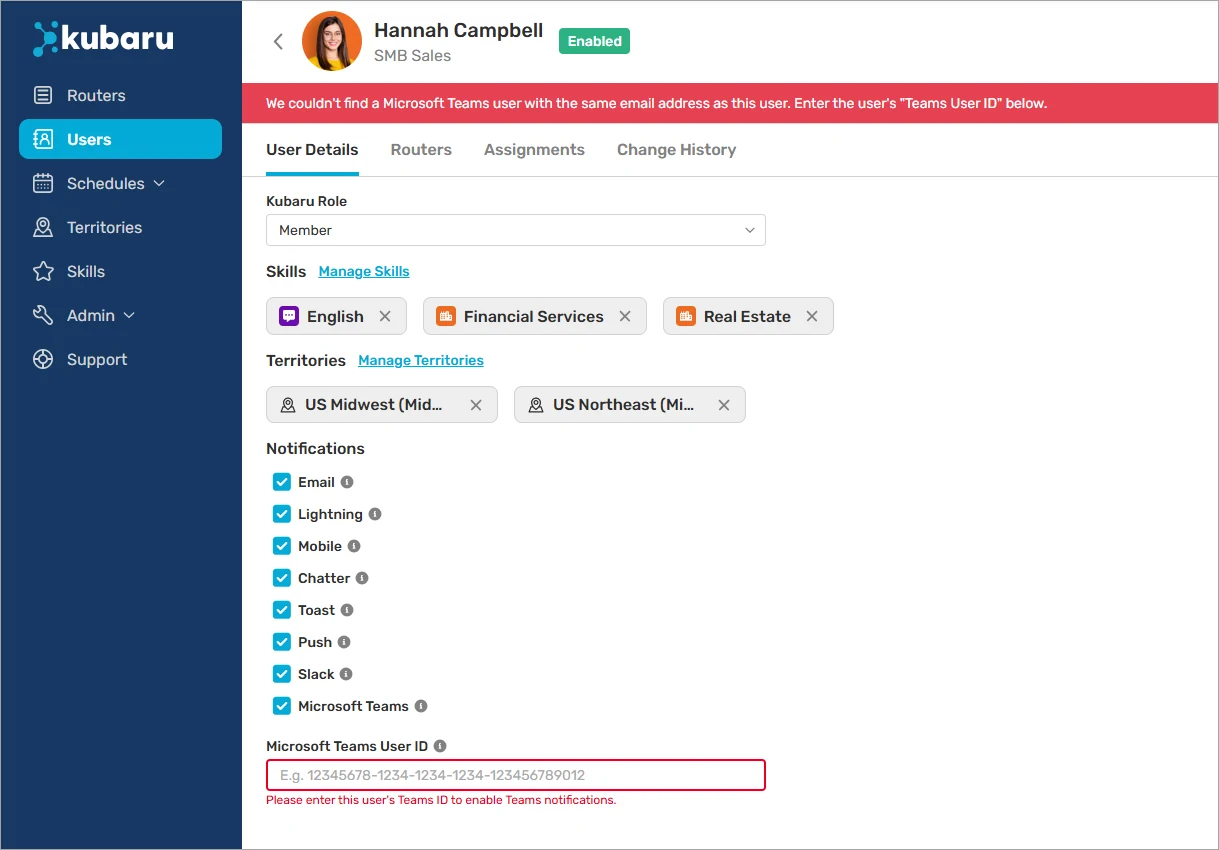
You can follow these steps to resolve this error:
Sign in to Microsoft Teams admin center (you’ll need to be an admin to do this).
Navigate to Manage users.
Click on a user record and click the Copy object ID link in their account summary.
Sign in to Salesforce.
Select Kubaru from the App Launcher menu.
Click the Users tab in the navigation menu.
Click on the user’s name to navigate to their profile page.
Paste the ID you copied in the Microsoft Teams User ID field.
Click Save.
Alternatively, you can disable Microsoft Teams notifications for the user if they don’t have a Microsoft Teams account.
Please contact us through the contact form if you need further assistance.