Bulk Transfer
INFO
You must have the Bulk Transfer permission or be a Kubaru Admin to access this feature.
Use Bulk Transfer to assign up to 1,000 Salesforce records at a time to a new owner. You can filter the records, review the results, and exclude individual records before starting the transfer.
Start a Bulk Transfer
Open the Kubaru app.
Expand Admin in the navigation menu and click Bulk Transfer.
Click New Bulk Transfer.
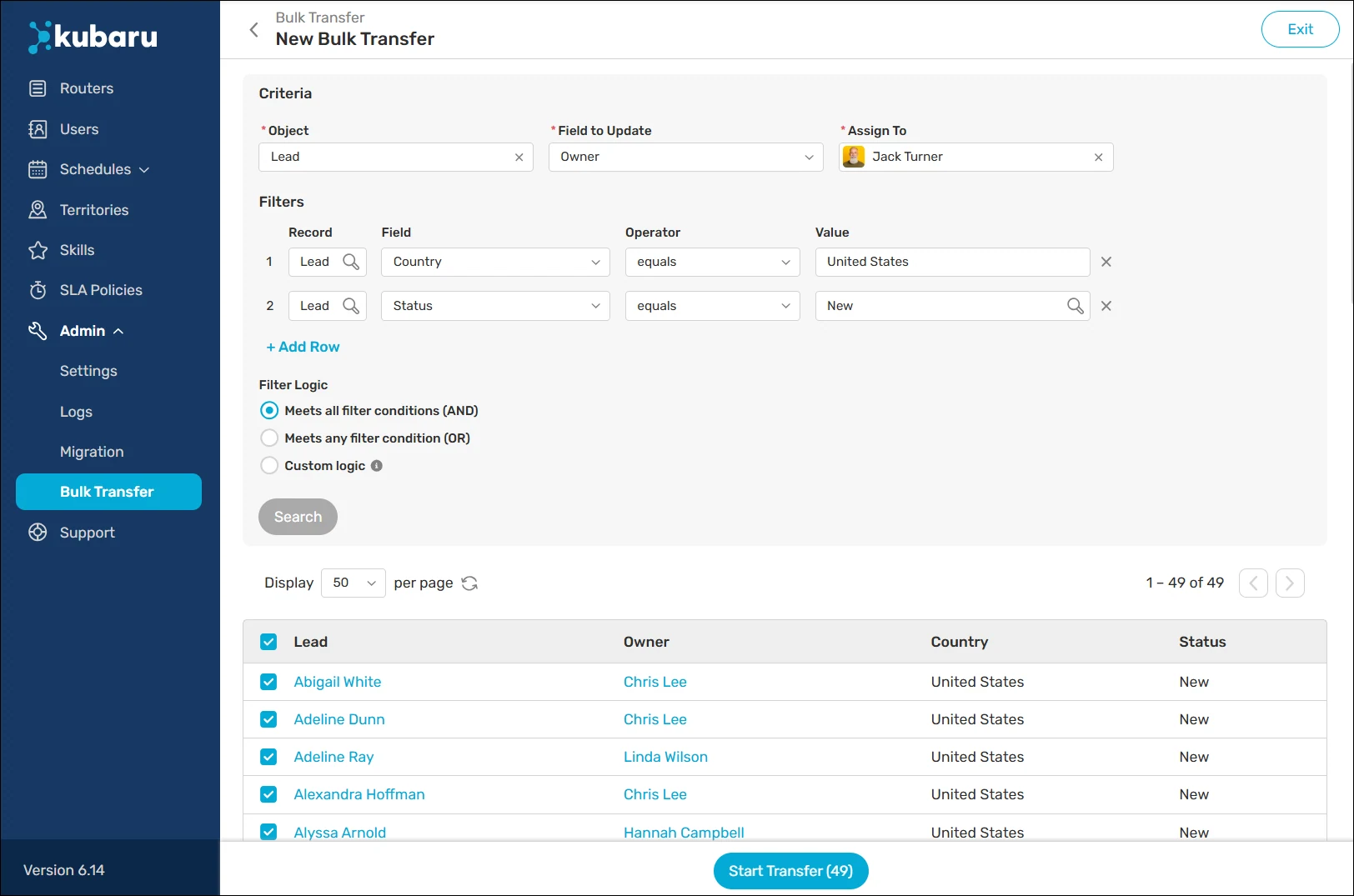
Select an Object.
Select a Field to Update.
Use Assign To to choose the new user or queue you want to assign records to
Add one or more Filters.
Click Search to preview the matching records.
Select the matching records you want to assign.
Click Start Transfer to open the confirmation modal.
(Optional) Adjust the Batch Size if needed.
(Optional) Check Email Results to receive an email when the transfer completes.
Click Start Transfer.
Account Transfer Options
INFO
When transferring Accounts, open activities and open opportunities assigned to the previous owner will be transferred automatically.
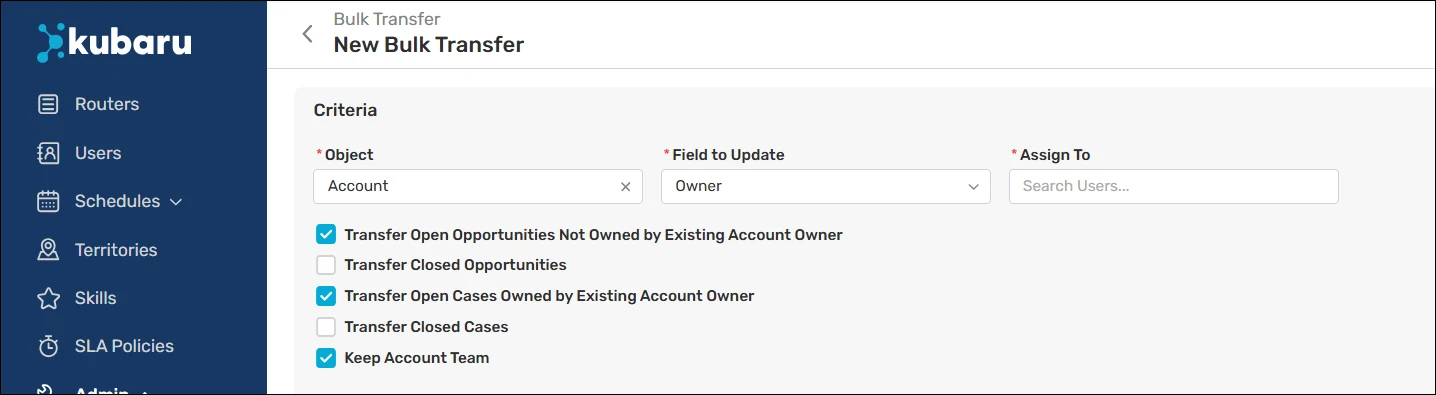
When transferring Accounts, you can choose whether to transfer related records such as Opportunities and Cases. You can also preserve Account Team members, roles, and access.
Review these options carefully before starting the transfer.
Transfer Results
You can monitor the progress of your bulk transfer from the main page. Once complete, you’ll be able to download a results CSV that indicates which records were successfully updated and which failed.
