Microsoft Teams Integration Setup
Heads up
You’ll need Microsoft admin access in your organization to connect Microsoft Teams to Kubaru.
Connecting Microsoft Teams
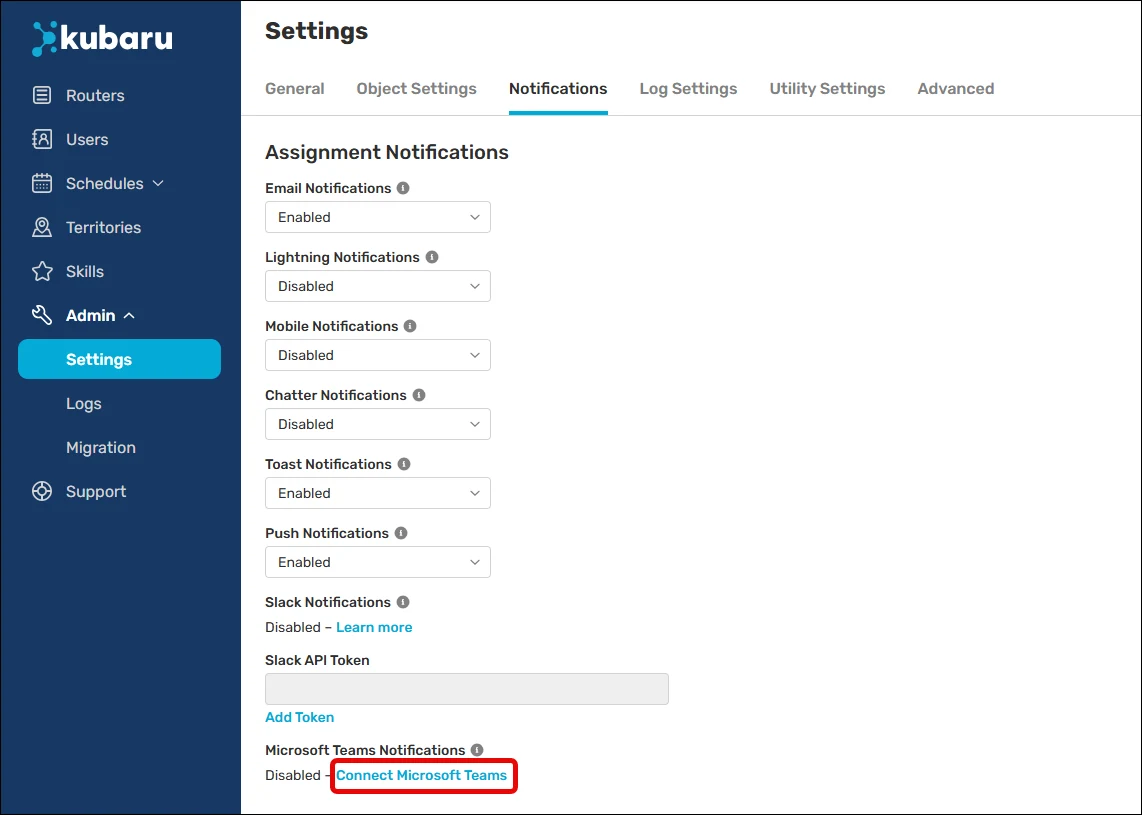
Expand the Admin tab in the navigation menu and click Settings.
Click the Notifications tab.
Scroll to Microsoft Teams Notifications and click Connect Microsoft Teams.
Follow the prompts to authorize Kubaru to connect to your Microsoft Teams account.
Enabling Teams Notifications
You can follow these steps to enable notifications after you’ve connected Teams to Kubaru:
Expand the Admin tab in the navigation menu and click Settings.
Click the Notifications tab.
Scroll to Microsoft Teams Notifications and select “Enabled” or “Enabled, users can override” from the picklist.
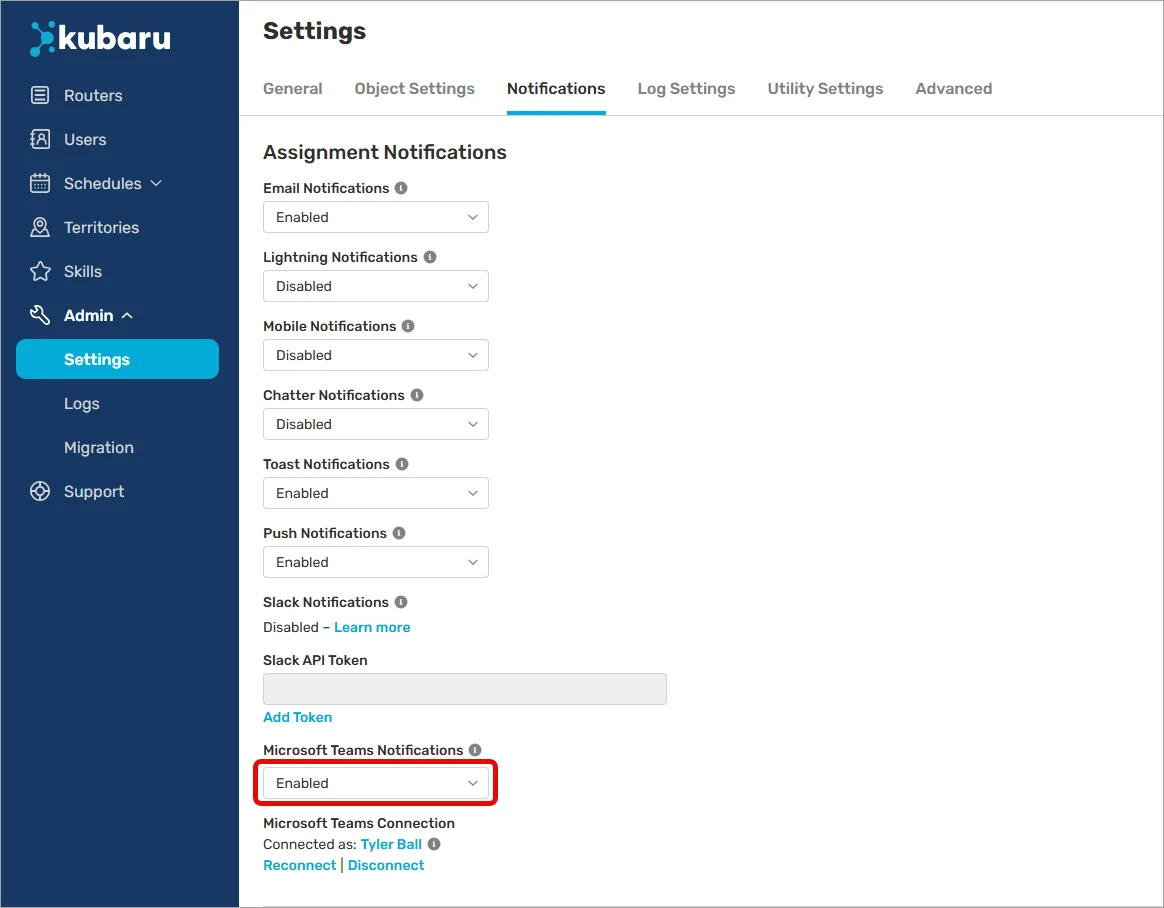
Note: If Kubaru can’t find a matching Teams user based on the user’s email address, an error will appear on their profile. You can disable Teams notifications for that user to clear the error.
Keep in mind
The user that connects Teams will not be able to receive Teams notifications from Kubaru. We recommend using a system user to create the connection.
Microsoft Teams users will be automatically matched up to your Salesforce users based on email address. If for some reason a user’s email is mismatched between the two systems, you will need to add their Microsoft Teams ID manually. See User Not Receiving Teams Notifications for more information.