Local Time Zones
Kubaru can use a prospect’s local time zone when assigning Leads and other records. This helps ensure records are assigned during appropriate local business hours, even when prospects are located in different time zones.
For example, you can configure a Lead router so that a Lead in New York becomes eligible for assignment at 9:00 AM Eastern Time, while a Lead in California becomes eligible at 9:00 AM Pacific Time.
Create a Local Time Zone Field in Salesforce
Before using Local Time Zones in Kubaru, the object you are assigning must have a field that contains the record’s IANA time zone value.
If you already have a field that stores this information, you can use that field. Otherwise, create one in Salesforce before continuing.
The field can be:
A Formula (Text) field that returns the appropriate time zone
A Text or Picklist field populated manually, through automation, or by a data enrichment provider
The field values must use valid IANA time zone names, such as:
America/New_York
America/Chicago
America/Denver
America/Los_Angeles
Use the contact form if you need assistance with configuring a time zone field.
Select the Local Time Zone Field in Kubaru
Follow these steps to select the field Kubaru should use to determine each record’s local time zone:
Expand Settings in Kubaru and click Object Settings.
Select the object you want to configure, such as Lead.
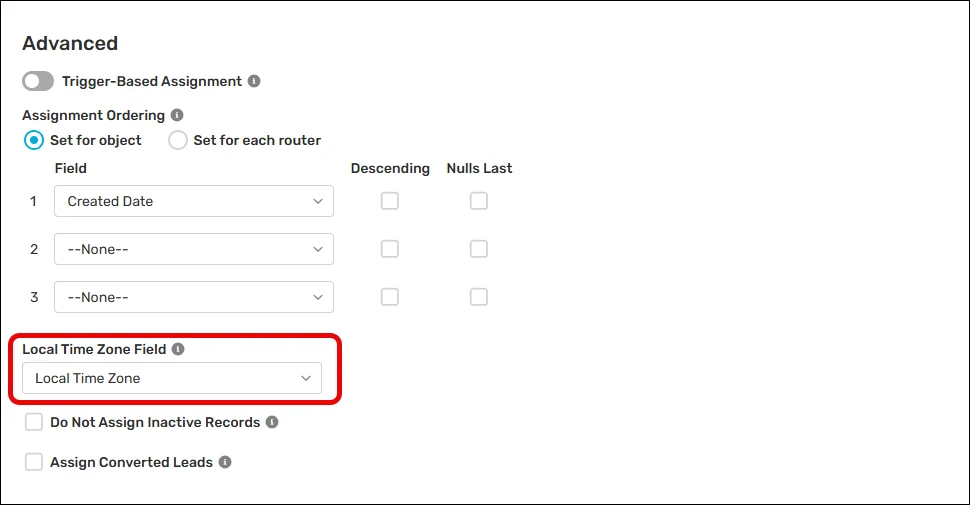
Locate the Local Time Zone Field picklist.
Select the Salesforce field that contains the record’s IANA time zone.
Click Save.
Create a Distribution Schedule That Uses Local Time
Follow these steps to create a schedule that uses the prospect’s local time zone:
Expand Schedules in the Kubaru navigation and click Distribution.
Click New Schedule, or edit an existing schedule.
Enter a Schedule Name.
Select a Time Zone. This time zone is used as the fallback when a record does not contain a valid local time zone.
Enable Use Local Time Zone When Available.
Select the applicable days and hours.
Click Save.
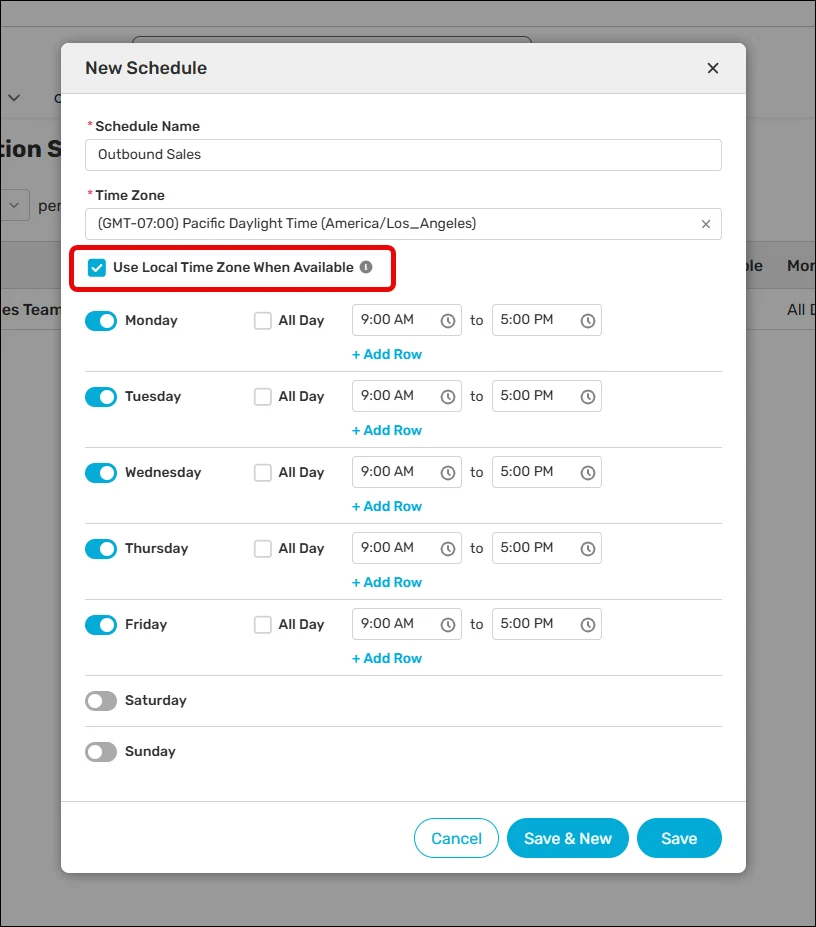
When Use Local Time Zone When Available is enabled, Kubaru evaluates the schedule hours using the time zone found on each record.
For example, if a schedule is open from 9:00 AM to 5:00 PM and a Lead’s Local Time Zone Field contains America/Los_Angeles, that Lead is evaluated against 9:00 AM–5:00 PM Pacific Time.
Assign the Schedule to a Router
Follow these steps to associate your local time zone schedule with a router:
Navigate to the router and click Edit.
Scroll down to Additional Settings.
Expand Scheduling and Availability.
Select the local time zone schedule you created from the Distribution Schedule picklist.
Click Save.
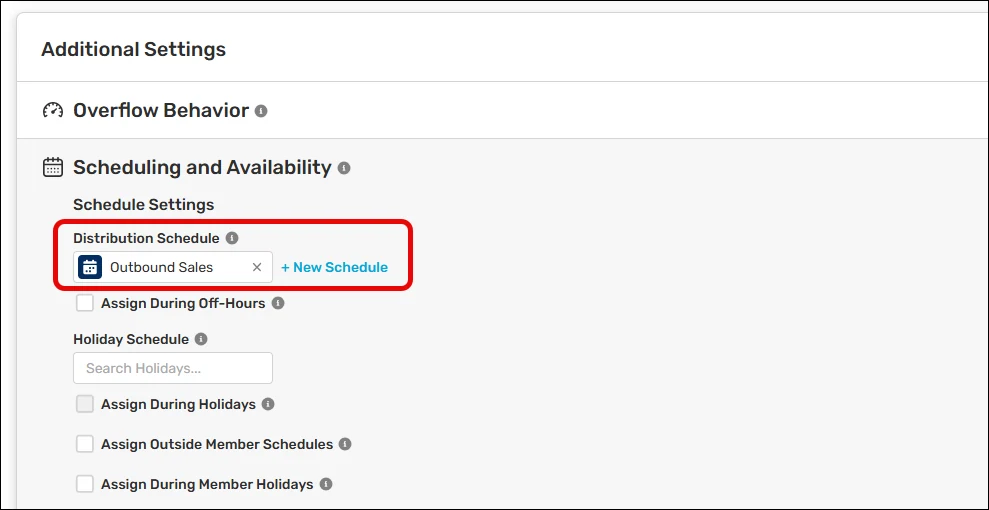
Kubaru will use the Local Time Zone Field on each matching record to determine whether it is currently within the Distribution Schedule’s hours.
What Happens When a Time Zone Is Missing or Invalid?
If a record’s Local Time Zone Field is blank or does not contain a valid IANA time zone, Kubaru automatically falls back to the Time Zone selected on the Distribution Schedule.
This means a missing or invalid time zone on an individual record will not prevent Kubaru from evaluating the record for assignment.