Adding Filters
Filters can be added to your router to limit which records from your connected queues get assigned. Routers with no filters will assign every record from the connected queue(s).
Adding Distribution Filters
Follow these steps to add one or more filters to your router:
Create a new router or edit an existing one.
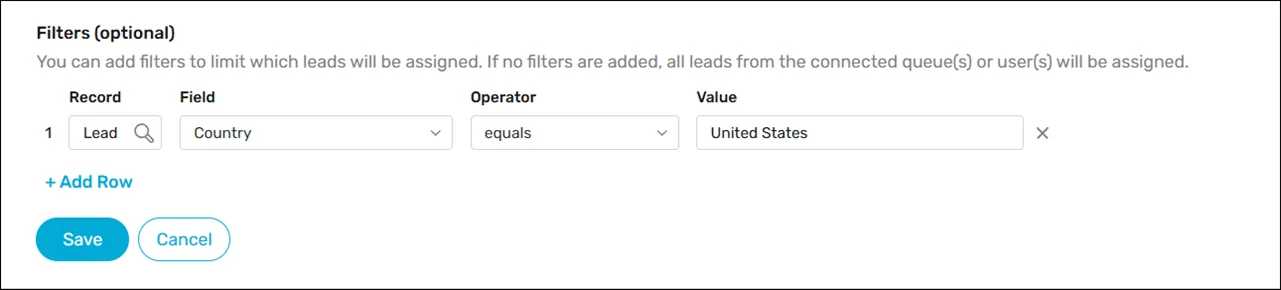
Scroll to What to Assign and click Add Row under Filters (optional).
Choose a Field (e.g., Country) from the picklist. See the Related object filters section below for instructions on how to filter based on fields from related objects.
Choose an Operator (e.g., equals) from the picklist.
Enter a Value (e.g., United States).
(Optional) Click Add Row to add additional filters.
Click Save.
Adding Filter Logic
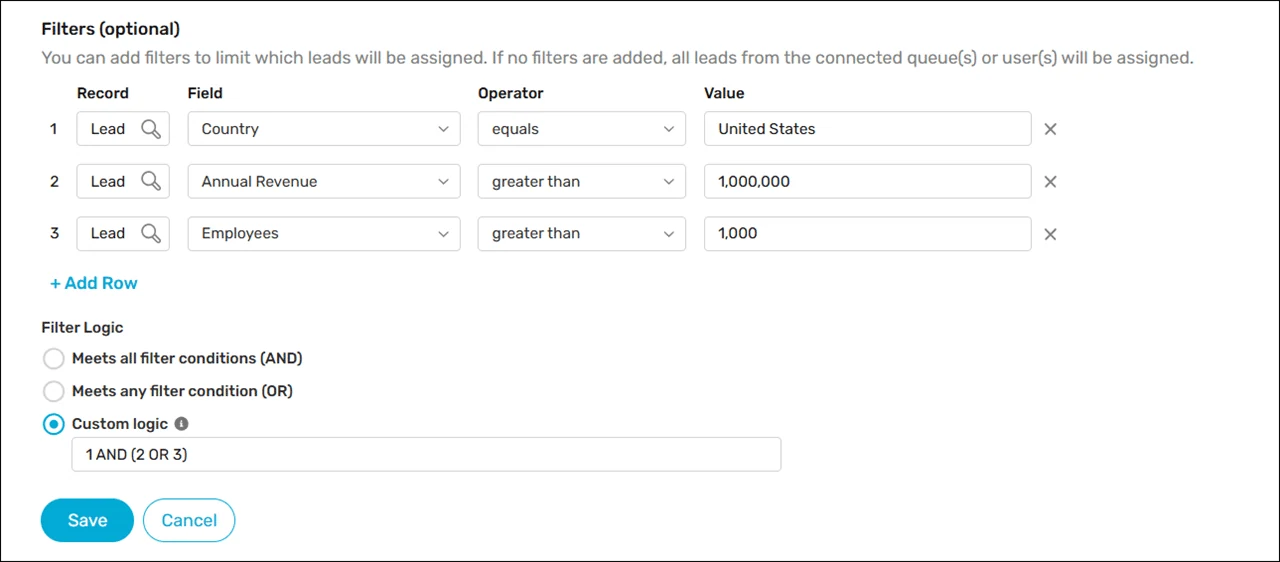
You can define filter logic to control how filters are evaluated in combination. The following options are available:
| FILTER LOGIC | DESCRIPTION |
|---|---|
| Meets all filter conditions (AND) | The router will only assign records that meet every filter condition. |
| Meets any filter condition (OR) | The router will assign records that meet at least one filter condition. |
| Custom logic | Combine filters using parentheses and AND/OR operators; e.g., “1 AND (2 OR 3)”. |
Related Object Filters
Available in Version 5.3 and up
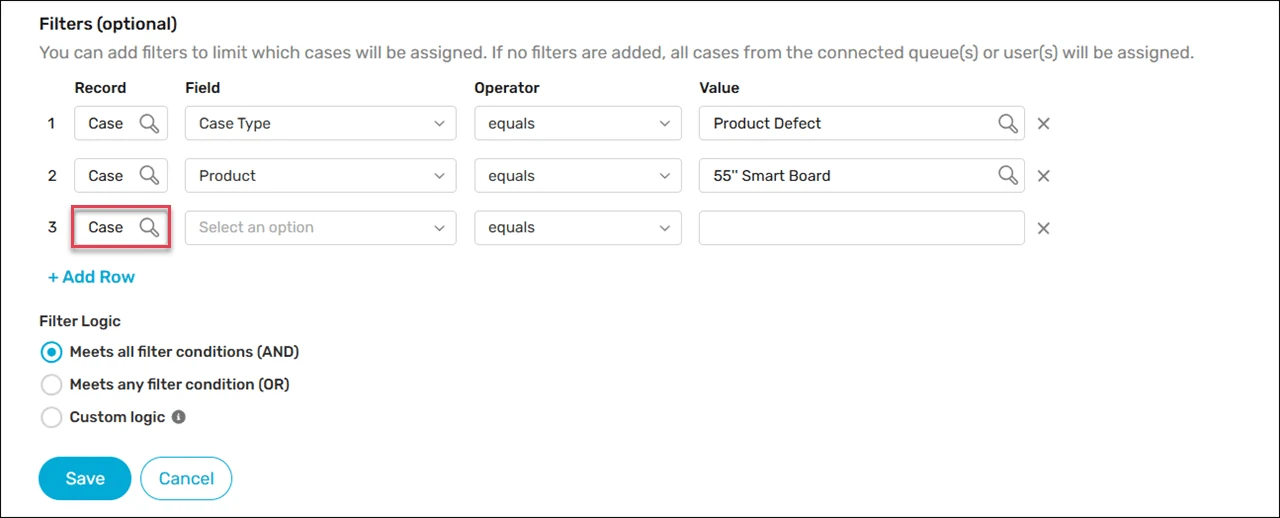
It’s possible to create filters using fields from related objects. For example, let’s say you’re creating a router for assigning Cases and need to add filters that reference fields from the related Account. Follow these steps:
Click on the Record field.
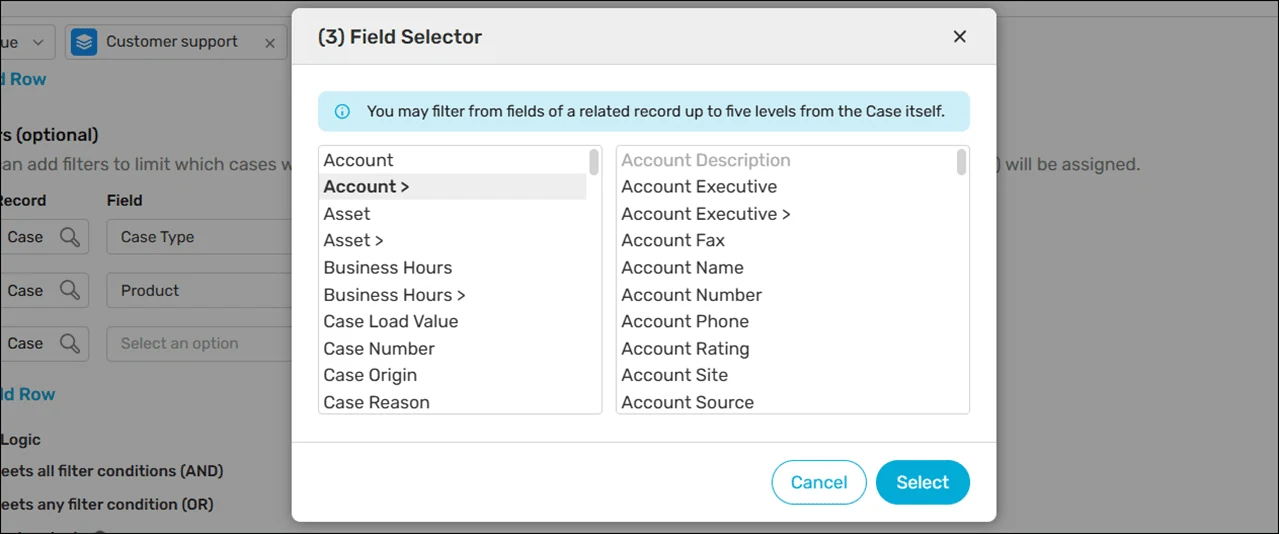
Click on “Account >” then click on a field from the Account object. Note: it’s possible to traverse up to five levels of related objects.
Click Select.
Campaign Membership Filters
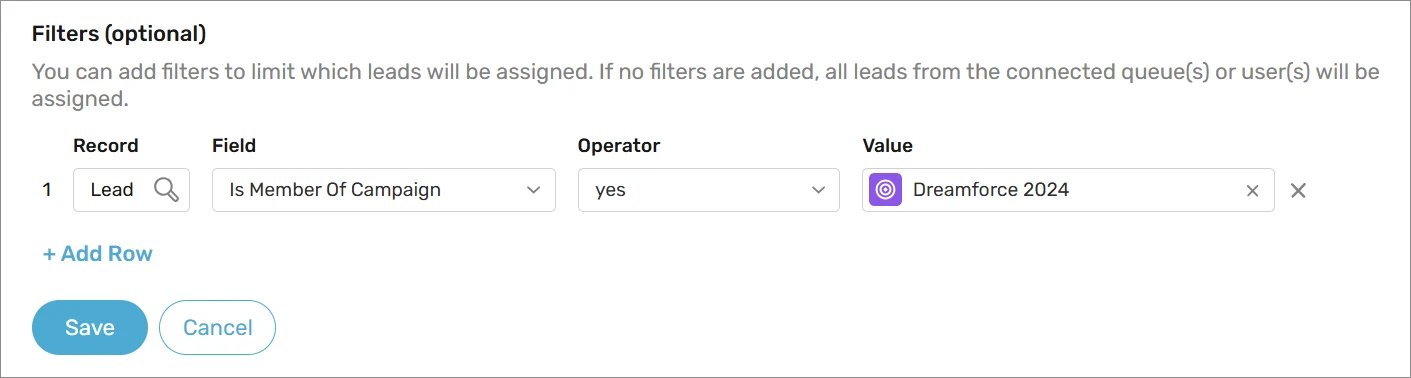
Is Member of Campaign is a special filter that allows you to specify whether a Lead or Contact is a member of a campaign.
Relative Date/Time Filters
Time zone
The local time zone for the Running User will be used when assigning based on date/time filters. Except in the case of Trigger-Based Assignment which is based on the user that triggers the assignment.
When a filter is based on a Date or a Date/Time field, there are some special relative date values that can be used:
Today
Yesterday
Tomorrow
Last N Days (e.g., “Last 4 Days”)
Next N Days (e.g., “Next 2 Days”)
N Days Ago (e.g., “7 Days Ago”)
For more information on how each of these is evaluated, see Date Formats and Date Literals.
Keep in mind
Any standard or custom field can be used as a filter, except for fields of type “Text Area (Long)”, “Text Area (Rich)”, or “Text (Encrypted)”. Additionally, fields that are encrypted at rest using Shield Encryption can only be used with the “equals” or “not equal to” operators.
There’s no limit to the number of filters you can add to each router.
Routers will assign all records in the connected queue that match your filters, including records that existed in the queue before you activated your router. You can prevent this by adding a filter to exclude records created before a specific date/time.
It’s possible to prevent routers from assigning inactive records. See the Do Not Assign Inactive Records article for more information.
For unsupported relative dates, such as LAST_MONTH, you can create a checkbox formula field that returns true when such criteria are met and include the new field in your router filters.
When filtering a text-based field, a comma (,) is a special token used to delineate multiple values that should be evaluated in an OR fashion. For example, LeadSource equals “Web, Website” would evaluate as true if the Lead Source value is either “Web” OR “Website”. If you would like to treat a comma literally it must be preceded by a backslash (
\,). For example, Revenue equals10\,000\,000 – 100\,000\,000will evaluate as true when Revenue value is10,000,000 – 100,000,000.