
You’ll need Microsoft admin access in your organization to connect Microsoft Teams to Kubaru.
Connecting Microsoft Teams
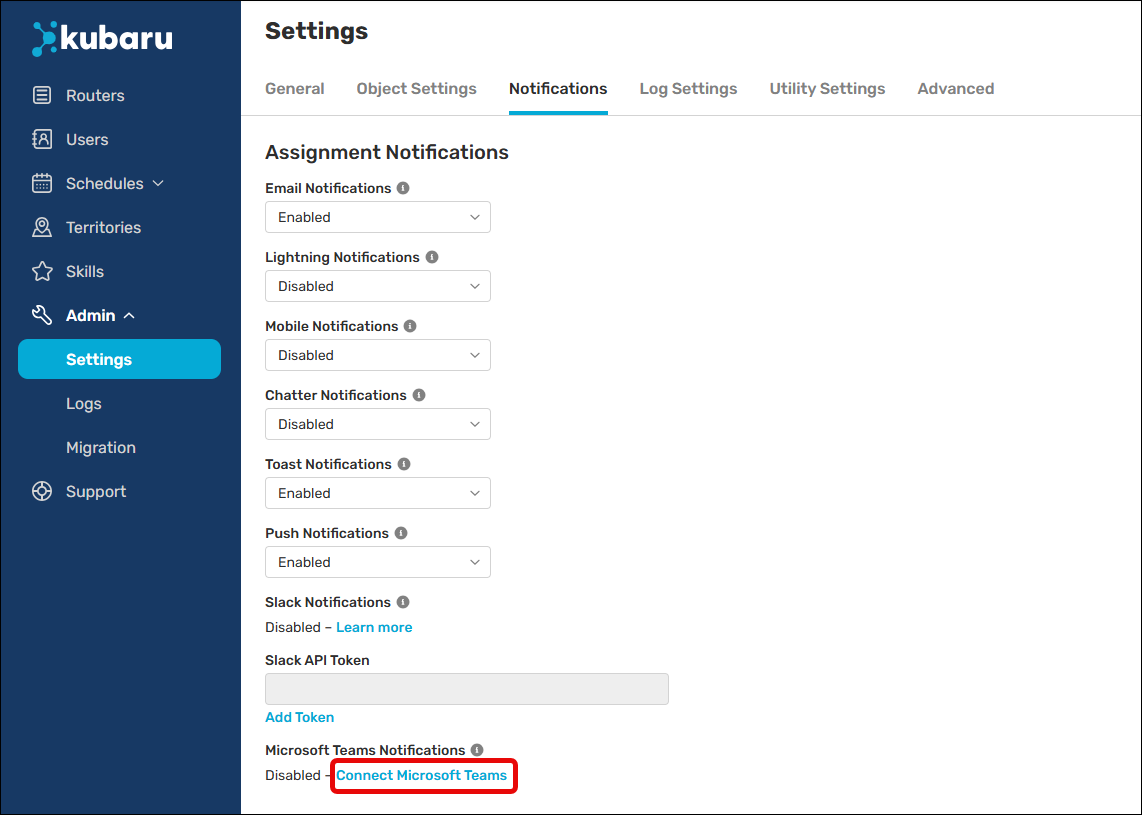
- Expand the Admin tab in the navigation menu and click Settings.
- Click the Notifications tab.
- Scroll to Microsoft Teams Notifications and click Connect Microsoft Teams.
- Follow the prompts to authorize Kubaru to connect to your Microsoft Teams account.
Enabling Teams Notifications
You can follow these steps to enable notifications after you’ve connected Teams to Kubaru:
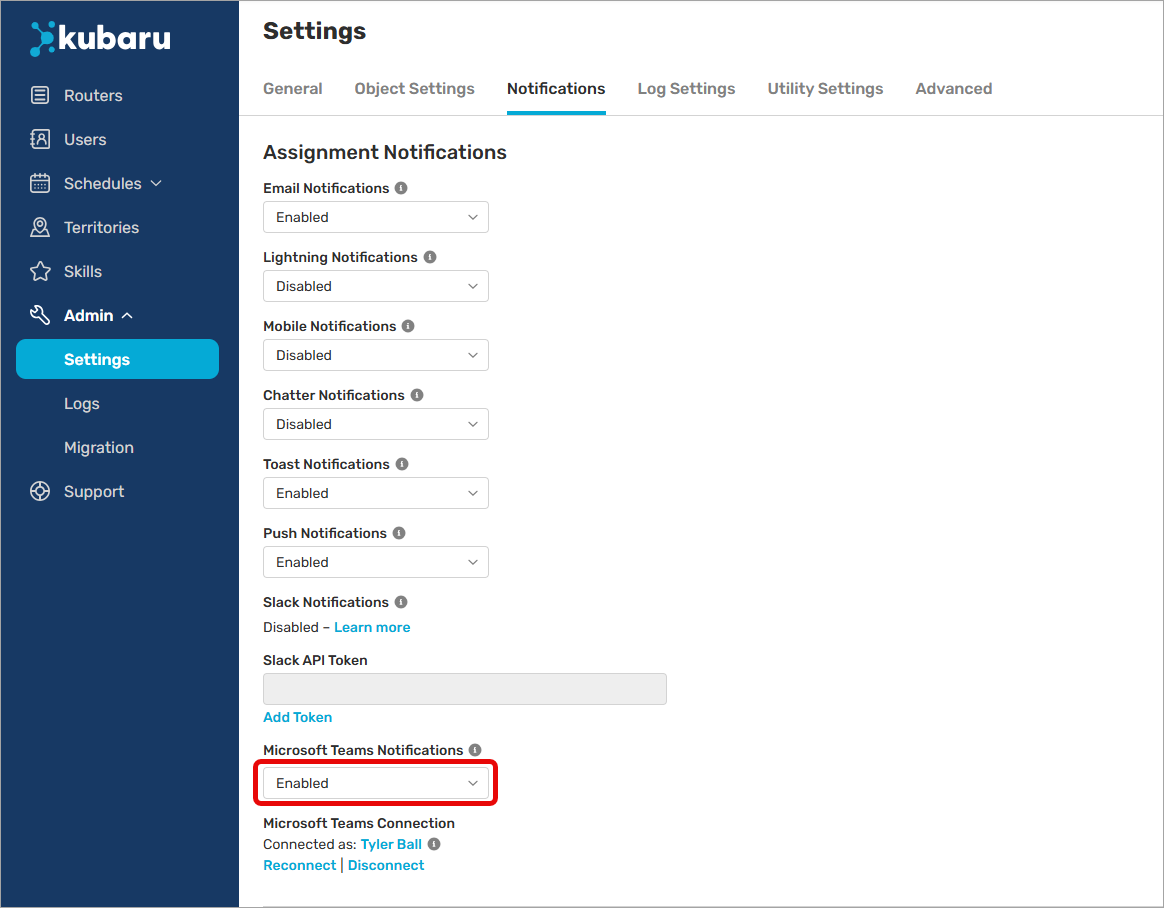
- Expand the Admin tab in the navigation menu and click Settings.
- Click the Notifications tab.
- Scroll to Microsoft Teams Notifications and select “Enabled” or “Enabled, users can override” from the picklist.
Note: If Kubaru can’t find a matching Teams user based on the user’s email address, an error will appear on their profile. You can disable Teams notifications for that user to clear the error.
Things to keep in mind