Custom templates count toward Salesforce’s daily email send limit of 5,000 emails per day. Keep an eye on your usage if you’re sending high volumes.
By default, Kubaru sends its own styled email notification for assignments and Shark Tank alerts. If you’d like to use a fully branded or customized email instead, you can create a Lightning Email Template in Salesforce.
Enable Content Builder
You’ll need the Access drag-and-drop content builder permission to be able to use the Lightning Email Builder. You can follow these steps to create a permission set for this:
- Navigate to Setup.
- Search for and click on Permission Sets.
- Click New.
- Give your permission set a name (e.g., “Lightning Email Builder”) and click Save.
- Click on System Permissions.
- Click Edit and check the box for Access drag-and-drop content builder.
- Click Save.
Assign this permission set to anyone that will be creating email templates.
Creating a Lightning Email Template
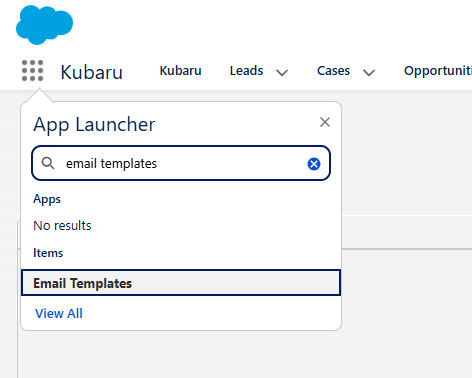
- Click on the App Launcher in Salesforce and search for and click on “Email Templates” in the app menu.
- Click New Email Template.
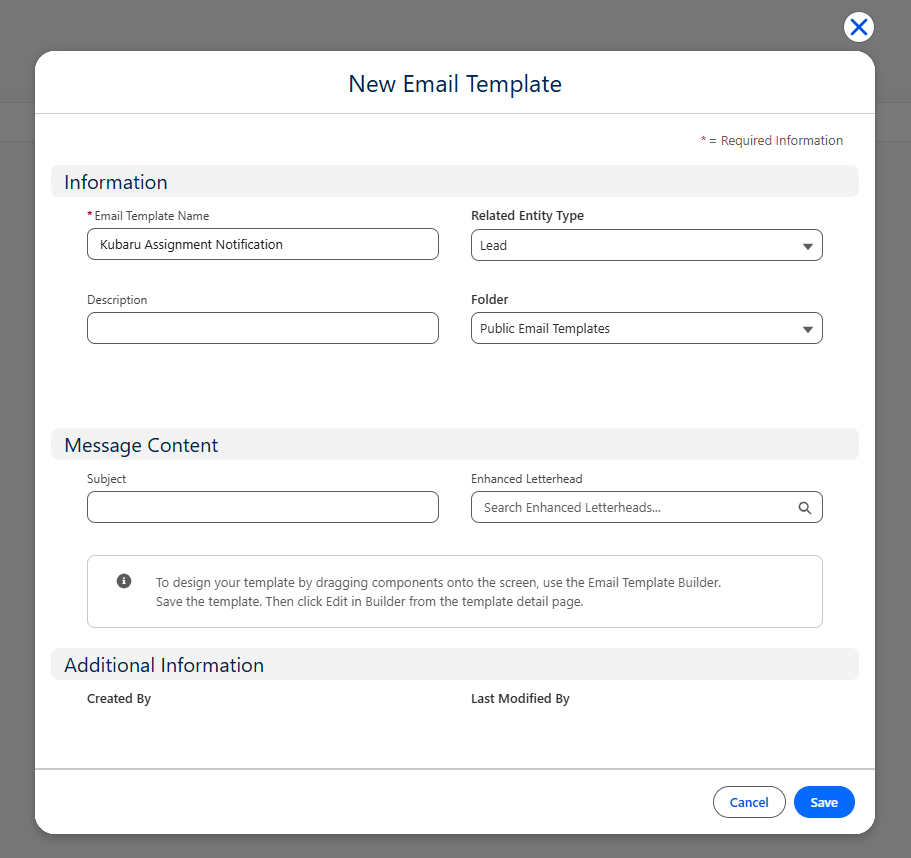
- Enter a name for your template (e.g., “Kubaru Assignment Notification”).
- Set the Related Entity Type to the object you’re assigning in Kubaru (e.g., Lead).
- Select “Public Email Templates” (or another public folder) from the Folder dropdown.
- Enter a Subject (or you can do this later).
- Click Save.
- Click Edit in Builder.
- Design your email.
- Click Save.
Connecting Your Template to Kubaru
Follow these steps to use your new template for assignment and/or shark tank notifications:
- Navigate to Kubaru.
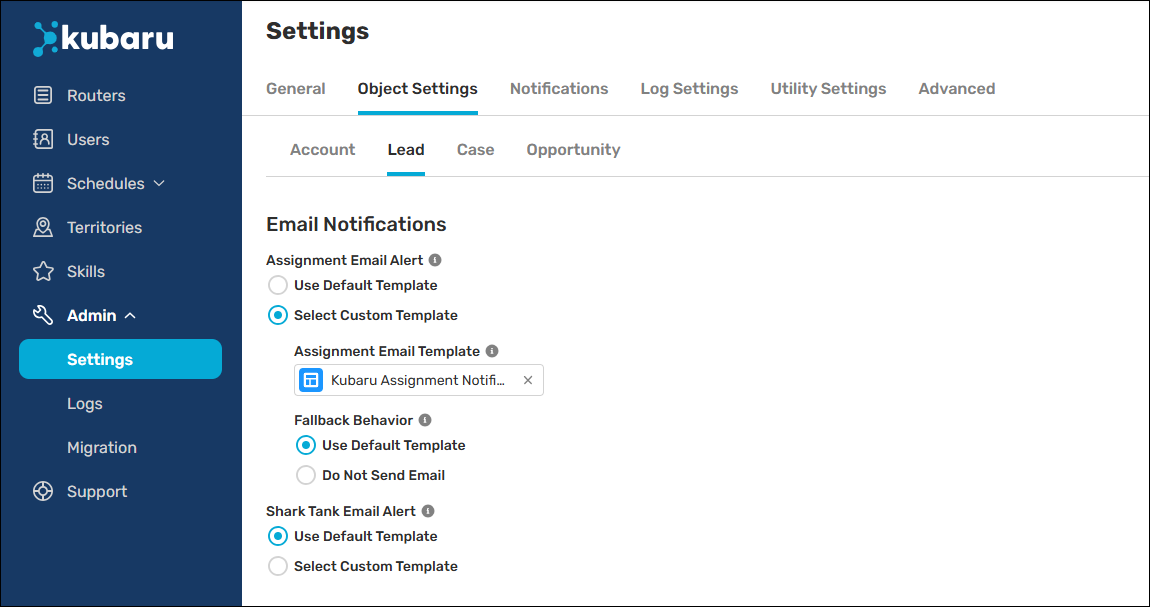
- Expand the Admin tab in the navigation menu and click Settings.
- Click the Object Settings tab and select the object you’d like to configure.
- Scroll to the Email Notifications section.
- Click “Select Custom Template” for Assignment Email Alert and/or Shark Tank Email Alert.
- Select your custom email template.
- Set Fallback Behavior to control what happens if Kubaru is unable to send using your custom template:
- Use Default Template (recommended): Kubaru falls back to its standard notification email.
- Do Not Send Email: No email is sent if the custom template fails.
- Click Save.