
The Assignment Test feature lets you preview how Kubaru would assign a specific record—without actually making any assignments. It’s a great way to troubleshoot your router configuration or validate your setup before going live.
Running an Assignment Test
You can access the Assignment Test feature by select “Test” from the action menu (…) on any page in the Routers section.
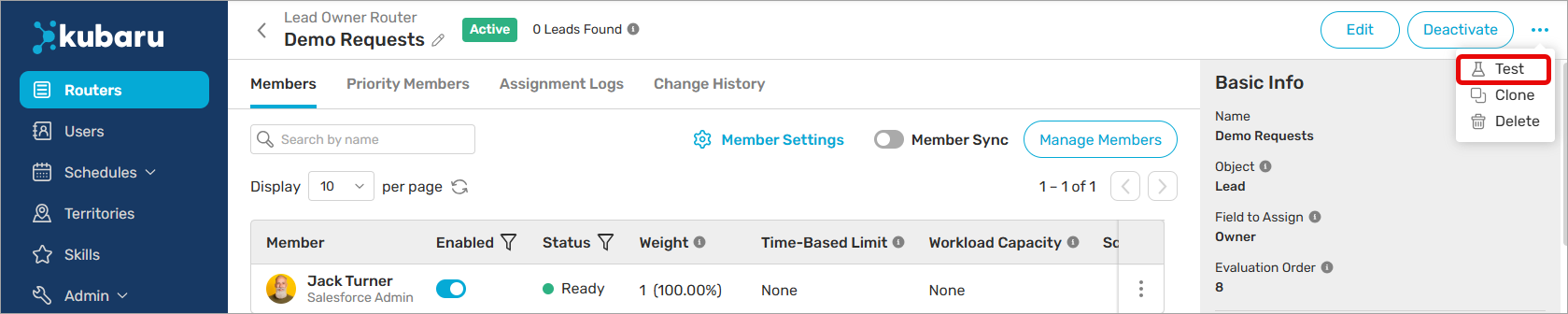
Next, follow these steps to configure and run the test:
- Select the Router Type (e.g., Lead Owner) you want to test.
- Select the Test Record you’d like to use in the simulation.
- Select a queue/user for Initially Assigned To. Kubaru will only evaluate routers that are connected to the selected queue/user.
- (Optional) Check Ignore Schedules to test without considering user availability.
- (Optional) Toggle on Specify Run Date/Time to select a specific date/time for the simulation. You will not be able to enable this while Ignore Schedules is enabled.
- (Optional) Check Include Inactive Routers to test against both active and inactive routers. Note: “Draft” routers will not be included.
- Click Run Test.
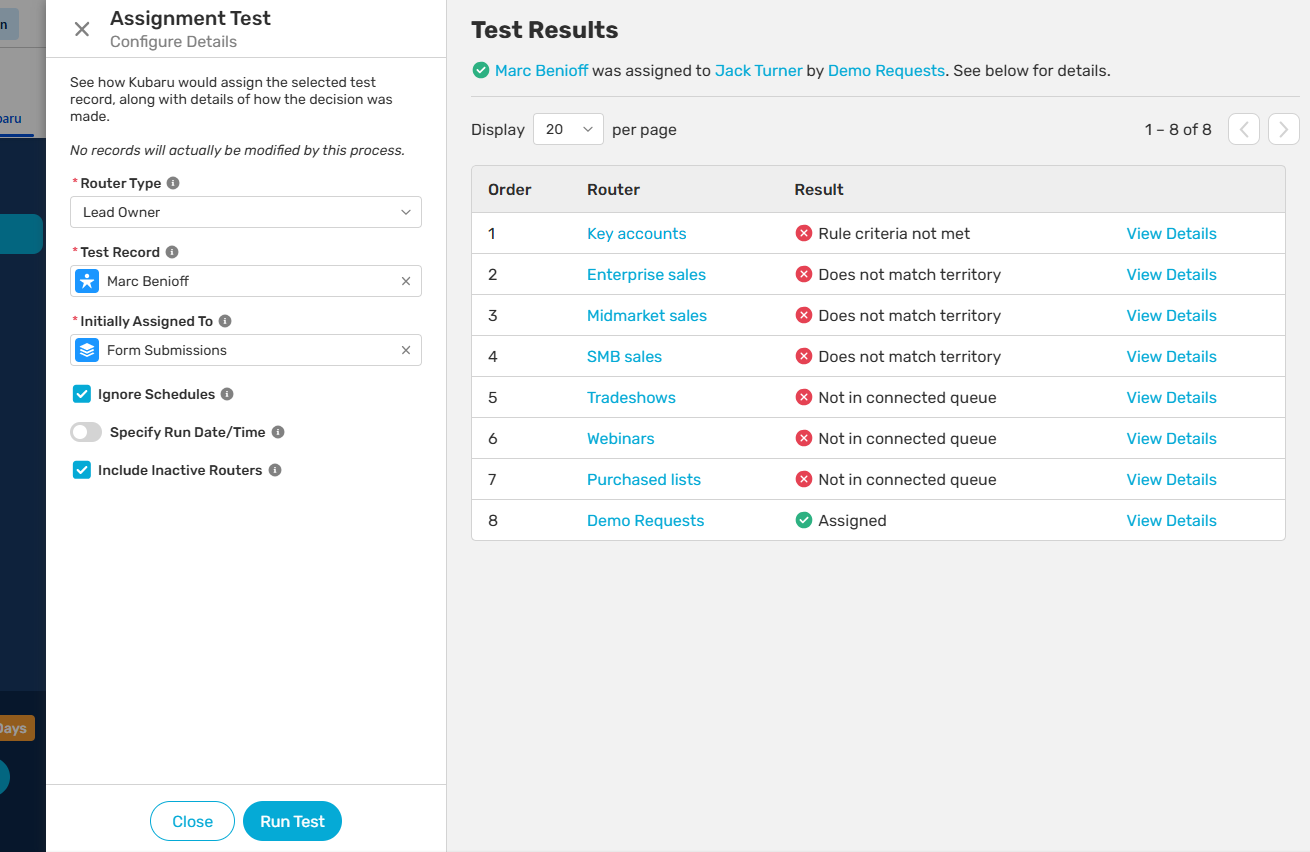
The results will show you which router and member the record would be assigned to, along with the reasoning behind the decision.