














Quick Summary
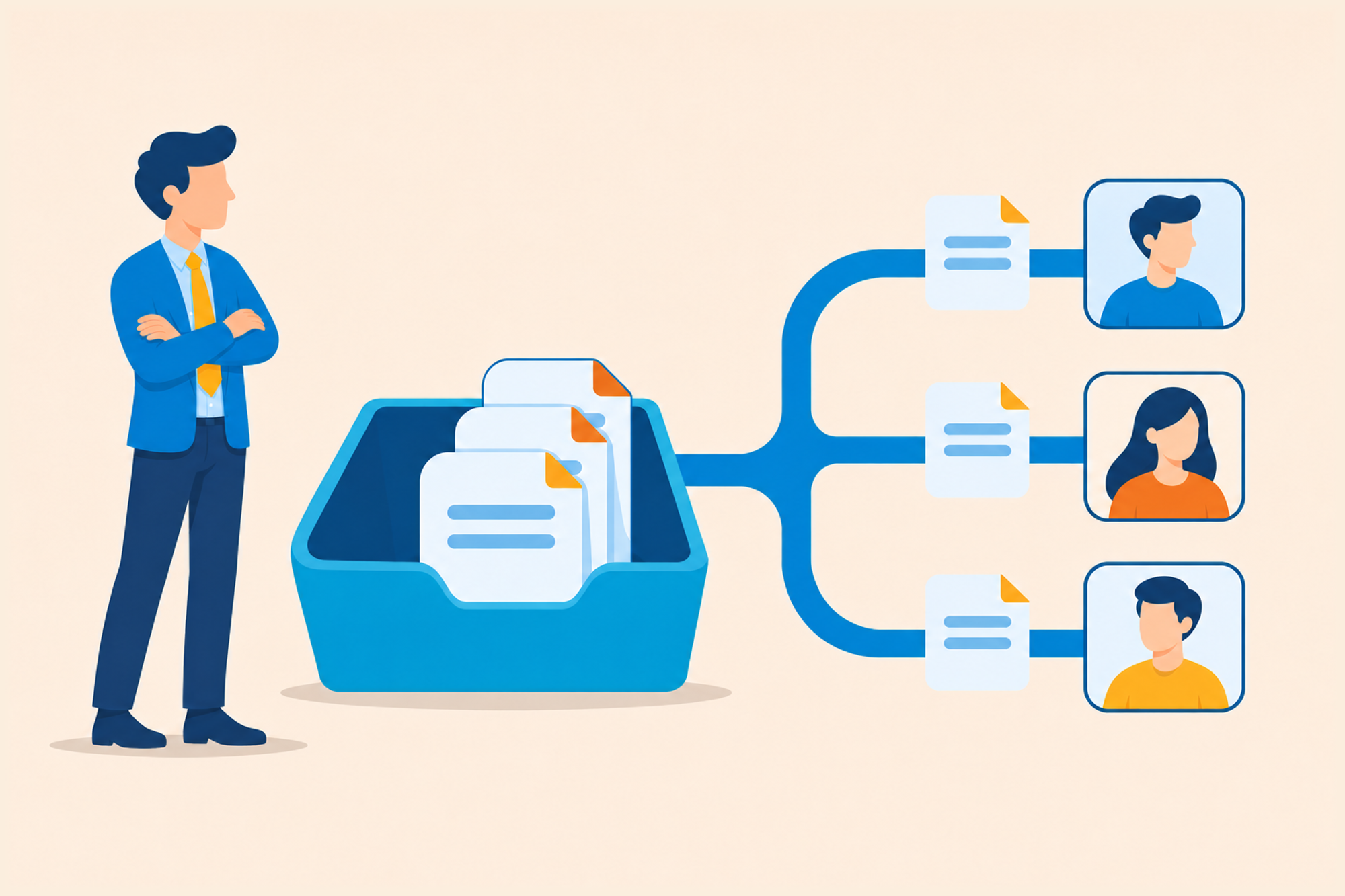
Account-based routing in Salesforce assigns new leads to the reps who own their matching accounts. Set it up with a custom domain field, a matching Flow and fallbacks for unmatched leads. Kubaru handles the cases native automation misses.
Why Leads From Existing Accounts Need Different Routing
Forrester’s 2024 research puts the average B2B buying decision at 13 people within one organization. When someone from a known company fills out a form, their colleague may already be talking to one of your reps.
Salesforce’s standard lead assignment rules don’t automatically match incoming leads to existing accounts and route them to the account owner. As a result, a lead may go to an unfamiliar rep while the account owner remains unaware of the inquiry.
The challenge is to match each lead to the right account before assigning it. We’ll show you how to configure that workflow in Salesforce and handle tricky matches.
Why Listen to Us?
Kubaru helps sales teams automate lead assignment in Salesforce, delivering shorter response times, less manual distribution, and higher lead conversion. We helped Conga automate more than 200,000 lead assignments to the right rep, improving its speed-to-lead by 40%.
What Is Account-Based Routing?
Account-based routing assigns new leads based on the Salesforce accounts they match.
Your routing logic checks whether a lead’s company matches an account. A match sends the lead to the account owner or a designated rep. No match means it falls back to your rules, such as territory or round-robin routing.
For example, Jane at Acme requests a demo using jane@acme.com. Acme is already a Salesforce account owned by Maria. If your routing configuration prioritizes account ownership, Jane’s lead goes to Maria, even if territory management would normally assign it elsewhere.
Next, you’ll learn how to prepare your data and set up lead-to-account matching in Salesforce.
When do you need account-based routing?
Account-based routing is especially useful when you’re running account-based marketing, assigning named accounts to specific reps, or handling inquiries from existing customers that may signal expansion opportunities.
How to Set Up Account-Based Routing in Salesforce
The native setup has two parts. Match each new lead to an existing account, then assign the lead according to your ownership rules.
1. Decide who owns a matched lead
Before building the Flow, agree on four ownership decisions with sales leadership:
- Which accounts qualify? Decide whether to route leads to all accounts or only eligible accounts, such as active customers and target accounts. An account’s age alone doesn’t determine whether it should qualify.
- Who gets the lead? The account owner is one option, but you might prefer a designated account manager. You can store that person’s Salesforce user record in a custom lookup field on Account.
- Where do unmatched leads go? Decide whether they should follow your existing round-robin assignment or territory rules, and configure the routing logic accordingly.
- What if the designated owner is unavailable? Choose a fallback, such as the owner’s manager or a team queue, and define when that fallback should apply.
2. Give accounts a clean domain field to match on
Create a custom text field on Account called Domain (Setup > Object Manager > Account > Fields & Relationships > New). Store a normalized domain (e.g., acme.com) without the protocol or page path, and use a consistent format.
Before setting domains for every account, decide how to handle companies with multiple domains, subsidiaries, or shared corporate websites.
For existing accounts, use Salesforce Data Loader to populate the field in bulk. Back up your data, test a small sample, and verify the results before updating all account records.
For new accounts, add the field to the relevant page layout and establish a process to keep it accurate.
Finally, investigate accounts that share a domain. They may be duplicates, parent and subsidiary accounts, or separate businesses that legitimately use the same website domain.
Merge records only after confirming they are duplicates. For legitimate shared domains, define which account should match and how your Flow will resolve the choice. You’ll need this rule in Step 3.
3. Match new leads to an account with a Flow
Salesforce has matching and duplicate-management features, but they don’t automatically populate the custom Account lookup this routing workflow needs:
- The Standard Lead Matching Rule identifies potential duplicate leads. Its matching equation requires first and last names in every branch, so it can’t match leads to accounts using only company or domain.
- The Standard Matching Rule for Leads on Accounts matches on company, address, phone, and website against email domain. It requires Account Engagement Advanced or Premium and fills the Matched Leads component on accounts, not your Matched Account lookup.
- Duplicate rules can allow and alert, allow and report, or block suspected duplicates. They help manage duplicate records, but they don’t assign a lead to the owner of a matched account.
Web-to-Lead adds one more consideration. Salesforce can block submissions that match a duplicate rule set to Block or Allow and Alert, because an automated submission can’t respond to a user-facing alert. Test this behavior in your org first.
A record-triggered Flow gives you a way to populate the account relationship yourself:
- Create a lookup field: On Lead, create a lookup relationship to Account called Matched Account.
- Create a record-triggered Flow: Choose Lead as the object, set the trigger to when a record is created, and select Fast Field Updates. A before-save Flow can look up an Account and update the triggering lead without a second save.
- Extract the email domain: Create a formula resource that returns the lowercase domain after @. For example, jane@acme.com should produce acme.com. Guard against blank or malformed email addresses before using the extracted value.
- Skip personal email domains: Add a Decision that excludes domains such as gmail.com and yahoo.com. Keep an explicit list of domains to exclude, since a custom Flow has no built-in list of free email providers.
- Find the matching account: Add a Get Records element on Account and filter Domain to equal the extracted domain. Return the first record, sorted by the field that applies your account-priority policy, so shared domains resolve to the intended account.
- Populate Matched Account: When Get Records returns a qualifying account, use an Assignment element to set the triggering lead’s Matched Account lookup to that account’s ID. If nothing matches, leave the lookup empty so the lead follows your fallback process.
For a fuller walkthrough of the matching logic, including a company-name fallback, see Salesforce Lead-to-Account Matching. That post matches on the Website field with a Contains filter, while this guide uses a dedicated Domain field.
4. Set the owner after your assignment rules run
Lead assignment rules can’t dynamically assign a lead to the owner of its matched Account. Each rule entry assigns the lead to a specified user or queue.
In Salesforce’s order of execution, before-save flows run first, then assignment rules, then after-save flows. Web-to-Lead leads go through your active assignment rule, and REST API leads do by default, which overwrites any owner a before-save flow set.
That’s why the owner goes in a second Flow:
- Create a Record-Triggered Flow on Lead that runs on create, and choose “Actions and Related Records” under Optimize the Flow For.
- Add an entry condition so it only runs when Matched Account has a value.
- Add a Decision that checks whether the matched account’s owner is active. If so, continue to Update Records. If not, leave the lead owner unchanged and make sure your assignment rules provide a fallback owner or queue.
- Use Update Records on the triggering lead to set Owner ID to the account’s Owner ID.
This flow runs after the assignment rule, and Salesforce skips assignment rules when the flow saves the lead again, so the new owner sticks. To test it, submit a lead through your live web form using a known account’s domain.
5. Test the leads that break native matching
Before activating both Flows, test the cases that can produce incorrect matches or assignments:
- A Gmail or Outlook address: Confirm that excluded personal email domains skip matching and follow your configured fallback rules.
- Two accounts sharing a domain: Check that your tie-breaker selects the intended account, not simply the first record returned.
- A subsidiary with its own domain: A lead from acme.co.uk won’t match an account storing only acme.com through exact domain matching.
- A company-name variant: Get Records filters on exact or partial string matches and has no fuzzy matching. “Acme Inc.” won’t reliably match “ACME Corporation”.
- An owner who’s away: An active-user check doesn’t detect vacation or out-of-office status. Test how your assignment process handles unavailable owners.
How Kubaru Routes Leads to the Matched Account Owner
Kubaru is native Salesforce lead routing software that also assigns cases and other records. Keep the Matched Account field from Step 3 and use a User Lookup router instead of building the ownership-assignment Flow from Step 4.
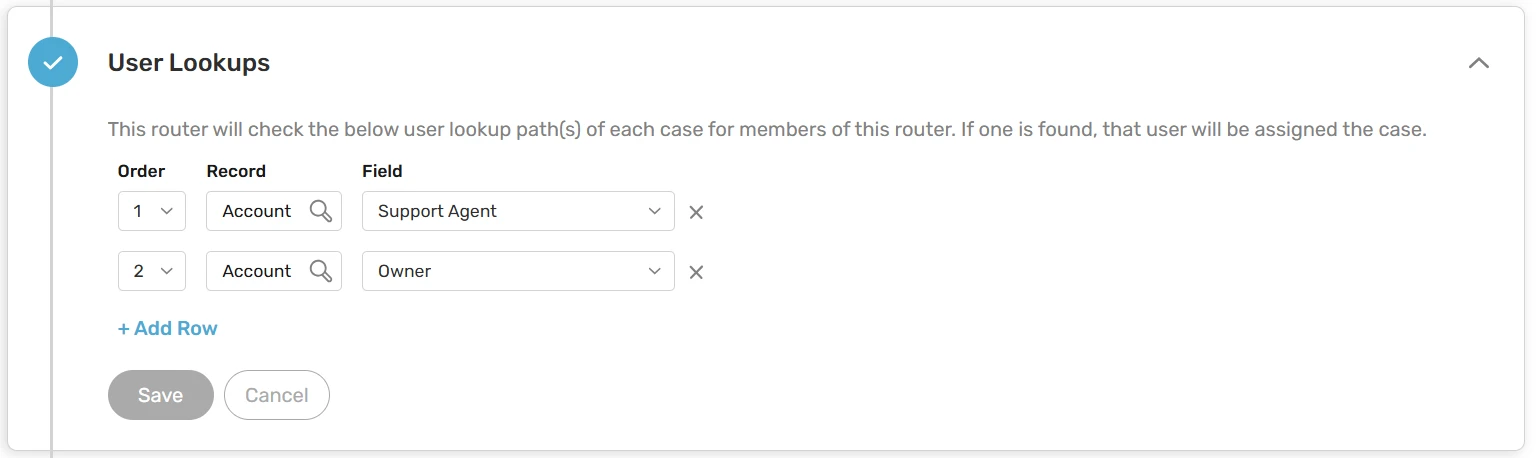
Create a router for Lead, set Owner as the Field to Assign, and select User Lookup as the Assignment Method. Configure the lookup to reference Matched Account and its Owner field.
Connect the queue receiving new leads, add the eligible account owners as router members, and filter the router to leads with a Matched Account. Set Evaluation Order to 1 if this router should run before your other routers.
Kubaru can also handle exceptions that the native Flow doesn’t address on its own:
- Unavailable owners: Configure user schedules, holidays, and out-of-office settings, then choose an Overflow Behavior to continue evaluating routers, hold the lead in its queue, or assign a designated backup.
- Unmatched leads: Leads that don’t meet this router’s filter can proceed to subsequent Kubaru routers. If no later router assigns them, they stay in the queue or with the user your assignment rule set.
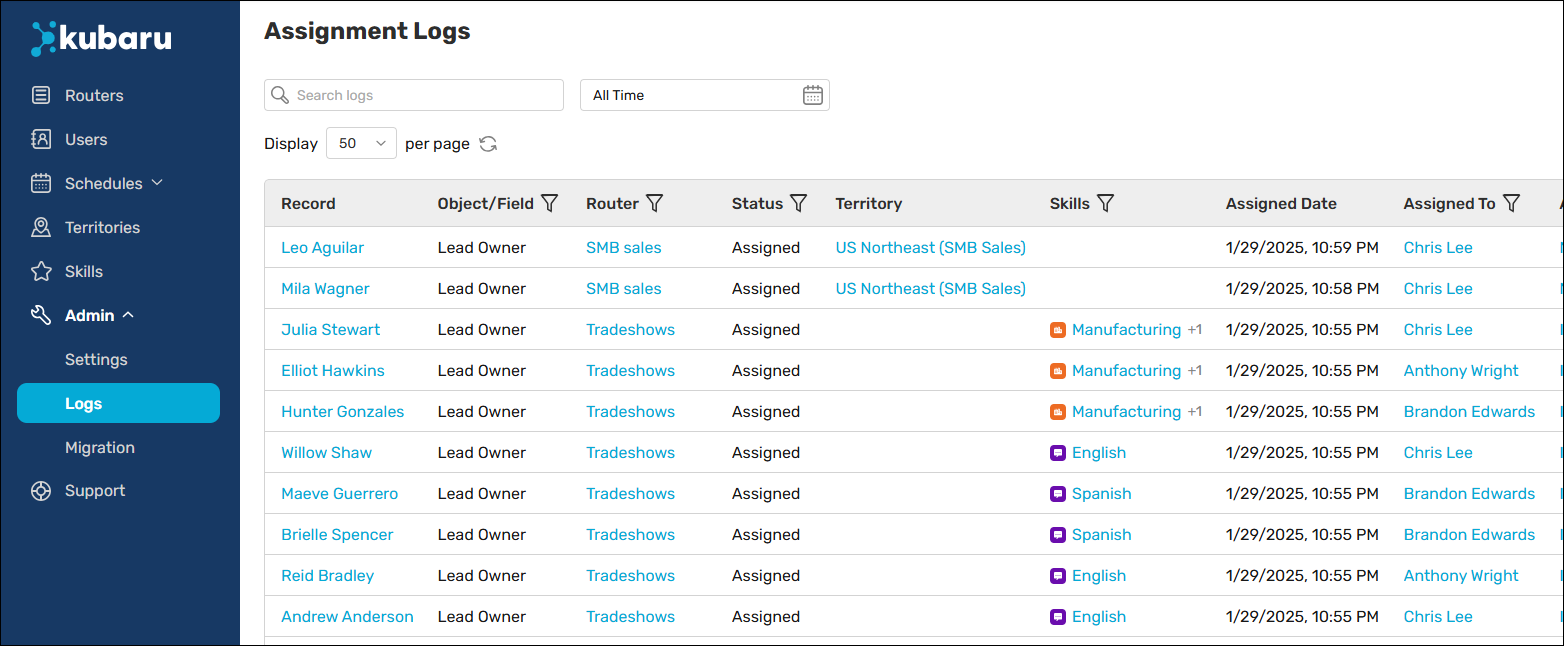
- Assignment troubleshooting: Assignment logs show which routers evaluated a lead and why each assigned or skipped it.
- Routing changes: Appropriately permissioned sales ops users can manage router configurations without relying on an administrator for every change.
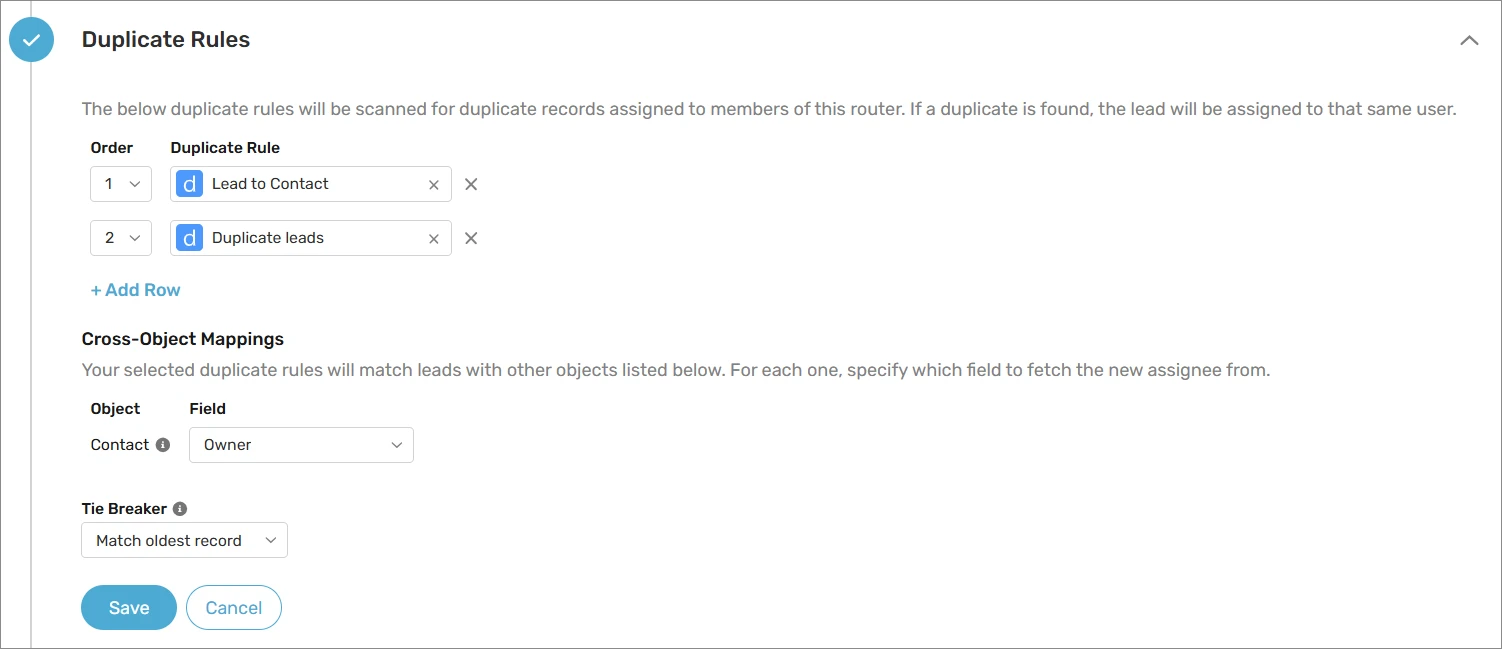
Alternatively, Kubaru’s Duplicate Matching router can use Salesforce duplicate rules to route a new lead to the matched record’s owner.
It matches leads to accounts through cross-object mapping with no Flow, provided the duplicate rule’s Report action is on for create. It doesn’t populate your Matched Account field, so the two approaches stay separate.
FAQs
How do you route several leads from the same company before it’s an account?
A separate Flow can find a recent lead with the same normalized email domain and reuse its owner. Exclude personal email domains and define which lead wins when several match. That owner may not be the company’s long-term account owner.
What happens when an account owner leaves?
Transfer the departing rep’s accounts before deactivating their Salesforce user. Otherwise, leads may be routed to an inactive owner unless your automation explicitly checks owner status and applies a fallback.
Can Salesforce route leads to a parent account’s owner?
Yes, with custom Flow logic. After matching a lead to an account, the Flow can check its Parent Account relationship and use the parent’s owner. Decide whether subsidiary accounts should retain their own owners or inherit routing from the parent.
Should you automatically convert matched leads into contacts?
Usually, let the account owner qualify the lead before converting it. During conversion, Salesforce lets users associate the lead with an existing account so the resulting contact links to the correct record.
Where To Start With Account-Based Routing
Start by cleaning up your domain field. Reliable account matching depends on consistent data, and you can improve it before changing your routing automation.
Next, test your matching logic against shared domains, subsidiaries, and unmatched leads. If results are unreliable or native Salesforce Flow automation doesn’t meet your team’s needs, consider a configurable routing tool.
Book a Kubaru demo to explore account-owner routing in your Salesforce org. Kubaru offers free onboarding and lifetime support.