















Quick Summary
Lead-to-account matching automatically connects incoming leads to existing accounts in your Salesforce database. When configured correctly, it identifies whether a new lead belongs to a current customer, populates the account relationship, and supports smarter routing.
Why Lead to Account Matching Matters
Leads from existing customers or prospects need different handling than new prospects. They should route to the account owner, not a general sales queue. They represent expansion revenue, not new logo acquisition. But without matching, your team treats every lead as brand new and misses these distinctions.

Below you’ll find the steps to configure Salesforce matching rules and test them against your data. You’ll also see how to combine matching with automated assignment so leads route correctly from the start.
Why Listen to Us
Kubaru’s lead assignment app runs inside Salesforce for companies like Paysafe, Genesys, and Paylocity. We’ve configured matching and routing across team sizes from 50 reps to 500+. That range quickly shows you which matching setups stick and which break down at scale.
What Is Lead to Account Matching?
Lead-to-account matching is the process of identifying which leads belong to companies you already do business with. When a new lead comes in, Salesforce checks whether that person’s company matches an existing account in your database. If it does, Salesforce tags the lead with the account relationship.
The basic matching flow works like this:
- A lead enters Salesforce (from a web form, purchased list, or manual entry)
- Salesforce checks the lead’s company information against existing accounts
- If a match is found, the lead’s account field populates automatically
- Assignment rules, routing logic, and reporting can now use that account relationship
How Salesforce Lead to Account Matching Works
Salesforce doesn’t natively link leads to accounts. Leads and Accounts are separate objects with no built-in relationship. To connect them, you can use the Matched Leads component, duplicate matching rules, or build custom automation.
Native Duplicate Matching Rules
Salesforce’s duplicate management system uses matching rules and duplicate rules to identify potential duplicates. Salesforce’s standard Account, Contact, and Lead matching rules look for possible duplicates within their respective record types.
Lead-to-account matching is a separate feature that checks whether a Lead matches an existing Account. It uses the Standard Matching Rule for Leads on Accounts and is available with Account Engagement Advanced or Premium.
These rules can show when a lead’s company name matches an existing account, but they do not automatically create a relationship between the two records.
Salesforce’s Standard Lead Matching Rule
The Standard Lead Matching Rule in Salesforce checks for potential duplicates by matching Leads on fields like names, emails, and mailing addresses. It matches Leads against other Leads, but it does not match Leads against Accounts.
The rule uses a matching formula that combines exact matching with field-based similarity algorithms such as Jaro-Winkler distance, Metaphone 3, name variants, and edit distance. These methods allow Salesforce to recognize both exact matches and certain variations between Lead records.
Before applying the full matching equation, Salesforce uses match keys to narrow the comparison to the 100 most likely duplicates. This keeps performance manageable in large databases because the rule doesn’t need to compare each lead against every other lead in your org.
One constraint may affect your team if you use the rule on a dataset from outside the United States. According to Salesforce, the “Mailing Street” comparison works best for North American addresses. If address details matter to your matching strategy, test the rule on a sample of your records and write your own criteria as needed.
You can have up to five active matching rules per object and up to three matching rules per duplicate rule. This gives you room to use the standard rule alongside custom rules that check additional fields your team relies on.
Matching Methods
Salesforce offers two matching methods for standard rules:
- Exact — Values must match character for character. “Acme Corp” won’t match “Acme Corporation” or “ACME CORP”.
- Fuzzy — Allows minor variations like different spacing, capitalization, or punctuation. “Acme Corp” matches “ACME CORP” and “Acme Corp.”
Custom matching methods using Apex are possible but require development resources.
Beyond those two built-in methods, you can combine fields and broader strategies to improve your matching results. This table compares four common approaches.
| Approach | How It Works | Best For | Key Limitation |
|---|---|---|---|
| Exact | Compares field values using an exact method, including any normalization Salesforce applies | Clean, standardized data where formatting is consistent | Misses legitimate matches when the selected method does not normalize spelling or abbreviation differences |
| Fuzzy | Uses field-specific similarity algorithms and thresholds to identify values that may represent a match | Real-world data with typos, abbreviations, and formatting inconsistencies | Can produce false positives, especially with short or common company names |
| Multi-field | Combines two or more fields, such as company name and email domain or company name and phone number, using defined AND or OR logic | Reducing ambiguity by evaluating more than one data point | Becomes less reliable when the additional fields are missing, outdated, or inconsistently populated |
| Account hierarchy | Uses maintained parent, subsidiary, or division relationships to determine which Account should control linking or routing after a match is found | Enterprise organizations where a subsidiary Lead may need to follow the parent Account or its owner | Requires accurate hierarchy data and clearly defined rules for selecting between corporate levels |
Start with exact matching for standardized data, then add fuzzy matching for legitimate variations. Multi-field criteria can reduce ambiguity when supporting fields are consistently populated. For complex corporate structures, account-hierarchy logic can determine which Account a matched Lead should follow.
Setting Up Lead to Account Matching
Native Salesforce duplicate management can identify when a lead’s company matches an existing account, but it won’t automatically link them. To actually populate an account relationship on lead records, you need to build a Flow or use a third-party tool.
Once you know which matching methods and fields you want to use, the next step is configuring rules that identify potential matches and automation that stores the selected Account on the Lead.
Step 1: Review Your Matching Rules
Navigate to Setup > Matching Rules to see what’s already active. Salesforce includes standard matching rules for accounts, contacts, and leads. You can also create cross-object matching rules to match leads to contacts, leads to accounts, etc.
Step 2: Enable the Matched Leads Component
You can add the Matched Leads component to your Account Lightning pages. This displays leads whose Company field matches the Account Name, letting users convert them directly from the account record.
To add it:
- Open an Account record and click the gear icon > Edit Page
- Drag the Matched Leads component onto the page layout
- Save and activate
This is display-only. It surfaces matches but doesn’t create a lookup relationship on the lead record.
Step 3: Create a Custom Lookup Field
To actually link leads to accounts in your data model, create a lookup field on the Lead object.
- Navigate to Setup > Object Manager > Lead > Fields & Relationships
- Click New and select Lookup Relationship
- Choose Account as the related object
- Name the field (e.g., “Matched Account”)
- Complete the wizard and add the field to your page layouts
This field will store the account relationship once your matching logic populates it.
Step 4: Build a Record-Triggered Flow
Create a Flow that runs when leads are created (or updated) and matches them to accounts based on email domain or company name.
Basic matching logic:
- Extract the domain from the lead’s email address (e.g., “acme.com” from “jane@acme.com”)
- Query accounts where the Website field contains that domain
- If a match is found, populate the Matched Account lookup field
- If no domain match, fall back to comparing Lead Company to Account Name
To build this:
- Navigate to Setup > Flows and click New Flow
- Select Record-Triggered Flow
- Choose the Lead object and set it to run when a record is created
- Add a Get Records element to query Accounts where the domain matches
- Add a Decision element to check if an account was found
- Add an Update Records element to populate the Matched Account field
For detailed Flow configuration, Salesforce’s Flow Builder documentation covers the specifics.
Step 5: Test Your Matching
Before relying on matching in production, test with real examples:
- Find an existing account and note its name and website domain
- Create a test lead with an email address using that domain
- Check whether the Matched Account field populated correctly
- Test edge cases: minor spelling variations, different capitalization, missing website data
Document which scenarios work and which don’t. This tells you whether you need fuzzy matching (which requires Apex or third-party tools) or if exact matching is sufficient for your data quality.
Advanced Matching Strategies
Integrating Matching with Lead Assignment
Matching tells you which leads belong to existing accounts. But that information is only valuable if your routing acts on it. Native Salesforce Lead Assignment Rules do not automatically assign a matched Lead to the Account owner. Without additional routing automation, the Lead follows your existing assignment rules instead of automatically reaching the rep who owns the Account relationship.
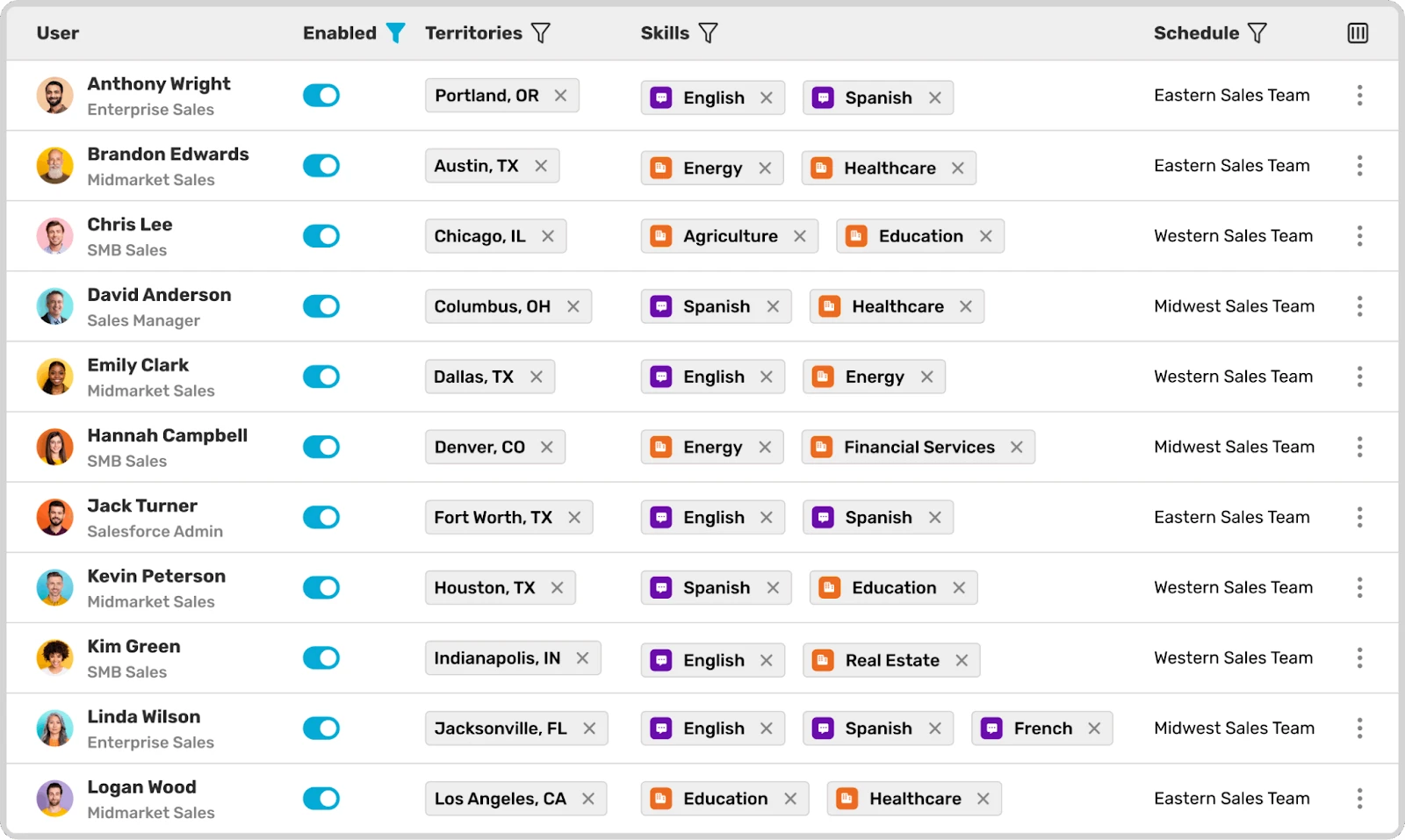
Kubaru solves this with router types built specifically for account-based routing:
- User Lookup Routers route leads directly to the matched account’s owner. When a lead enters Salesforce and matches an existing account, Kubaru reads the account owner field and automatically assigns the lead to that rep.
- Overflow Behavior handles edge cases that would otherwise create unassigned leads. If the matched Account has no eligible owner or the owner is out of office, Kubaru can apply the fallback behavior configured for that router rather than leaving the Lead unassigned.
- Territory routing ensures matched leads follow account territory assignments rather than lead-level geography. For example, a Lead with a US phone number from a UK-headquartered Account can still route to the EMEA team if that team owns the Account. It won’t go to the US team that would receive it based on the phone number alone.
The combination of matching and intelligent routing helps Leads reach the appropriate rep quickly, with the existing Account relationship available for context and less need for manual ownership checks or reassignment.
Matching on Multiple Fields
For higher accuracy, match on combinations of fields rather than company name alone. This reduces false positives where different companies have similar names.
Common multi-field strategies:
- Company + Website — Catches variations in company name formatting while ensuring it’s actually the same company. Works well when website data is clean.
- Company + Domain — Use a formula field to extract the domain from email addresses (e.g., “example.com” from “john@example.com”). Match lead email domain to account website domain. More reliable than matching full websites since email domains are more standardized.
- Company + Phone — Adds phone number as a matching criterion. Less reliable because of phone-number data quality issues, but it can help when other fields are ambiguous.
- Company + Address — Match on city, state, or postal code along with company name. Useful for distinguishing between franchises or locations of the same brand.
To implement multi-field matching, add additional matching criteria to your rule. Set the rule to require all criteria to match (AND logic) for strictest matching, or any criteria (OR logic) for more flexible matching.
Handling Subsidiaries and Corporate Hierarchies
Many companies have complex ownership structures. How you handle leads from subsidiaries depends on your sales model.
If you treat subsidiaries as part of the parent account, match leads to the parent. Add subsidiary names as additional matching criteria or maintain a list of known subsidiary-to-parent relationships.
If you treat subsidiaries as separate accounts, ensure your matching rules don’t incorrectly group them. Add disambiguating fields to your matching criteria (like address or department) to keep subsidiary leads separate.
For account hierarchies in Salesforce, you can:
- Match leads to the most specific account (the subsidiary)
- Create a process that surfaces the parent account relationship to the assigned rep
- Route based on the parent account’s owner while maintaining the subsidiary account connection
Custom Matching Logic with Apex
For complex matching scenarios, custom Apex code offers complete control. This requires development resources but solves problems standard rules can’t handle.
Common use cases for custom matching:
- Industry-Specific Variations — If your industry has non-standard naming conventions (e.g., healthcare with abbreviations like “St. Mary’s Hospital” vs. “Saint Mary’s Hospital”), custom logic can normalize these before matching.
- Multiple Criteria with Weighted Scoring — Instead of requiring exact matches on every field, you can implement a scoring system. Each criterion gets weighted according to how reliable it is in your data set, and when the total weight exceeds your specified limit, records are considered matches.
- External Data Sources — Query external databases or APIs to verify company information before matching. This works for companies using data enrichment services like Clearbit or ZoomInfo.
Custom Apex matching typically runs as a trigger or invocable action, separate from native duplicate management. Most teams find this overkill unless they have highly specific matching requirements that Flow can’t handle.
What to Look For in a Lead-to-Account Matching Tool
If you’ve tried running matching with Salesforce’s built-in rules and Flows, you’ve probably hit the limits. Salesforce’s standard rules can identify potential matches when the data is clean and consistent, but they won’t automatically link leads to accounts or route matched leads to the right rep.
Inconsistent data and complex account structures may require custom logic or a dedicated matching tool. However, these tools solve different problems; define your requirements before choosing one.
Multiple Matching Methods
At minimum, you’ll want a tool that supports exact, fuzzy, and multi-field matching. Exact matching catches straightforward cases, but typos and formatting inconsistencies can still slip through. Fuzzy matching picks up some of those near-misses. Layering in multi-field criteria, such as company name plus email domain, can then reduce false positives by adding another data point to the decision.
Account Hierarchy Support
If you’re working with large enterprises, a subsidiary lead needs to connect to the right account in your hierarchy. The tool should use maintained parent-subsidiary relationships and let you choose the routing logic. A subsidiary lead might go to the parent account owner, the subsidiary account owner, or follow your territory assignments.
Native CRM Integration
A Salesforce-native tool can perform matching within the platform without sending lead data to an external matching service. That’s one fewer connection to worry about. Check whether any connected app accesses Lead data, and read the app’s permissions documentation before assuming “native” equals secure.
Business-user Configuration
The people who understand matching logic best are the sales ops and RevOps managers who live with the routing rules every day. If every tweak requires an admin or a developer, you’ll wait on tickets for changes that should take five minutes. Look for tools that put those adjustments directly in the ops team’s hands.
Transparent Matching Logs
When a match goes wrong (and it’ll happen), you’ll need to trace what happened. The tool should log which fields drove the match, which accounts it considered, and why one account won over the alternatives. Without that visibility, troubleshooting a misrouted lead turns into guesswork, and your team won’t trust the automation.
Integration with Lead Routing
Matching a lead to an account is only half the job. The lead still needs to reach the right rep. If your matching tool doesn’t connect to your assignment logic, you may end up building a separate automation to bridge the gap. Look for a tool that combines matching and routing in one workflow, so a matched lead goes straight to the appropriate rep without anyone manually reassigning it.
For more on how routing fits into the bigger picture, see our guide to improving lead assignment.
FAQs
What is lead-to-account matching?
Lead-to-account matching automatically identifies which incoming leads belong to companies already in your CRM. When a new lead enters Salesforce, the matching logic checks the lead’s company name, email domain, or other fields against your existing accounts. If it finds a match, automation can store that Account relationship and use it for routing and reporting.
What is the standard account matching rule in Salesforce?
The Salesforce Standard Account Matching Rule looks for potential duplicate Accounts. It evaluates combinations of fields such as Account Name, Billing Address, Phone, and Website using field-specific criteria. The rule matches Accounts against Accounts but not a Lead against an Account.
How do you convert a lead to an account in Salesforce?
Open the lead record and click the “Convert” button. You can then create a new Account and Contact or associate the converted Lead with existing records. If your matching process stores the selected Account in the custom lookup created earlier, that relationship can help the rep identify the appropriate Account during conversion.
For higher volumes, you can also automate eligible Lead conversions through Flow or Apex. We have a Salesforce lead management guide covering this process.
Lead to Account Matching Without Manual Work
Effective matching requires automation that runs at lead creation, not manual cleanup afterward. When configured properly, matching happens invisibly as leads enter your system.
The standard Salesforce matching rules handle basic scenarios, but most teams need customization to match their data quality and business processes. Start simple with company name matching, test thoroughly, then add complexity only where needed. If you’re evaluating top Salesforce lead routing software, the six criteria above can help you narrow the field.
If you’re ready to automate both matching and assignment so leads route correctly from the moment they arrive, see how Kubaru handles it. Schedule a demo, and we’ll walk you through the process.