















Quick Summary
Salesforce case assignment helps support teams route incoming cases to the right agent or queue. This guide explains how case assignment works in Salesforce, including assignment rules, queues, and escalation rules. It covers the setup process, where native tools work well, where they fall short, and how a dedicated tool like Kubaru can fill the gaps when your team outgrows what Salesforce provides out of the box.
How Salesforce Case Assignment Keeps Work Moving
A support case can lose momentum before anyone starts working on it. A customer reaches out, the issue is clear, but the request still needs to land with someone who can take ownership.
Case assignment helps make that handoff smoother by giving your team a clear way to route new requests as they come in. That can be simple at first, especially when case volume is low and the same few people handle most support work.
As your team grows, though, case assignment usually needs more structure. Different agents may handle different products, priorities, or customer types, and a basic queue can become harder to manage.
In this guide, we’ll look at how Salesforce handles case assignment, where native tools can start feeling harder to manage, and what teams often consider as their support process grows.
Why Listen to Us?
Kubaru is a Salesforce-native routing app used by more than 300 teams to automate lead, case, and record assignment. We work with companies like Ooma, Conga, SolarWinds, and Paysafe, helping teams manage routing as their support workflows become harder to handle manually.
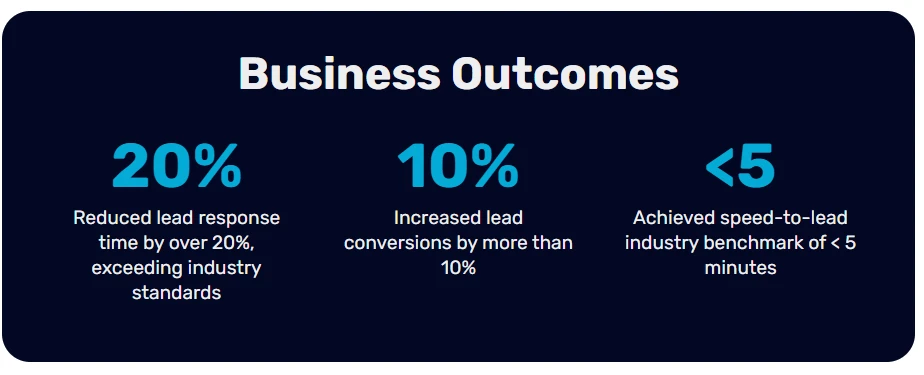
For support teams, that often means improving how cases are assigned, reassigned, and tracked against SLA expectations.
How Native Case Assignment Works in Salesforce
Salesforce includes a few built-in tools for case assignment. Each one handles a different part of the process, and many support teams end up using them together.
Assignment Rules
Assignment rules are usually where teams start. They help route incoming cases based on conditions you define, then send each case to a user or queue.
In practice, the setup is fairly simple. You create rules based on things like case priority, type, origin, or custom fields, and Salesforce checks those rules in order until it finds a match.
A few things are worth knowing:
- Only one assignment rule can be active at a time
- Rules run in order, from top to bottom
- Cases can be assigned to a user or queue
- Email notifications can be added
- Rules can run when a case is created and, in some setups, when it is updated
For example, you might send high-priority cases to a senior support queue or route enterprise customers to a dedicated team.
Setting up assignment rules is fairly quick:
- Go to Setup and search for Case Assignment Rules
- Create and activate a rule
- Add rule entries and choose where matching cases should go
- Test with a new case to make sure routing behaves the way you expect
For straightforward routing, assignment rules can handle quite a bit without extra setup.
Queues
Queues give support teams a shared place to hold cases before an agent takes ownership. You can route cases into queues through assignment rules, then let agents claim cases as they have time.
To set up a queue, you’ll usually:
- Go to Setup and search for Queues
- Create a new queue and name it
- Choose which objects the queue should support
- Add queue members
- Create list views so agents can see and claim cases
That said, queues can help keep work flexible, though they do come with tradeoffs as volume grows. Some agents move through cases faster than others, and without extra routing logic, work does not always get distributed evenly.
Escalation Rules
Escalation rules help when cases stay open too long. They watch for cases that meet certain conditions, then trigger an action after a set amount of time.
A common setup might look like this:
- After 2 hours, email the case owner
- After 4 hours, move the case to a senior support queue
- After 8 hours, notify a manager or director
Escalation rules can also account for business hours, so your timer can follow your actual support schedule instead of counting every hour on the calendar.
There are a few limits to keep in mind. Only one escalation rule can be active at a time, and escalation actions mainly support reassignment and email notifications. That can work for simple follow-up paths, but it may feel limited when you need Slack alerts, Teams notifications, field updates, task creation, or multiple SLA paths on the same case.
Where Omni-Channel Fits in
Salesforce Omni-Channel is another native option for routing work to agents. It works differently from assignment rules because it pushes cases to agents based on presence and capacity.
Instead of letting agents claim cases from a queue, Omni-Channel checks whether an agent is available and how much work they already have. Then it sends the case to someone who can take it.
Omni-Channel can be useful when your team needs:
- Presence-based routing
- Capacity checks before assignment
- Priority-based case distribution
- Supervisor visibility into agent workload
A common setup is to use assignment rules first, then let Omni-Channel handle the next step. For example, assignment rules might send a case into the right queue, and Omni-Channel can push that case to an available agent from there.
Still, Omni-Channel may not fit every team. It requires Service Cloud, depends on the Salesforce Service Console, and takes more setup than basic assignment rules. Skill-based routing is available, but it can add more configuration work. For teams that want flexible routing without that level of setup, a dedicated routing tool may be easier to manage.
Where Native Case Assignment Falls Short
Salesforce’s native tools can work well for basic case routing. The limits usually show up later, when your support process has more queues, more agent roles, or more rules to manage.
Rule Limits Can Get Tight
Salesforce places limits on how many rules and rule entries you can use. Each assignment rule can include up to 3,000 rule entries, which can become limiting when your routing depends on many products, regions, support tiers, or customer types.
There is also only one active case assignment rule at a time. That means your routing logic has to fit inside one active setup, which can become harder to maintain as your process grows.
Assignment Rules Only Cover Part of the Work
Salesforce assignment rules work for cases and leads. They do not route accounts, opportunities, tasks, or custom objects.
That can create extra work when support teams need related records assigned alongside cases. Instead of managing one routing process, teams often end up building separate automation in different places.
Advanced Routing Takes Extra Work
Native assignment rules can send a case to a user or queue, but they do not handle more advanced routing needs on their own.
For example, assignment rules do not automatically:
- Rotate cases evenly across agents
- Match cases to agents by skill or language
- Check an agent’s current workload
- Account for whether someone is unavailable
You can build around some of these gaps with custom automation, Omni-Channel, or Apex. The tradeoff is more setup, more maintenance, and more reliance on technical help.
Escalation Rules Have Limits Too
Escalation rules can help move cases when they sit open too long, but the actions are limited. They mainly support reassignment and email notifications.
That may be enough for simple escalation paths. It becomes harder when your team needs more flexible actions, such as Slack alerts, field updates, task creation, or different SLA paths for the same case.
Changes Depend on Admin Support
Updating assignment rules usually requires Salesforce admin access. That can slow things down when support operations needs to adjust routing quickly.
A new product, support tier, or team change may seem simple from the business side. But if every update has to go through an admin, routine routing changes can become a bottleneck.
When to Consider a Dedicated Case Assignment Tool
A dedicated tool may be worth considering when:
- Routing rules are getting hard to manage: New products, regions, or support tiers keep adding more complexity to your setup.
- Work is not being shared evenly: Some agents receive too many cases while others have room to take on more.
- You need smarter assignment logic: Your team may need round robin, skill-based routing, workload checks, or availability-based assignment.
- Routine updates take too long: Support ops has to wait on admins or developers for changes that should be quick.
- SLAs need stronger follow-through: Email notifications may not be enough when missed targets should trigger reassignment, alerts, or other actions.
- Unworked cases are slipping through: Cases can sit too long without an automatic way to move them to someone else.
- Related records need routing too: Accounts, tasks, or custom objects may need to move with the case instead of being handled separately.
- Omni-Channel feels too complex for your needs: The Service Cloud requirement, console dependency, or setup work may not fit how your team operates.
At that point, a purpose-built routing tool can make case assignment easier to manage. It helps your team keep routing logic in one place, reduce manual fixes, and respond faster when support needs change.
How Kubaru Handles Salesforce Case Assignment
When native Salesforce tools start feeling too limited, Kubaru gives your team a more flexible way to manage case assignment inside Salesforce.
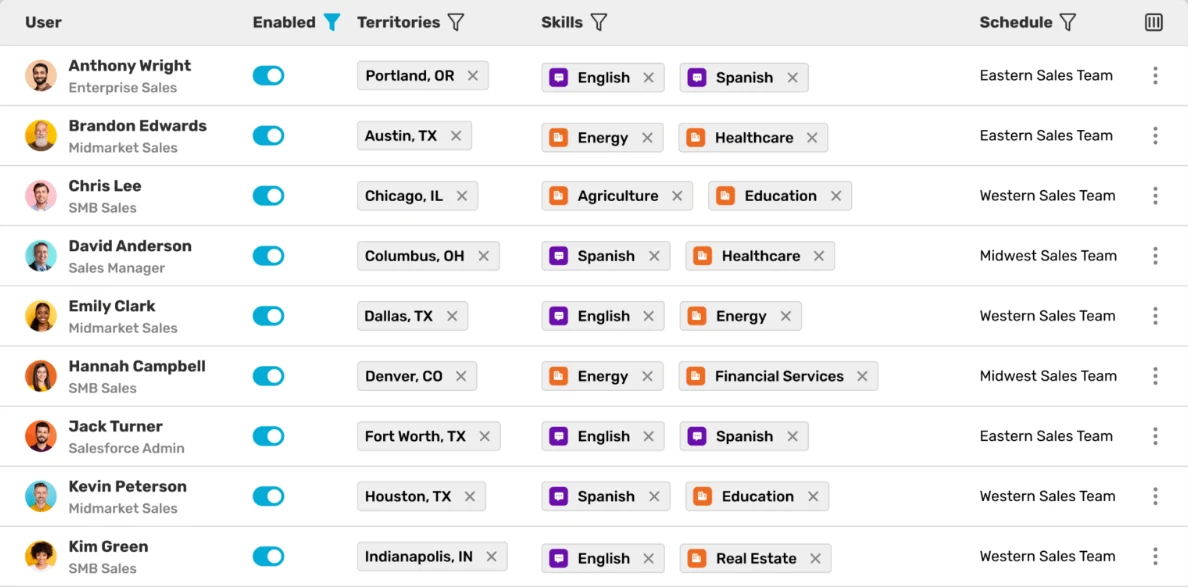
Kubaru is Salesforce-native and built specifically for routing and assignment. That focus helps support teams manage more detailed case routing without building custom workarounds or adding a larger platform they may not need.
Route Cases with More Control
Kubaru lets you route cases using the logic your support team already works with day to day. You can assign cases based on agent skills, current workload, availability, customer type, or other Salesforce fields.
That means you can:
- Use round robin or weighted round robin to share cases across the team
- Match cases to agents based on product knowledge, language, or custom skills
- Check agent capacity before assigning more work
- Avoid assigning cases to agents who are unavailable
- Combine multiple routing factors without worrying about rule caps
Keep Unworked Cases from Sitting Too Long
Case assignment does not stop once a case reaches an agent. You also need a way to catch cases that are not being worked.
Kubaru helps you set time-based reassignment rules, so a case can move to another agent when follow-up is delayed. You can also manage SLA policies with actions like reassignment, field updates, Slack or Teams alerts, and task creation.

Agents can see SLA details on the case page, while managers can monitor status from a central dashboard.
Give Support Ops More Control
Routing changes should not always require an admin ticket. With Kubaru, support ops managers and team leads can update assignment rules directly, without needing Salesforce admin access for routine changes.
Kubaru also keeps detailed assignment logs, so you can see when a case was assigned, who received it, and why that routing decision was made.
Route More than Cases
Support work often extends beyond the case itself. Kubaru can also route accounts, opportunities, tasks, and custom Salesforce objects using the same routing logic.
That gives your team one place to manage assignment across more of the work happening in Salesforce.
How Kubaru and Native Tools Compare
| Capability | Native Case Assignment | Kubaru | |----|----|----| | Criteria-based routing | Yes | Yes | | Round robin | Not supported | Standard and weighted | | Skill-based routing | Not supported | Yes | | Workload balancing | Not supported | Yes | | Availability awareness | Not supported | Yes | | Multi-object support | Cases and leads only | Any Salesforce object | | Rule entry limit | 3,000 per rule | Unlimited | | SLA enforcement | Basic escalation rules | Multi-SLA with advanced actions | | Escalation actions | Reassign and email only | Reassign, field update, Slack, Teams, task creation | | Assignment logs | Not available | Full audit trail | | Business user management | Requires admin access | Built for business users | | Pricing | Included with Salesforce | \$20/user/month, all features included |
Ready to Make Case Assignment Easier?
When case routing starts taking too much manual effort, your team needs a cleaner way to manage assignments inside Salesforce.

Kubaru helps you route cases with more flexibility, track SLAs, reassign unworked cases, and see exactly how each assignment happened. Support ops teams can also update routing rules without waiting on admin help for every routine change.
Kubaru is \$20 per user each month, with every feature included. You can try it free for 30 days on the Salesforce AppExchange, and we’ll help configure it around your current case routing setup at no cost.