

Quick Summary
Lead to account matching automatically connects incoming leads to existing accounts in your Salesforce database. When configured correctly, it identifies whether a new lead belongs to a current customer, populates the account relationship, and supports smarter routing.
Why Lead to Account Matching Matters
Leads from existing customers or prospects need different handling than new prospects.
They should route to the account owner, not a general sales queue. They represent expansion revenue, not new logo acquisition. But without matching, your team treats every lead as brand new and misses these distinctions.
This Kubaru guide covers how to configure Salesforce matching rules, test them against your data, and combine matching with automated assignment so leads route correctly from the moment they arrive.
Why Listen to Us

Over 100 companies use Kubaru to automate lead assignment in Salesforce. We see how matching decisions impact routing, conversion, and sales efficiency across different team structures and industries.
What Is Lead to Account Matching?
Lead to account matching is the process of identifying which leads belong to companies you already do business with. When a new lead comes in, Salesforce checks whether that person’s company matches an existing account in your database. If it does, the lead gets tagged with the account relationship.
The basic matching flow works like this:
- A lead enters Salesforce (from a web form, purchased list, or manual entry)
- Salesforce checks the lead’s company information against existing accounts
- If a match is found, the lead’s account field populates automatically
- Assignment rules, routing logic, and reporting can now use that account relationship
How Salesforce Lead to Account Matching Works
Salesforce doesn’t natively link leads to accounts. Leads and Accounts are separate objects with no built-in relationship. To connect them, you need to either use the Matched Leads component, duplicate matching rules, or build custom automation.
Native Duplicate Matching Rules
Salesforce’s duplicate management system uses matching rules and duplicate rules to identify potential duplicates. These work within the same object type:
- Standard Account Matching Rule identifies duplicate accounts
- Standard Lead Matching Rule identifies duplicate leads
- Standard Contact Matching Rule identifies duplicate contacts
These rules can surface when a lead’s company name matches an existing account, but they won’t automatically create a relationship between the records.
Matching Methods
Salesforce offers two matching methods for standard rules:
- Exact – Values must match character for character. “Acme Corp” won’t match “Acme Corporation” or “ACME CORP”.
- Fuzzy – Allows minor variations like different spacing, capitalization, or punctuation. “Acme Corp” matches “ACME CORP” and “Acme Corp.”
Custom matching methods using Apex are possible but require development resources.
Setting Up Lead to Account Matching
Native Salesforce duplicate management can identify when a lead’s company matches an existing account, but it won’t automatically link them. To actually populate an account relationship on lead records, you need to build a Flow or use a third-party tool.
This section covers both: configuring matching rules to surface potential matches, then connecting leads to accounts automatically.
Step 1: Review Your Matching Rules
Navigate to Setup > Matching Rules to see what’s already active. Salesforce includes standard matching rules for accounts, contacts, and leads. You can also create cross-object matching rules to match leads to contacts, leads to accounts, etc.
Step 2: Enable the Matched Leads Component
You can add the Matched Leads component to your Account Lightning pages. This displays leads whose Company field matches the Account Name, letting users convert them directly from the account record.
To add it:
- Open an Account record and click the gear icon > Edit Page
- Drag the Matched Leads component onto the page layout
- Save and activate
This is display-only. It surfaces matches but doesn’t create a lookup relationship on the lead record.
Step 3: Create a Custom Lookup Field
To actually link leads to accounts in your data model, create a lookup field on the Lead object.
- Navigate to Setup > Object Manager > Lead > Fields & Relationships
- Click New and select Lookup Relationship
- Choose Account as the related object
- Name the field (e.g., “Matched Account”)
- Complete the wizard and add the field to your page layouts
This field will store the account relationship once your matching logic populates it.
Step 4: Build a Record-Triggered Flow
Create a Flow that runs when leads are created (or updated) and matches them to accounts based on email domain or company name.
Basic matching logic:
- Extract the domain from the lead’s email address (e.g., “acme.com” from “jane@acme.com”)
- Query accounts where the Website field contains that domain
- If a match is found, populate the Matched Account lookup field
- If no domain match, fall back to comparing Lead Company to Account Name
To build this:
- Navigate to Setup > Flows and click New Flow
- Select Record-Triggered Flow
- Choose the Lead object and set it to run when a record is created
- Add a Get Records element to query Accounts where the domain matches
- Add a Decision element to check if an account was found
- Add an Update Records element to populate the Matched Account field
For detailed Flow configuration, Salesforce’s Flow Builder documentation covers the specifics.
Step 5: Test Your Matching
Before relying on matching in production, test with real examples:
- Find an existing account and note its name and website domain
- Create a test lead with an email address using that domain
- Check whether the Matched Account field populated correctly
- Test edge cases: minor spelling variations, different capitalization, missing website data
Document which scenarios work and which don’t. This tells you whether you need fuzzy matching (which requires Apex or third-party tools) or if exact matching is sufficient for your data quality.
Advanced Matching Strategies
Integrating Matching with Lead Assignment
Matching tells you which leads belong to existing accounts. But that information is only valuable if your routing acts on it.
Native Salesforce assignment rules can’t route based on account ownership, which means matched leads still end up in general queues instead of going to the rep who owns the relationship.
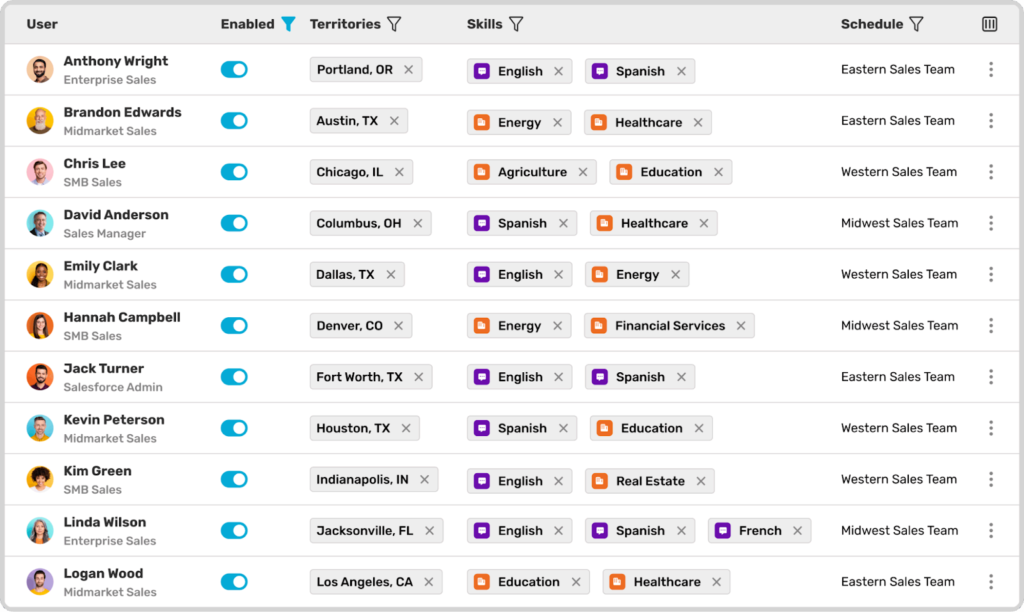
Kubaru solves this with router types built specifically for account-based routing:
- User Lookup Routers route leads directly to the matched account’s owner. When a lead enters Salesforce and matches to an existing account, Kubaru reads the account owner field and assigns the lead to that rep automatically.
- Overflow Behavior handles edge cases that would otherwise create unassigned leads. If the matched account has no owner, or the owner is out of office, Kubaru can continue evaluation to the next router, hold the record until someone is available, or assign it to a backup user or queue.
- Territory routing ensures matched leads follow account territory assignments rather than lead-level geography. A lead with a US phone number from a UK-headquartered account routes to the EMEA team who owns that account, not the US team who would get it based on phone number alone.
The combination of matching plus intelligent routing means leads reach the right person in seconds, with full context about the existing relationship, without anyone manually checking account ownership or reassigning records.
Matching on Multiple Fields
For higher accuracy, match on combinations of fields rather than company name alone. This reduces false positives where different companies have similar names.
Common multi-field strategies:
- Company + Website – Catches variations in company name formatting while ensuring it’s actually the same company. Works well when website data is clean.
- Company + Domain – Use a formula field to extract the domain from email addresses (e.g., “example.com” from “john@example.com”). Match lead email domain to account website domain. More reliable than matching full websites since email domains are more standardized.
- Company + Phone – Adds phone number as a matching criterion. Less reliable due to data quality issues with phone numbers but can help when other fields are ambiguous.
- Company + Address – Match on city, state, or postal code along with company name. Useful for distinguishing between franchises or locations of the same brand.
To implement multi-field matching, add additional matching criteria to your rule. Set the rule to require all criteria to match (AND logic) for strictest matching, or any criteria (OR logic) for more flexible matching.
Handling Subsidiaries and Corporate Hierarchies
Many companies have complex ownership structures. How you handle leads from subsidiaries depends on your sales model.
If you treat subsidiaries as part of the parent account, match leads to the parent. Add subsidiary names as additional matching criteria or maintain a list of known subsidiary-to-parent relationships.
If you treat subsidiaries as separate accounts, ensure your matching rules don’t incorrectly group them. Add disambiguating fields to your matching criteria (like address or department) to keep subsidiary leads separate.
For account hierarchies in Salesforce, you can:
- Match leads to the most specific account (the subsidiary)
- Create a process that surfaces the parent account relationship to the assigned rep
- Route based on the parent account’s owner while maintaining the subsidiary account connection
Custom Matching Logic with Apex
For complex matching scenarios, custom Apex code offers complete control. This requires development resources but solves problems standard rules can’t handle.
Common use cases for custom matching:
- Industry-Specific Variations – If your industry has non-standard naming conventions (e.g., healthcare with abbreviations like “St. Mary’s Hospital” vs “Saint Mary’s Hospital”), custom logic can normalize these before matching.
- Multiple Criteria with Weighted Scoring – Instead of requiring exact matches on all fields, implement a scoring system where matches on company name score higher than matches on website, and total score above a threshold creates the match.
- External Data Sources – Query external databases or APIs to verify company information before matching. This works for companies using data enrichment services like Clearbit or ZoomInfo.
Custom Apex matching typically runs as a trigger or invocable action, separate from native duplicate management. Most teams find this overkill unless they have highly specific matching requirements that Flow can’t handle.
Lead to Account Matching Without Manual Work
Effective matching requires automation that runs at lead creation, not manual cleanup after the fact. When configured properly, matching happens invisibly as leads enter your system.
The standard Salesforce matching rules handle basic scenarios, but most teams need customization to match their data quality and business processes. Start simple with company name matching, test thoroughly, then add complexity only where needed. For a deeper look at routing options, see our guide to the best Salesforce lead routing software.
If you’re ready to automate both matching and assignment so leads route correctly from the moment they arrive, see how Kubaru handles it. Schedule a demo and we’ll walk you through the process.