

Quick Summary
Salesforce Assignment Rules decide who receives new leads and cases as they enter your system. This guide shows you how they work, how to set them up, and how to choose the right rule mix for your team. If you need more flexibility than standard rules provide, Kubaru offers a native, business-friendly way to automate complex assignment logic.
What Are Salesforce Assignment Rules
Assignment rules are a standard feature in Salesforce used to automate the assignment of leads and cases. They decide who should own each record the moment it’s created, using criteria you define. This automation can help save time, reduce manual work, and keep your team organized, but it also comes with notable limitations you’ll want to be aware of.
In this article, we’ll discuss the benefits and limitations of Salesforce assignment rules so you can decide if they make sense for your organization. We’ll also share advice and guidance on how to effectively configure assignment rules.
The Benefits of Assignment Rules
Salesforce assignment rules are a powerful tool designed to streamline the distribution and management of leads and cases within an organization. By automating the assignment process, these rules ensure that leads and cases are instantly assigned to the most appropriate team members based on specific criteria such as product interest, priority, and geographic location. This targeted approach helps to improve your speed to lead, balance workload, improve team performance, and increase customer satisfaction. The use of assignment rules in Salesforce, therefore, represents a strategic advantage for businesses looking to optimize their sales and support workflows, ultimately driving growth and customer loyalty.
Limitations of Salesforce Assignment Rules
While Salesforce assignment rules offer significant advantages, they also have limitations that organizations should be aware of:
- Limited to leads and cases: One of the most significant limitations of Salesforce assignment rules is the inability to assign standard or custom objects beyond leads and cases. This restriction often prompts organizations to look for an alternative solution that can assign any object, like Kubaru.
- Lack of round robin assignment: They do not support round robin assignment, which is essential for most modern sales and support teams. Instead, each rule assigns records to a specific user or queue you designate.
- Lack of workload-based assignment: They don’t consider the existing workload of team members, potentially leading to an uneven distribution of leads and cases. This can result in slow response times and employee burnout.
- Lack of availability-based assignment: They don’t consider the availability of team members, resulting in leads and cases being assigned to team members that are away from work or otherwise unavailable.
- Difficult to maintain: Assignment rules can quickly become difficult to manage—even for small teams with simple assignment logic. Here’s an example of what a small portion of a typical assignment rule looks like:
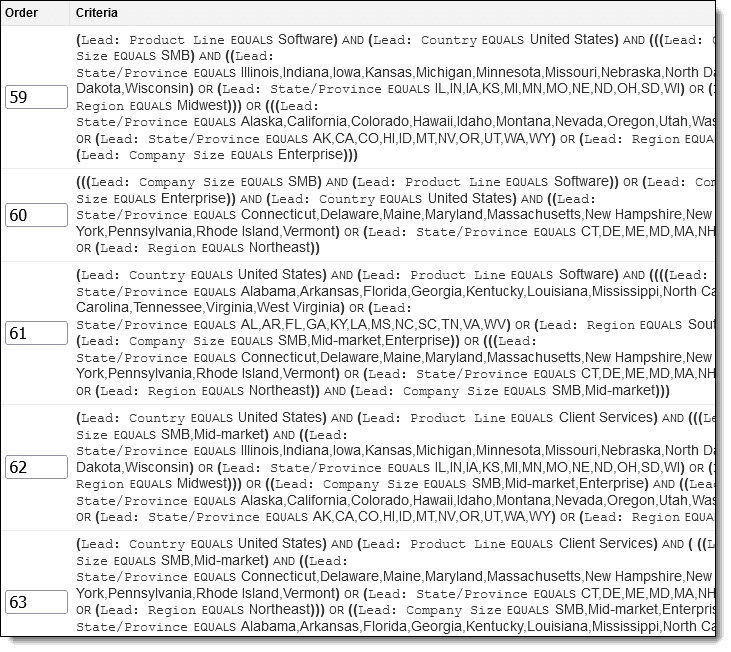
Assignment rules can still be very useful despite these limitations. Continue reading to learn how assignment rules can be used to optimize your lead and case routing process.
How Assignment Rules Work
An assignment rule is a collection of conditional statements known as assignment rule entries. Each assignment rule entry contains one or more conditions and a user or queue to whom matching records will be assigned.
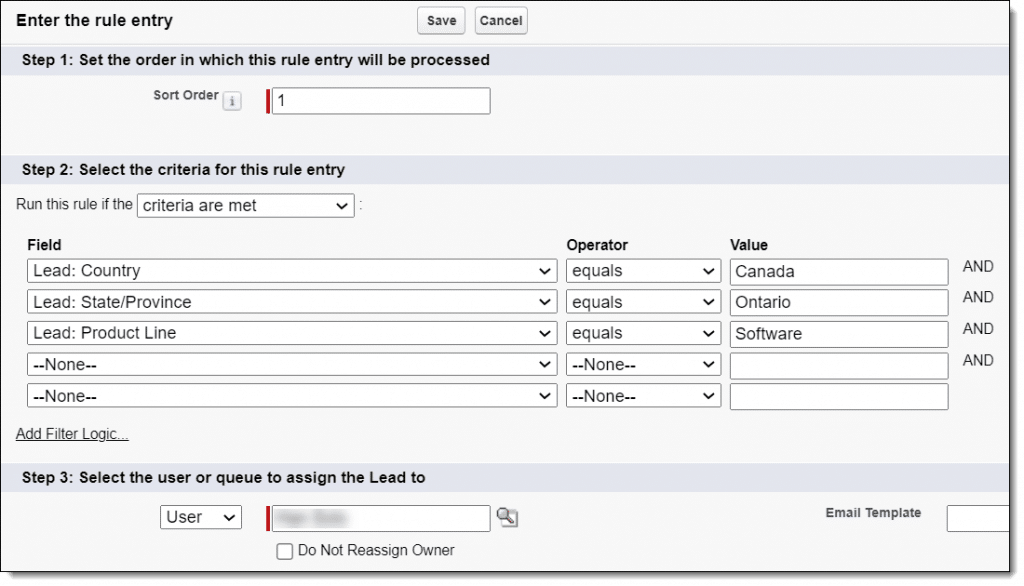
The Sort Order field can be used to change the order in which assignment rules are executed. Leads and cases will be evaluated against assignment rule entries in order and assigned by the first assignment rule entry that matches.
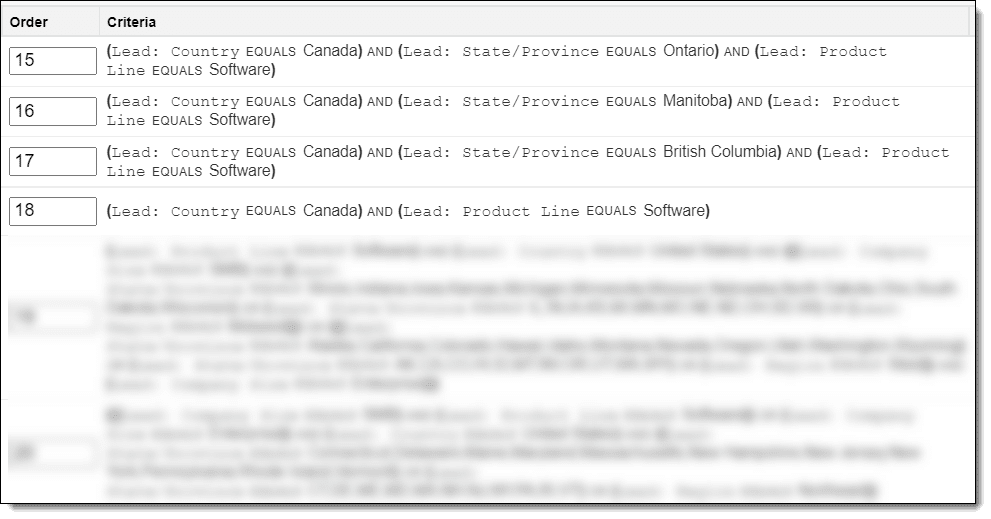
In the example above, we’ve prioritized our rules for Canada provinces (e.g., Ontario) higher than our country-wide Canada rule entry to ensure that leads from specific provinces don’t get assigned to the wrong person.
Next, we’ll step you through how to actually create an assignment rule.
How to Create Salesforce Assignment Rules
You’ll need the “Customize Application” permission in order to manage assignment rules. If you don’t have this permission, contact your Salesforce administrator.
Ready to create your first assignment rule? Follow these steps:
- Log in to Salesforce.
- Navigate to Setup.
- Search for “assignment rules” in Quick Find and click either Lead Assignment Rules or Case Assignment Rules. If you’re configuring case rules for a support team, our full guide to building a Salesforce ticketing system covers the queues, fields, and routing setup end to end.
- Click New to create a new rule.
- Name your rule and then click Save. We recommend leaving the Active box unchecked for now.
Now you’re ready to specify how leads or cases will be assigned.
- Click on the rule you created.
- Click New to create a rule entry.
- Fill out the following:
- Sort Order: this controls the order in which rules are executed.
- Criteria: you can enter one or more filters to define which records should be assigned by this rule.
- Owner: choose a user or queue to which records should be assigned.
- Do Not Reassign Owner: check this box if you don’t want the rule to change the record’s owner. This is helpful if you want to create rules that exclude certain records from being assigned.
- (Optional) Select an email template for notifying users of assignments.
- Click “Save.”
- Repeat the above steps for any additional rule entries.
Activate Your Assignment Rule
You can follow these steps to activate your assignment rule:
- Navigate to your assignment rule.
- Click the Edit
- Check the Active
- Click Save.
Keep in mind that only one assignment rule can be active at a time. We’ll discuss how your active assignment rule can be used to assign records in the next section.
When do Salesforce Assignment Rules Run
There is often some confusion about how and when assignment rules run. There are a few different ways these rules can be triggered:
- Creating a New Record: When a new lead or case is created, either manually or through an automated process, assignment rules can be triggered to assign the record to the appropriate user or queue.
- Updating a Record: If a record is updated and meets certain criteria set in the assignment rules, this can also trigger the reassignment of the lead or case.
- Web-to-Lead or Web-to-Case Submission: When leads or cases are generated through Salesforce’s web-to-lead or web-to-case features, assignment rules can automatically assign these incoming records.
- Data Import: When importing data into Salesforce, you can opt to apply assignment rules to the imported records, ensuring they are assigned according to the established criteria.
- API Creation or Update: Records created or updated via Salesforce’s API can also trigger assignment rules, depending on the configuration.
- Apex Triggering: It’s possible to run Salesforce assignment rules from Apex triggers. See Salesforce’s article on how to do this using the Database.DMLOptions class.
- Manual Triggering: Users with the appropriate permissions can manually apply assignment rules to leads or cases, either individually or in bulk.
Understanding these triggers is essential to effectively utilizing assignment rules in Salesforce, ensuring that leads and cases are assigned to the right team members promptly and efficiently.
It’s also important to understand the lead and case assignment rule order of execution. Assignment rules are run after apex triggers and before workflow rules.
Tips and Tricks
Before you build out your rule entries, it helps to follow a few simple best practices that keep your assignment logic clean and predictable.
- It’s always a good idea to include a final rule entry with no conditions. This will be used to catch anything that didn’t match your rule criteria and assign it to a user or queue for review.
- It’s also a good idea to include a rule entry that assigns junk (e.g. spam, test records, etc.) to a queue for review and deletion.
- We recommend you test assignment rules in a sandbox before you add to your production org. However, keep in mind that assignment rules cannot be deployed from a sandbox to a production org.
- Custom formula fields can help to simplify complex assignment rules. For example, rather than entering lengthy criteria (e.g., lists of states by region) you could create a formula field instead. This would reduce your criteria from “STATE/PROVINCE EQUALS IL, IN, IA, KS, MI, MN, MO, NE, ND, OH, SD, WI” to “REGION EQUALS Midwest”.
- You can enable field history tracking on the owner field to track assignments made by your assignment rules.
Common Lead Distribution Models Beyond Salesforce’s Built-In Rules
We’ve already covered the limits of Salesforce Assignment Rules, especially when your team needs modern routing logic. That raises an obvious question: what do dedicated assignment platforms, like Kubaru, offer that Salesforce doesn’t? To answer that, let’s look at the common types of lead assignment models teams use today and how they work in practice.
Round Robin
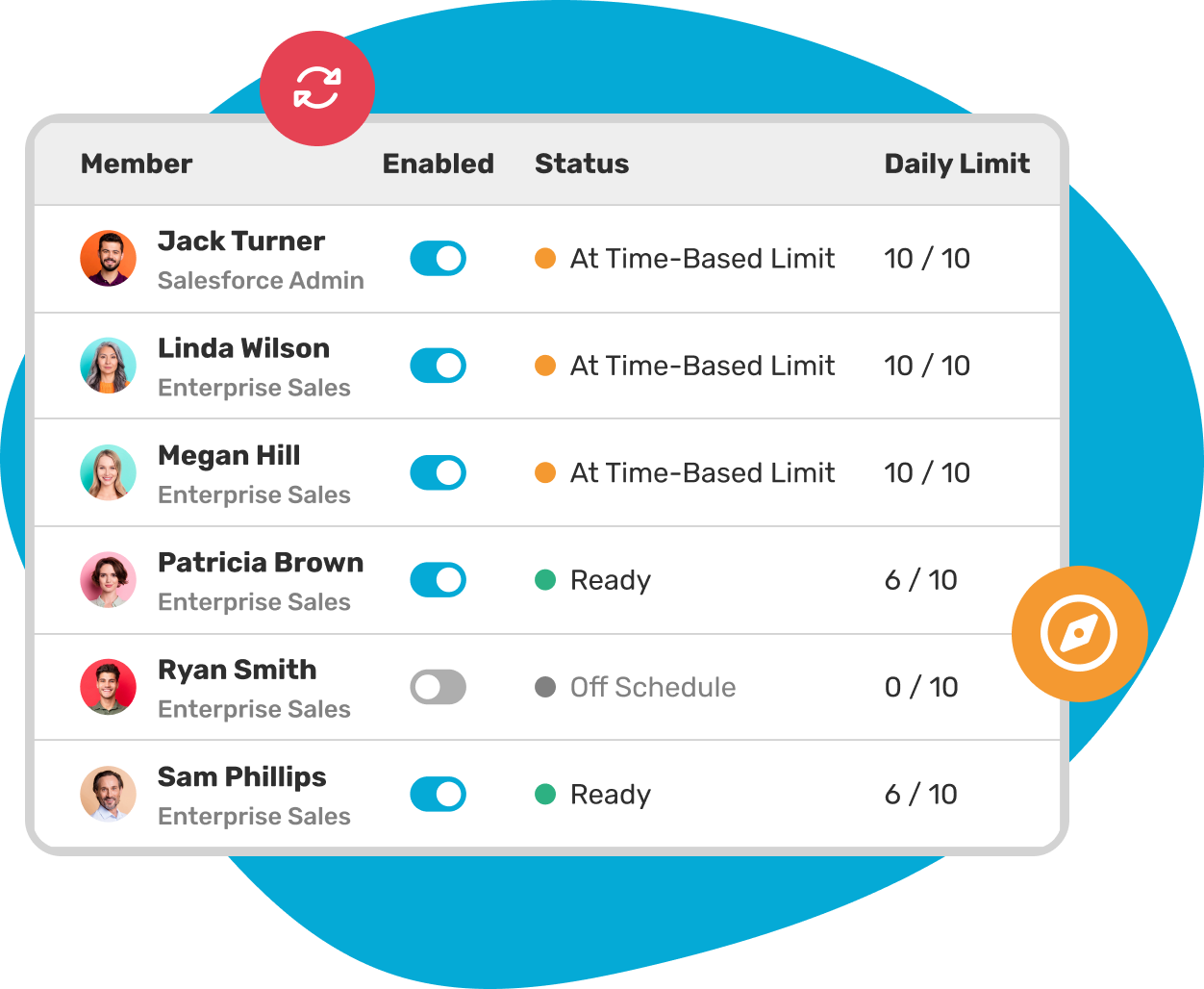
Round robin is the simplest way to distribute new leads. It works by sending each lead to the next rep in a fixed sequence. When the last rep gets a lead, the cycle starts again. This keeps things fair and gives each rep an equal chance at new opportunities.
When to use it
- Small or mid-sized teams with similar capacity.
- Teams that need even distribution without special conditions.
- When you want a simple, low-maintenance assignment setup.
Pros
- Easy to understand.
- Helps avoid disputes over lead ownership.
- Good starting point before adding more complex rules.
Cons
- May overwhelm slower or newer reps if volume spikes.
Weighted Round Robin
Weighted round robin works like standard round robin, but each rep gets a “weight” that decides how many leads they should receive over time. Reps with higher weights get more leads, letting you adjust the flow without abandoning the fairness of a set sequence.
When to use it
- Teams with full-time and part-time reps.
- When senior or high-performing reps should receive more leads.
- When you want flexible fairness.
Pros
- Balances equal distribution with capacity differences.
- Easy to adjust as team size changes.
- Works well for high-volume inbound teams.
Cons
- Requires periodic tuning to stay effective.
Load Balancing
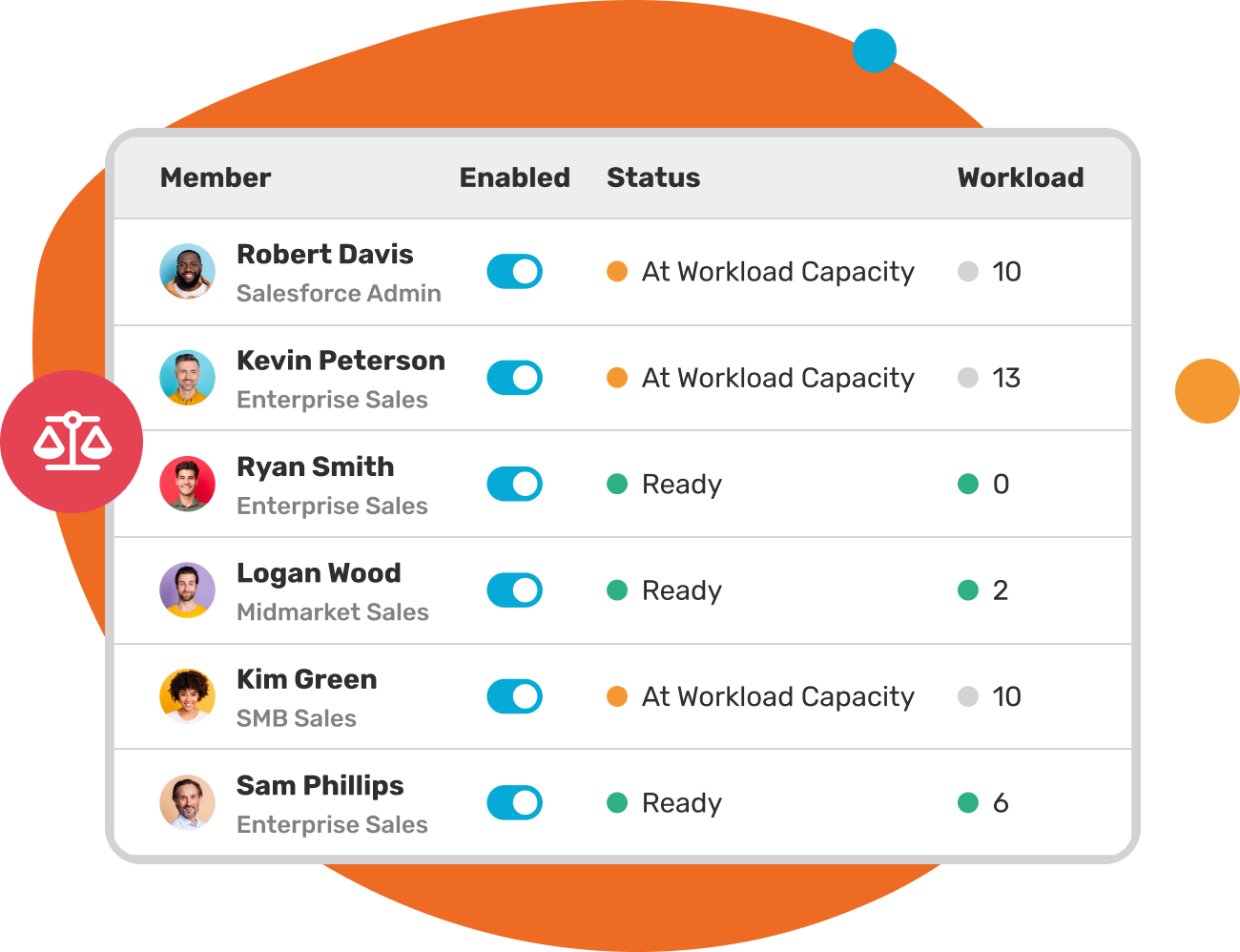
Load balancing looks at how many active leads each rep already has and sends new ones to whoever has the lightest load.
It’s a simple way to prevent overload and keep response times steady. Teams with large queues or strict SLAs often rely on this model because it stops sudden spikes from piling up on one person.
When to use it
- High-volume sales or support teams.
- When agent burnout or queue imbalance is common.
- When lead handling time varies.
Pros
- Keeps rep workload even.
- Improves response time and SLA compliance.
- Reduces missed or neglected leads.
Cons
- Needs clear rules defining “active” vs “completed.”
- Requires clean data to stay reliable.
Territory-Based Assignment
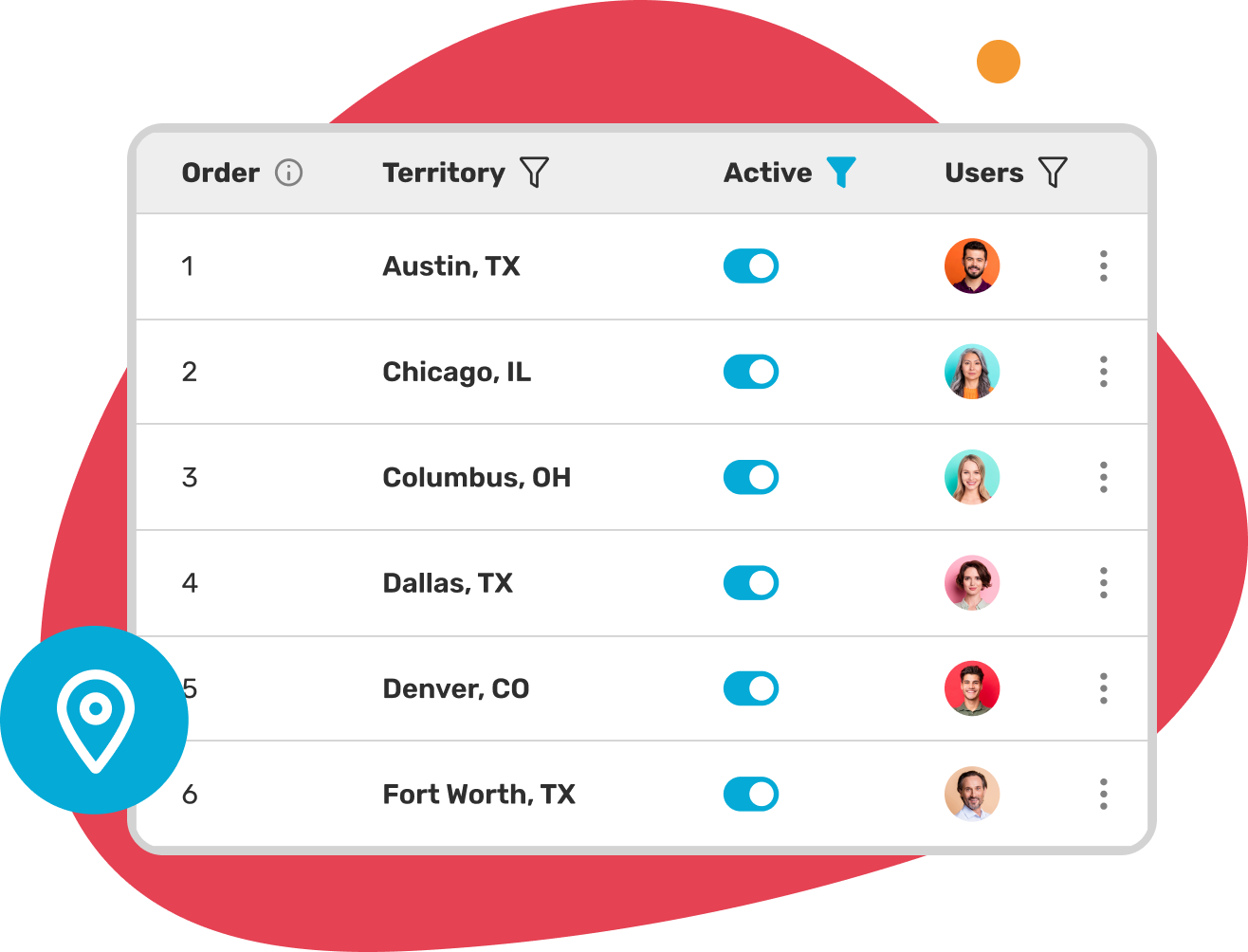
Territory-based assignment uses geography or region data to assign leads. This often includes ZIP code, state, country, or custom territory definitions. It ensures local reps handle local leads, which is key for field sales, regional quotas, or regulated industries.
When to use it
- Regional sales teams.
- Teams with strict geographic ownership rules.
- When account ownership is tied to region.
Pros
- Maintains territory fairness.
- Supports regional expertise.
- Helps with compliance in regulated markets.
Cons
- Needs accurate and updated territory data.
- Territories must be reviewed as teams grow.
Skill-Based Assignment
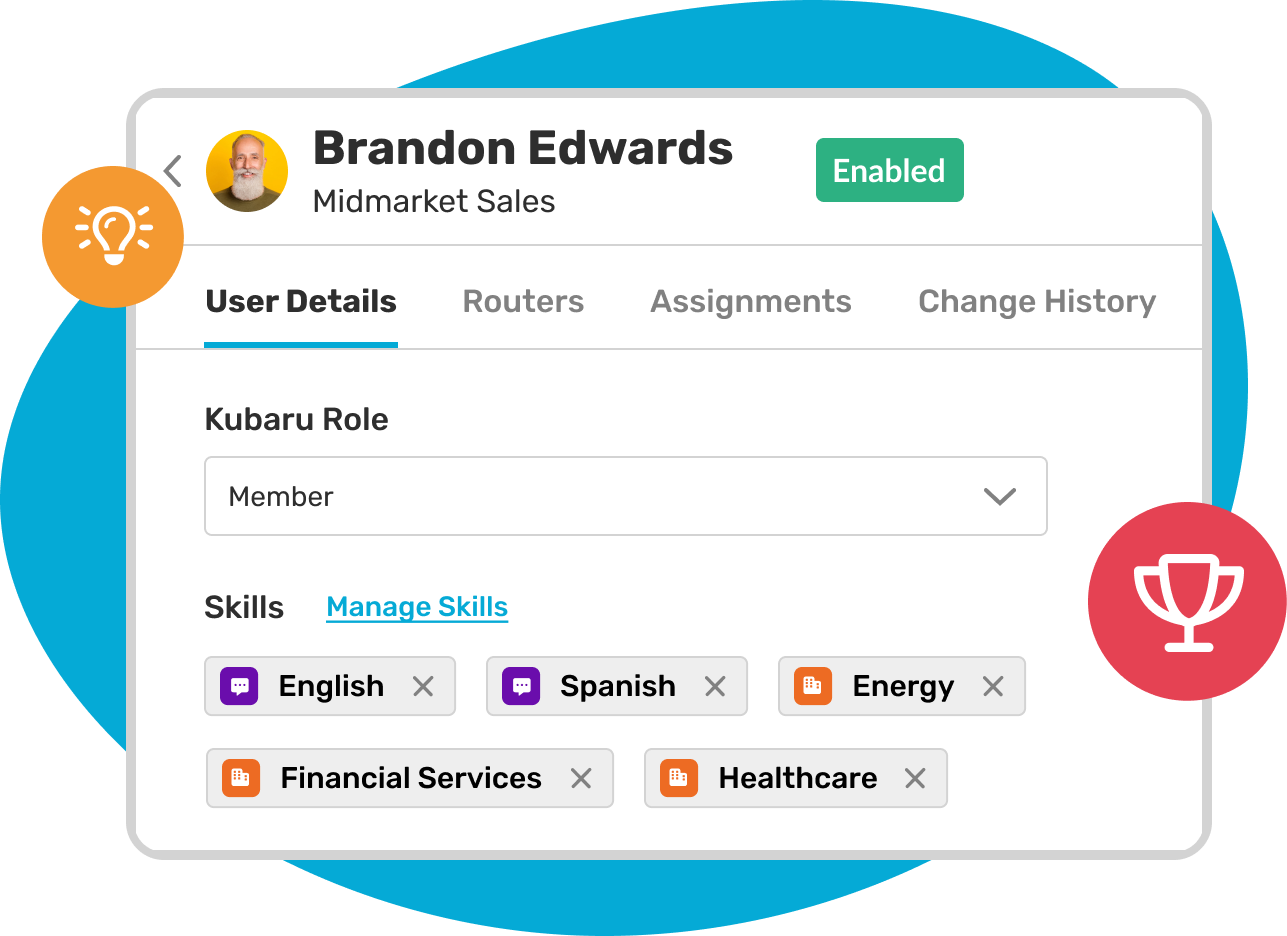
Skill-based assignment routes leads to reps with the right expertise, whether that’s product knowledge, a specific language, or industry experience. You’ll see this approach a lot in SaaS, technical sales, healthcare, and multi-language teams. For a step-by-step setup walkthrough, see our guide on how to set up skill-based routing in Salesforce.
When to use it
- Teams with specialists or product experts.
- When language or industry expertise matters.
- For high-value or technical leads.
Pros
- Improves lead quality and customer experience.
- Increases first-touch resolution.
- Helps convert complex or high-value leads.
Cons
- Needs ongoing maintenance of skills and tags.
- Can unevenly load specialists if not paired with workload rules.
Priority-Based Assignment
Priority-based assignment uses urgency, channel, score, cost, or SLA status to move certain leads to the front of the line. You can define “high priority” using fields like lead score, lifecycle stage, or marketing source.
When to use it
- When certain leads must be handled first.
- Paid campaigns or enterprise inbound.
- SLA-driven teams.
Pros
- Protects high-value opportunities.
- Ensures fast responses to urgent inquiries.
- Reduces lost revenue from slow follow-up.
Cons
- Needs a clear priority framework.
- Too many “high priorities” reduce effectiveness.
Duplicate or Owner-Matching Assignment
Duplicate or owner-matching rules identify similar or returning leads and assign them to the same rep who handled them before. This keeps context intact and limits customer confusion.
When to use it
- When repeat leads must go to the same owner.
- To maintain clear follow-up and history.
- To avoid conflicting outreach.
Pros
- Improves customer experience.
- Keeps communication consistent.
- Reduces rep conflict.
Cons
- Relies on accurate duplicate detection.
- May require tuning for fuzzy matches.
Claim-Based Assignment (Shark Tank)
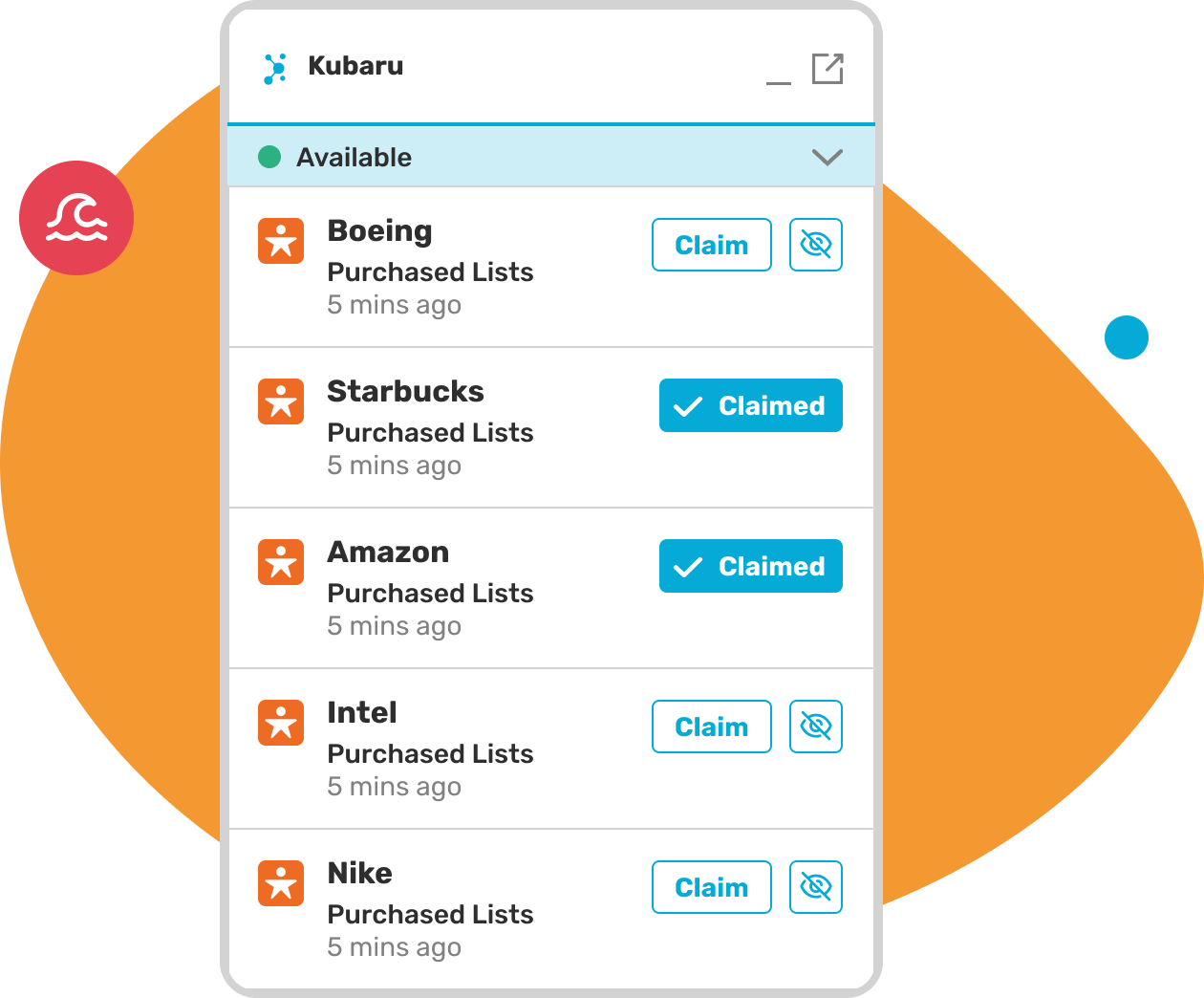
Shark Tank places new leads into a shared pool. Reps “claim” leads first-come, first-served. It increases urgency and ensures fast handling during spikes. This model works best when reps move quickly and lead quality is consistent.
When to use it
- High-volume teams.
- When reps should choose what they work on.
- When speed and competition matter.
Pros
- Fast intake during traffic spikes.
- Encourages proactive reps.
- Keeps leads from piling up.
Cons
- Can enable cherry-picking.
- Needs limits or supervision.
Auto-Reassignment and Escalation
Auto-reassignment moves leads to a new rep if the original owner hasn’t acted within a set window. Some teams pair this with escalation rules that push time-sensitive leads to senior reps when needed.
When to use it
- To protect SLAs.
- When leads frequently sit unworked.
- When teams have mixed speed or workload.
Pros
- Stops leads from going cold.
- Protects conversion and revenue.
- Helps teams stay on track during high volume.
Cons
- Needs careful timing for the reassignment window.
- Must avoid bouncing leads too often.
That said, no single method fits every situation, so it helps to build a mix that matches how your team works and how your leads tend to behave. Start with something simple, then add layers as you learn what actually improves speed and conversion.
An assignment platform like Kubaru can make these mixed models easier because you manage everything in one place. You can combine rules, set limits, adjust availability, and track results without writing code or waiting for admin changes. As your team grows, your rule mix grows with you.
How To Choose the Right Lead Assignment Solution
Choosing the right lead assignment solution starts with understanding what your team needs today and what it will need as it grows. Look at how leads enter your system, how fast reps respond, and where bottlenecks happen.
Simple setups can start with basic assignment rules, but teams with higher volume, multiple territories, or specialist reps need something that supports more control and flexibility. The goal is to pick a tool that keeps leads moving, protects response times, and helps Sales Ops adjust rules without waiting on developers.
A good solution should make it easy to assign leads based on skills, territory, workload, and priority. It should scale as your team grows and give you clear visibility into why each lead went where it did.
Consider tools that help you:
- Update assignment logic quickly when teams change.
- Support multiple rule types, not just one.
- Limit rep workload and skip unavailable reps.
- Record assignment logs for audits and coaching.
- Assign any object, not just leads.
The right choice is the one that keeps your pipeline moving and gives your team the control it needs without adding more complexity.
Platforms built for assignment, like Kubaru, simplify this because everything happens in one place and runs natively on Salesforce.
Frequently Asked Questions
How do you view active Salesforce assignment rules?
To view assignment rules, go to Setup, type “Assignment Rules” in the Quick Find box, then choose either Lead Assignment Rules or Case Assignment Rules. You’ll need the View Setup and Configuration permission to view assignment rules. Additionally, you’ll need the Customize Application permission to edit assignment rules. Contact your Salesforce administrator if you do not have these permissions.
What are the different types of assignment rules in Salesforce?
Salesforce currently supports lead and case assignment rules. Additionally, account assignment rules can be created as part of enterprise territory management.
What happens to records that don’t meet Salesforce assignment rule criteria?
These records will be assigned to whoever is designated as the default lead owner or case owner.
What is the order of execution for Salesforce assignment rules?
It’s important to understand exactly when lead and case assignment rules are run in relation to other events. For example, assignment rules are run after apex triggers and before workflow rules. See Salesforce’s Triggers and Order of Execution article for a comprehensive list of events and the order in which they’re executed.
How do you run assignment rules when creating or editing records using the REST API?
You can use the Sforce-Auto-Assign header when making REST API calls to control whether or not assignment rules run.
Do Salesforce lead and case assignment rules work with enterprise territory management?
No, it’s not possible to assign leads and cases based on the territories you’ve configured in Enterprise Territory Management. ETM is only compatible with the Account and Opportunity objects. However, Kubaru includes powerful territory management features that can be used to assign leads, cases, and other objects.
Can you bulk import/export Salesforce assignment rules?
This is possible using the metadata API. However, it requires knowledge of coding. For a simpler and more powerful alternative, give Kubaru a try.
Which editions of Salesforce support assignment rules?
Salesforce assignment rules are compatible with Group (lead only), Essentials (lead only), Professional, Enterprise, Performance, Unlimited, and Developer editions.
When should you check “Do Not Reassign Owner”?
You should check “Do Not Reassign Owner” when you want to prevent records that meet the criteria from being reassigned. For example, you might create a rule with a condition for “ISNEW() = FALSE”, to ensure that your assignment rules don’t reassign existing records.
How do Account assignment rules work?
Account assignment rules in Salesforce are used with Enterprise Territory Management to automatically assign accounts to territories based on defined criteria (e.g., industry, region, revenue). Unlike lead or case assignment rules, which assign records directly to users or queues, account assignment rules do not assign ownership—they determine which territory an account belongs to.
Need More Control Than Standard Rules Allow?
Salesforce assignment rules work well for simple, predictable workflows, but they can fall short as teams grow, territories shift, and routing needs become more complex. Understanding these limits helps you decide whether standard rules are enough or if you need more flexibility and control. Kubaru gives you advanced assignment control inside Salesforce without code and without the constraints of standard rules. Check us out on the Salesforce AppExchange or contact us to schedule a demo.